


How to Clean Tablet: Expert Tips to Keep It Like New
Your tablet is probably dirtier than your toilet seat right now. I'm not saying that to gross you out that's just what happens when you touch a glass screen hundreds of times a day with hands that've touched door handles, fast food bags, and everything in between.
Learning how to clean a tablet properly is one of those things most people skip until something's visibly wrong. But cleaning it the wrong way, paper towels, Windex, spraying water directly on the screen, can strip the oleophobic coating, leave scratches, or push moisture into the charging port. None of those are cheap fixes.
At Fusion5, we've built and sold thousands of Windows tablets and laptops in the US, and one of the most common support questions we get is some version of "I tried to clean my screen and now it looks worse." This guide exists so that doesn't happen to you.
Why It Matters More Than You Think
Here's the thing: most tablet damage isn't from drops. It's from slow neglect.
Oils from your fingers bond to the screen's oleophobic (anti-fingerprint) coating and, over time, degrade it. Dust that gets into the charging port can cause charging failures. Grit near the screen edge can cause micro-scratches every time you wipe it with a sleeve. And if you share your tablet with kids or use it in public spaces, the germ load builds fast. A 2019 study from the University of Arizona found the average tablet carries roughly 10 times the bacteria of a toilet seat.
Regular cleaning protects your investment. A $500–$800 Windows tablet like the ones we make at Fusion5 should last you 5+ years with proper care. Cleaning is a big part of that.
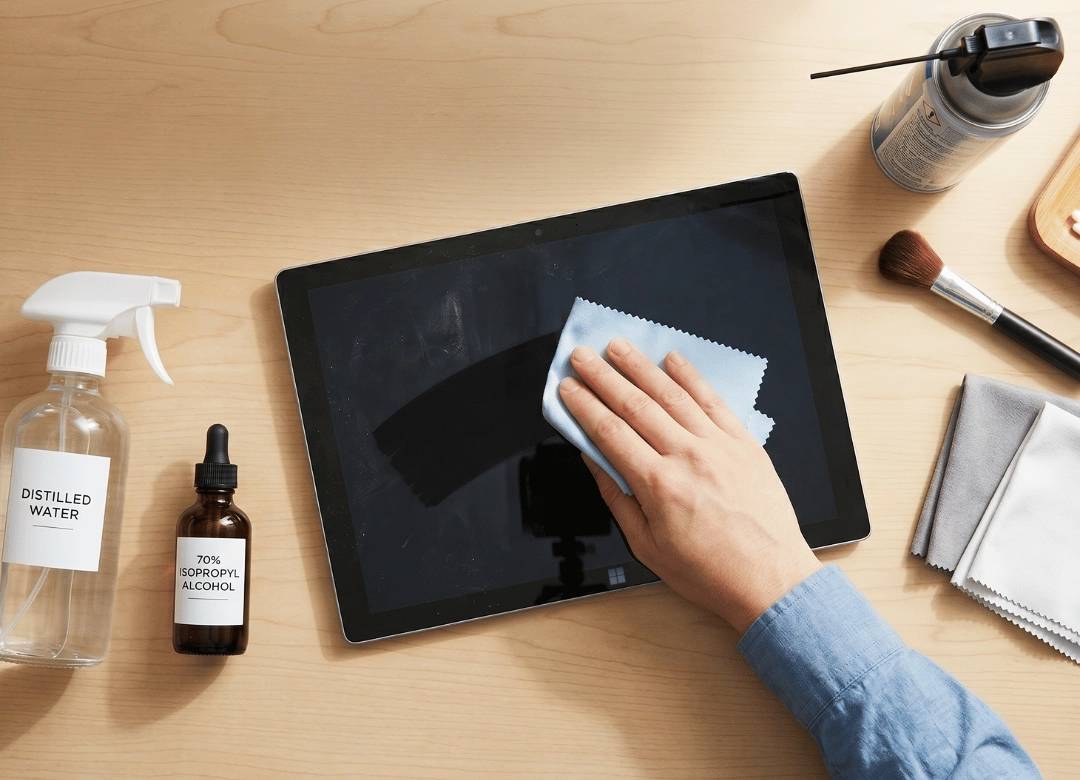
What You'll Actually Need
Don't overcomplicate this. You don't need a $40 "screen cleaning kit" from Amazon.
Here's the honest list:
Essential:
- 2–3 microfiber cloths (lint-free; the kind that come with glasses work great)
- Distilled water (tap water leaves mineral streaks it's worth the $1/gallon)
- 70% isopropyl alcohol (from any drugstore; $3–5)
Nice to have:
- A can of compressed air (for ports and speaker grilles)
- Cotton swabs or foam swabs
- A soft-bristle brush (like a clean, dry paintbrush)
That's it. The fancier products aren't necessary and some are actually harmful. Ammonia-based cleaners, for example, are a specific problem more on that below.
Before You Touch Anything
Every time, without exception: power off your tablet and unplug everything before you start cleaning.
This isn't just about safety. A powered-off screen shows smudges and dust better you'll actually do a more thorough job. Remove the case, unplug the charging cable, detach any keyboard, and pull out the stylus.
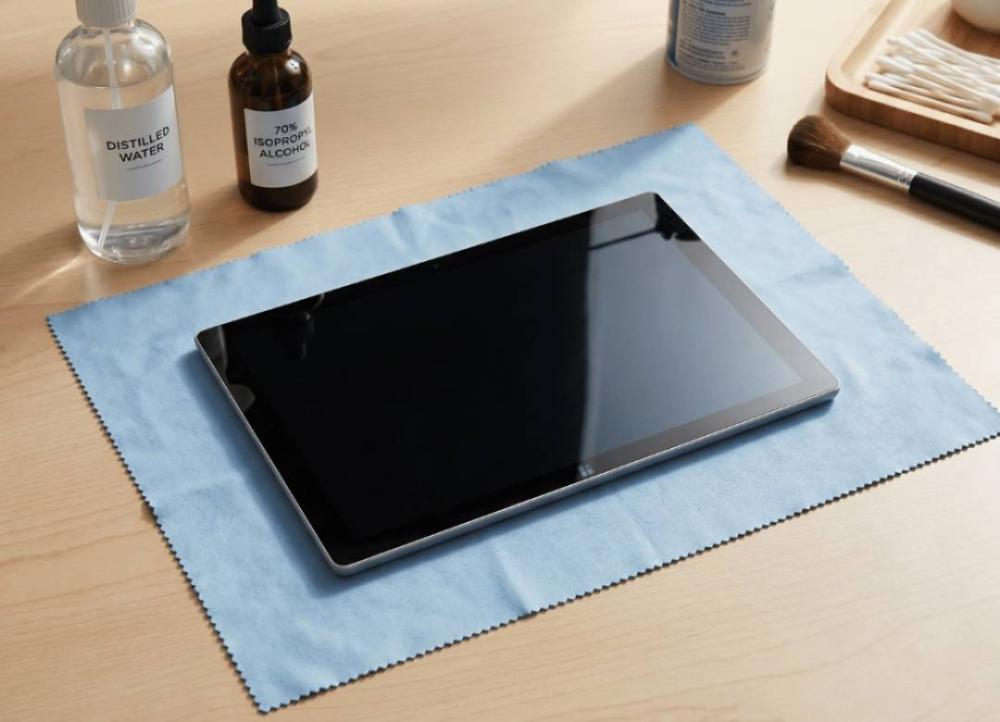
Lay the tablet on a flat, soft surface. A folded microfiber cloth on a table works perfectly. You want the device stable and the screen lit with indirect light so you can see where the smudges actually are.
How to Clean a Tablet Screen
The screen is the most fragile element and the one that is most frequently touched. Here’s what needs to be done step-by-step:
Step 1: Always Dry Wipe the Screen First
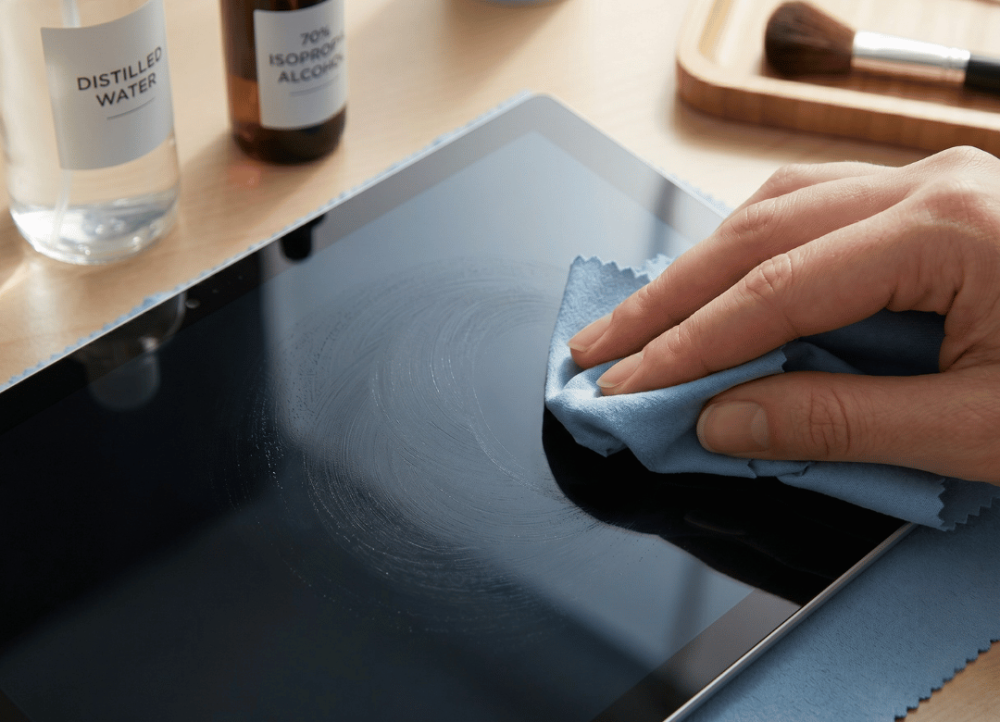
Take a clean, dry microfiber cloth and slowly wipe the screen of your tablet using soft circular motions. This way, you will be able to remove loose dust and fingerprints without using any kind of liquid yet. For many people, this method is sufficient for day-to-day maintenance cleanings.
Don’t apply too much pressure. It’s important to aim to lift the oils off the glass surface rather than just push it all around.
Step 2: Use Liquid for Harder Smudges
If there are still streaks left after you’ve completed the first step, you need to mix up an equal mixture of distilled water and 70% isopropyl alcohol in a small spray bottle. Spray a bit of solution onto the microfiber cloth, but not on the screen itself. It should be slightly moistened, not wet.
Then, wipe your screen slowly in horizontal passes from the top to the bottom. Once or twice is enough.
Step 3: Wipe Dry Right Away
Immediately afterwards, use a new clean and dry microfiber cloth to get rid of any remaining moisture. This way, you won’t leave any streaks behind, plus you will prevent the liquid from seeping into the edges. Look at the screen carefully, preferably in good lighting, and make sure that it’s free of any traces of dirt.
That's the whole process. If you're still seeing streaks after two rounds, you probably have too much liquid on the cloth. Wring it out more next time.
Cleaning the Body, Back, and Edges
As you might guess, the body of your device – whether it's made of plastic or aluminum – will accumulate dust, fingerprints, oils, and the occasional mystery stain. Fortunately, it’s far less sensitive than the display.
The process is simple: use the same damp microfiber cloth (distilled water + 70% IPA solution) and wipe down the back, sides, and edges of your tablet. Pay special attention to corners, where oils tend to build up, and around the power button and volume controls, which are touched most frequently.
For devices with a metal chassis, such as the Fusion5 FWIN232 PRO and HELIOS10, this cleaning step can also help prevent oxidation over time. Metal surfaces handle isopropyl alcohol well, but it's important to dry the device completely afterward.
If you encounter dried food, sticky residue, or stubborn grime (it happens), slightly dampen the cloth just a little more than usual and hold it against the affected area for 10–15 seconds to soften the residue before wiping it away. Avoid scraping the surface, as this can damage the finish.
How to Clean Tablet Ports and Speakers Safely
This is where people most often accidentally cause damage. Poking things into your charging port is a good way to bend the internal contacts.
For the Charging Port (USB-C):
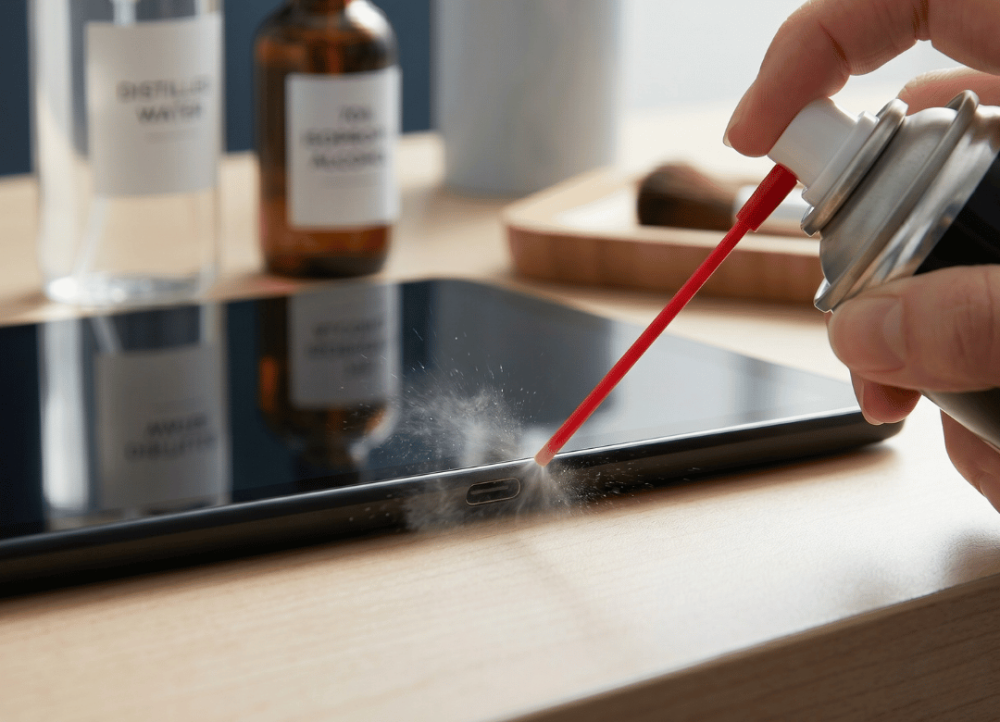
The safest method is compressed air in short, controlled bursts hold the can upright, nozzle about 4 to 6 inches from the port, and pulse for one second at a time. Don't blast continuously; sustained airflow can push moisture from the can's propellant into the port.
If you don't have compressed air, a soft, dry paintbrush can gently sweep lint out of the opening. Never use toothpicks, metal tools, or anything rigid inside the port.
For Speaker Grilles:
The same compressed air method applies. Hold the can at an angle and pulse to dislodge dust without pushing it deeper. For visible lint sitting on the grille surface, a dry cotton swab rolled gently across the outside (not pushed in) does the job.
If your Fusion5 Windows tablet suddenly sounds muffled, nine times out of ten it's lint in the speaker grille. A quick hit of compressed air usually fixes it immediately.
Disinfecting Your Tablet the Right Way
Regular cleaning removes oils and dust. Disinfecting kills germs. They're not the same thing and you only need to disinfect occasionally (or after sharing the device).
Apple, Microsoft, and most Android manufacturers have approved 70% isopropyl alcohol wipes or cloths for use on external surfaces. That's the standard.
Here's the process:
- Power off the tablet
- Wipe the back and edges with a lightly dampened alcohol cloth
- For the screen, use minimal dampness and a single gentle pass
- Don't let any liquid pool near the camera lens, buttons, or ports
- Dry with a clean cloth immediately
Avoid anything above 70% IPA concentration higher percentages evaporate too fast and can leave residue. And skip disinfectant sprays entirely; the propellant can get into seams.
Cleaning Cases, Keyboards, and Styluses
Always clean accessories separately they collect as much grime as the tablet itself.
- Silicone or rubber cases: Wash with mild dish soap and warm water. Rinse well and let air dry completely before putting them back on. Don't rush this a damp case can trap moisture against the tablet.
- Hard plastic cases: Wipe with a damp microfiber cloth and a tiny drop of dish soap if needed. Dry with a clean cloth.
- Detachable keyboards: Shake them upside down first to dislodge crumbs. Then wipe keycaps with a barely-damp cloth. Use compressed air between keys. For stubborn gunk between keys, a dry cotton swab works well.
- Styluses: Wipe the barrel with a microfiber cloth. A small amount of IPA on the cloth is fine. Avoid getting moisture into any charging contacts or buttons.
How Often Should You Clean a Tablet?
If you're a one-person user who mainly uses it at home:
- Daily quick wipe with a dry microfiber cloth 30 seconds, keeps fingerprints manageable
- Weekly deeper clean with the damp cloth method 2 minutes
- Monthly port check with compressed air 1 minute
If you share the tablet with your family, use it during meals, or take it out in public:
- Disinfect after each shared session
- Clean ports monthly at minimum
The honest truth? Most people clean their tablets twice a year, right before they notice something is wrong. Building a quick weekly habit is much better for the device and takes less time than you'd think.
What NOT to Do Ever
These mistakes show up in our support queue more often than I'd like to admit:
Never spray liquid directly onto the screen. Always apply to the cloth first. Liquid can seep under the screen through edge gaps and cause permanent damage this isn't covered by most warranties.
Never use paper towels or clothing. Paper towels scratch. Clothing fibers aren't soft enough for glass and leave lint behind.
Never use these cleaners:
- Windex or any ammonia-based cleaner (destroys oleophobic coating within a few uses)
- Bleach (damages plastics and coatings)
- Hydrogen peroxide (too harsh for screen coatings)
- Dish soap on the screen (leaves residue that's hard to remove)
Never poke metal objects into ports. I've seen tablets come in with bent USB-C pins from people trying to "dig out" lint with a safety pin. The internal connector is fragile. Use air.
Never clean while it's powered on. Beyond safety, it just doesn't work as well you can't see streaks clearly on a lit screen.
Looking for a Durable Tablet?
A properly maintained tablet can provide reliable performance for years to come. If you're shopping for a new tablet or replacing an older device, it's worth choosing a model that's built with long-term durability in mind.
At Fusion5, we offer Windows tablets and laptops assembled in the USA, with models starting at $499.99. Every device includes a 2-year warranty with accidental damage coverage, because we know that real life happens.
Our Android and Windows tablets are designed for everyday use, with metal chassis, Full HD displays, and Intel processors that hold up over years of regular handling. And if you're looking for something more portable, our Windows laptops are worth a look same build quality, more screen real estate.
A clean tablet performs better. A quality tablet lasts longer. Ideally, you should have both.
FAQ
Q: How do I safely clean my tablet's screen?
Firstly, shut down the device. Clean the screen with a dry microfiber cloth using circular movements until smudges disappear. If that doesn't work, gently wet a cloth with equal parts distilled water and 70% isopropyl alcohol, applying it to the cloth, not the screen, and immediately dry the surface with another dry cloth. The technique will safely clean all tablet screen coatings.
Q: Can I use alcohol wipes to clean my tablet?
Yes, but only 70% isopropyl alcohol wipes designed for electronics cleaning. Never use medical-grade (90%+ IPA) alcohol wipes which have higher concentrations (above 70%) or disinfecting wipes which usually contain bleach or ammonia. Most of the major tablet manufacturers, including those running on Windows 11, agree that 70% IPA will not damage their devices' external surfaces. However, apply it carefully on the screen and more freely everywhere else.
Q: How often should I clean my tablet?
If it only gets used personally, try to clean the screen with a dry cloth every day and thoroughly weekly. In case of sharing your tablet with other people, it’s better to disinfect the surface after each use. For optimal performance, the charging port and speaker grilles should be cleaned with compressed air monthly. People usually clean their tablets much less often than needed.
Q: Which products should I never use to clean my tablet?
Avoid using Windex, bleach, ammonia-based cleaning solutions, hydrogen peroxide, paper towels, rough cloths, and any sprays that are directly applied to the device. They will scratch the screen, damage its oleophobic coating, or force moisture inside the tablet. Ammonia-based products are particularly dangerous as they can degrade the fingerprint resistant coating on most tablets within several uses.
Q: How do I clean the charging port of my tablet safely?
Use compressed air in brief one-second bursts and hold the canister in upright position at the distance of 4–6 inches from the port. Never put anything sharp into the port (toothpick, metal tweezers, etc.) as they can cause the internal USB-C pins to bend. You can also use a soft dry paintbrush if you don't have compressed air at hand. If debris is impacted and won't come out, take it to a repair shop rather than digging around inside.
Q: Can I clean my tablet when it’s powered on?
No. Only clean the device while it’s fully powered off. Firstly, this will make it easier to detect streaks on the screen. Secondly, if the cleaning solution gets inside your device while on, there is a small possibility that there will be some kind of electrical short circuit.


