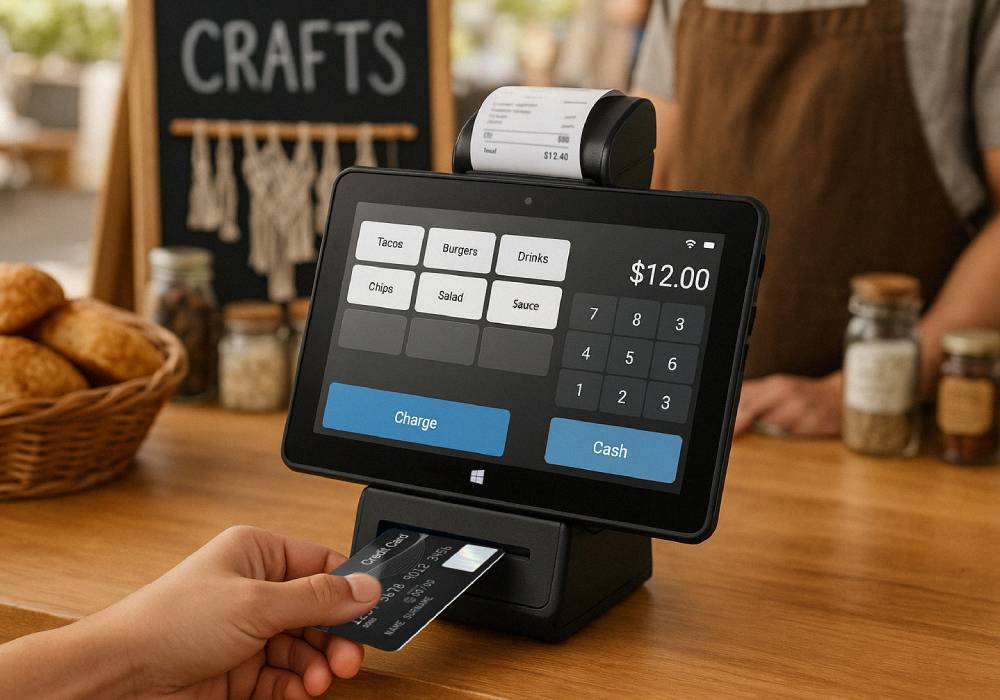


How To Run A Shopify Store from a Fusion5 Windows Pro Tablet
Think you need a big powerful machine to start selling? Think again. You can do a lot of bulk business work from a 10.1” tablet like the Fusion5 Pro N5. With storage options ranging from 256GB to 512GB, 8GB to 12GB RAM, Windows Home and Pro options, and a capable Intel® quad-core processor, you really can do just about anything with this compact tablet.
In this guide, we walk through the steps of setting up a new Shopify store, add in some products to help get you started, how to get orders shipped, and how to handle customer service, all from a Fusion5 Window tablet.
Using the Fusion5 Pro N5 model as the reference for specs, learn how you can follow real settings, simple security, and a setup that works on day one.
Full Blog: Fusion5 Windows Tablet Beginner Guide for Shopify
Why Choose Fusion5 For Shopify
Snap on a keyboard and your compact Windows tablet becomes a lightweight laptop that runs the full Shopify admin in Edge or Chrome. With Windows 11 Pro, BitLocker encryption and Windows Hello keep store data and logins safe. A compact USB C hub adds SD, HDMI, and USB A for cameras, printers, and external screens, so you can plug in everything you need for your new online shop.
Tip: When you’re out moving all day getting business done, having a FusionCharge 36W PD fast charger lets you top up quickly between tasks.
What Can You Really Get Done On A Tablet
Good news is you can actually do your entire Shopify workflow all on a Fusion5 Windows Pro tablet. Here are the main tasks a Windows tablet can handle with ease:
- Set up and manage products, collections, shipping, taxes, and discounts in the Shopify admin
- Create polished visuals in the browser with programs like Canva and Photopea, plus quick social videos in Clipchamp
- Stay responsive with email, live chat dashboards, and social media DMs in pinned tabs
- Grow smarter using GA4, Search Console, and ad managers for Meta and TikTok alongside your email platform
- Fulfill orders fast by purchasing labels in Shopify and printing over WiFi or exporting to PDF.
Fast Setup To Do On Your Tablet (about 60 to 90 minutes)
Prep the tablet for your business – 10 minutes
- Run Windows Update and install all updates.
- Turn on BitLocker (Settings → Privacy & security) and confirm where your recovery key is stored.
- Enable Windows Hello for secure login activity control.
- Install Microsoft Edge or Google Chrome and sign in to your main business accounts to sync important passwords and extensions.
- Use the latest browser version of your preference and then clear out the cache if Shopify prompts you to (Settings → Privacy → Clear browsing data → cached images and files).
Create your new storefront – 30 to 45 minutes
- First thing, go sign up on Shopify and choose a clean and simple theme to start off your new store.
- Connect your chosen domain from your domain provider using Shopify’s guided DNS steps in order to ensure that your store has a proper and active web address.
- Set up payments, shipping zones, taxes, and legal pages for the site (privacy policy etc.).
- In the Users and permissions section of your Shopify dashboard, add in some staff roles so you can give access to future hires or help without sharing your main login.
Add products – 20 to 30 minutes
- Import optimized photos from your tablet’s microSD (if available), an SD reader on your USB C hub, or through using OneDrive.
- Crop and straighten in Adobe Express or Canva (Photopea works in a browser too) and export around 1200px to 2000px on the long side for faster loading times on the site.
- Go to Products and then hit Add product, write a short and clear title that someone would type in a search site like Google, scannable bullets. Under the main description section, add 3 to 5 quick bullets with the real benefits.
- Scroll down and fill in the basics: choose sizes or colors under Variants, add your SKU (your internal code), set the price, enter how many you have in quantity, and add the shipping weight.
- For each added photo, also make sure to add in alt text in the SEO section that describes what’s in the picture, for example: “Black leather crossbody bag on a white background.” This helps search and accessibility.
- When all the main sections look good and optimized, click Save.
Shape the storefront – 10 minutes
- Build the must haves: Home, Collections, Product, About. Feature best sellers and one clear call to action on Home. Use clean photos and benefit bullets on Product pages.
- Add an announcement bar (free shipping threshold or launch offer). Create a simple discount code like LAUNCH10 and mention it on the Home page and in your social posts as well as email.
Test and launch – 10 minutes
- Run a test order using test mode or a 100 percent off code to verify shipping rates, taxes, emails, and order flow.
- Try Create shipping label to confirm printing over Wi Fi or to PDF.
Daily workflow on a tablet
Start with unfulfilled orders and messages, then answer customer questions in email, chat, or social DMs. Do one growth task each day like adding a product, refreshing a collection, or writing a short blog section. Schedule two or three posts, check GA4 for top pages, and before you wrap up, sync OneDrive and run Windows updates if needed.
Conclusion: Can you really run a business on Shopify from a 10.1” Windows tablet?
The short answer, yes. The long answer is this guide. Not only can you run a business on a compact tablet, but you can do it from anywhere your mind can imagine with the help of a mobile workstation like the Fusion5 Pro N5 Windows Pro Tablet.
Working within a budget shouldn’t hinder your business goals, so get started on your dream business with an affordable way to start an online store.
Check out Fusion5Store.com for more affordable tech at your fingertips.