

What Battery Health Means on a Windows Tablet and How to Protect It
A Windows tablet is useful when it works in a way that matches normal daily use. That can mean carrying it from room to room at home, taking it to work, using it at a kitchen table, or putting it in a bag for travel.
That level of flexibility gets affected when the battery isn’t working as well as it should.
That’s why it helps to think about battery health early, not just battery life. Battery life is how long the tablet lasts on a charge today. Battery health is about how well the battery holds up over time. If the health drops too quickly, the tablet becomes less reliable even if everything else still works well.
This guide looks at practical Windows tablet battery health tips that actually make sense in normal use. No overcomplicated routines, no battery myths, and no vague advice. Just the habits that help reduce unnecessary wear and keep a Windows tablet working better for longer.
Full Blog: Why Battery Health Matters on a Windows Tablet
What battery health means on a Windows tablet
Rechargeable batteries, like the one found in a tablet, are not going to retain 100% of their maximum capacity over time, even if they’re properly maintained. It’s a gradual loss of power reserve that will occur.
Microsoft’s battery guidance also notes that lithium-ion batteries wear down with age and use, and that heat and charging habits can make that happen faster. (Microsoft Support)
What matters is how quickly that wear happens.
The battery inside any tablet suffers from a reduction in operational life more rapidly when hotter, when always 100% charged for extended periods, and when subject to cycles of heavy use and rapid charge.
As a result the battery may lose capacity earlier, have to be recharged more often, or have a reduced capacity for brief periods of use when in sleep mode.
People often describe this as weaker battery health, but what they usually notice first is the practical effect: the tablet no longer lasts as long on a charge as it used to.
Battery life and battery health are connected, but not the same
This is where people often get confused.
Many people incorrectly assume that a short battery life on a tablet is due to a damaged battery. Sometimes that’s true. Often, it isn’t.
This is a common problem that can occur for many different reasons. For example, the screen brightness could be turned up too high. Also, if the tablet has too many applications open at the same time, there are too many background applications open, cloud syncing is enabled, Bluetooth is enabled, or too many tabs are open in the browser, battery life can be drastically decreased.
This has nothing to do with the quality of the battery, and everything to do with how you are using your tablet to consume power at a much faster rate than is normal.
Check battery condition properly instead of guessing
You shouldn’t judge battery health just by how the tablet feels from day to day.
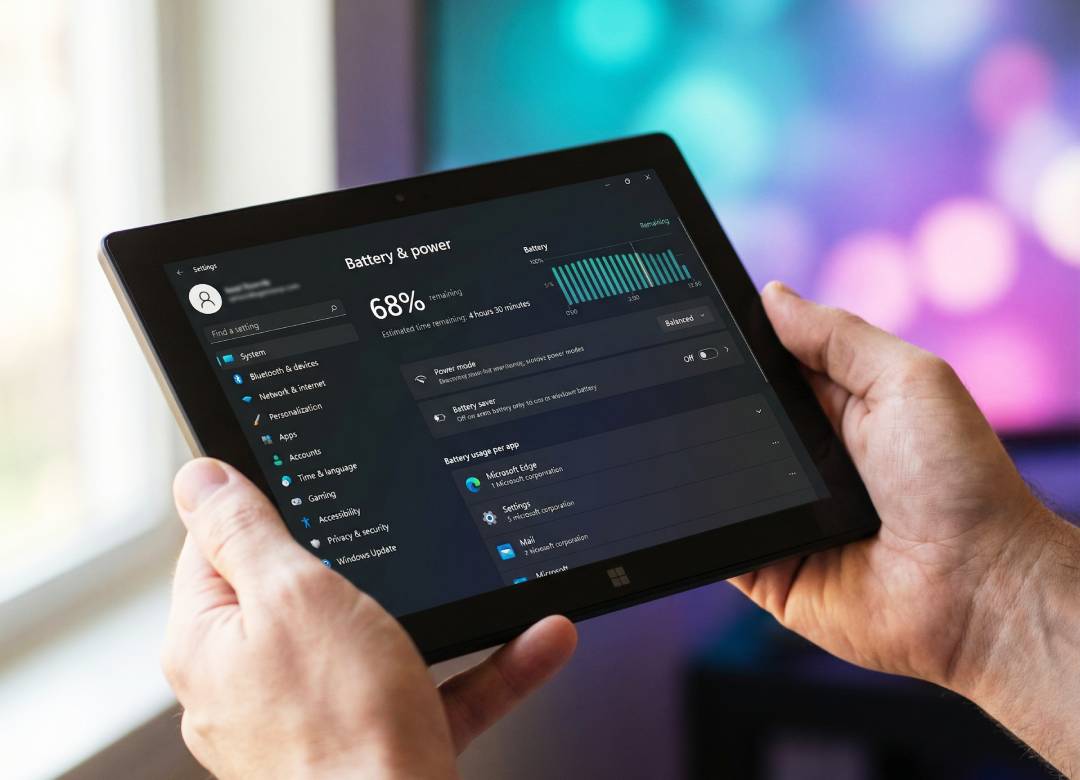
Most people are familiar with checking the current battery percentage on their device, but this won’t give you any idea of long-term trends or whether your battery’s capacity has decreased from when it was new. Windows actually has a built-in method to generate a battery report that can give you more insight into this. The report isn’t perfect, but it will help you gauge whether your battery’s capacity has dropped significantly.
To clarify, there is the Design Capacity (how much the battery was rated to hold when new) and the Full Charge Capacity (how much the battery currently holds). This gives a better idea of battery health than just feeling that the battery is not as good as it used to be.
Heat is one of the biggest causes of battery wear
Battery health on tablets is a crucial topic and, perhaps surprisingly, one of the easiest things to damage is the battery through heat. Most tablets can continue to function just fine, even when they become hotter than they should. However, this doesn’t necessarily mean that letting your tablet bake all day is a good idea. Repeated exposure to heat can reduce battery life more quickly over time.
Windows tablets can become hot for a number of different reasons. Your Windows tablet may become hot whilst in use as many applications and games require the device’s processor to work harder, which can cause it to rise in temperature. The tablet can also become hot when it is on charge and this can be accentuated if the screen is set to a high brightness level. During video calls, your Windows tablet may become hot because you have an active webcam. The tablet may also become hot if left unattended for extended periods of time in hot environments such as a hot car, direct sunlight, or a warm room. It is also worth noting that placing your Windows tablet on soft items such as cushions or on your bedding could cause it to get hot due to the build-up of trapped heat.
Hot weather and warm surroundings can add extra stress to the battery, especially if the tablet is already charging or running demanding apps.
To help protect battery health, keep your tablet as cool as is reasonably possible. Don’t store it in a hot car, or on a warm windowsill, or in direct sunlight. Be aware that some applications can cause a noticeable increase in temperature even when using light functionality.
Cooler batteries usually last longer than hotter ones.
Don’t leave it plugged in at full charge all the time
A lot of people now use Windows tablets like mini laptops. They sit on a desk, connected to power for large parts of the day, especially during work.
That’s convenient, but it isn’t the best habit for long-term battery health.
If a battery spends too much time sitting at full charge, that can add unnecessary stress over time. That’s one reason Microsoft includes Smart Charging on supported devices, which is designed to reduce the amount of time the battery stays at 100%.
That doesn’t mean you need to obsess over never reaching full charge. It just means it’s better not to treat permanent full-time charging as normal when you don’t need to. If your tablet is mainly being used at a desk, it’s worth avoiding the habit of leaving it plugged in all day, every day, without thinking about it.
Keep screen brightness sensible
On most tablets, the display is one of the biggest power users.
If brightness is left too high all the time, battery drain increases quickly. That doesn’t directly damage the battery in the same way heat does, but it can lead to more frequent charging and more unnecessary heat during use.
A lot of people leave brightness higher than they actually need, especially indoors. Keeping it at a sensible level helps reduce unnecessary strain and makes day-to-day battery use more efficient without changing how practical the device feels.
Watch what’s running in the background
Background activity can quietly increase battery drain without being obvious at first.
Cloud storage syncing, widgets, messaging apps, browser tabs, app updates, startup services, and background processes can all use power. Together, they can make a tablet lose charge faster than expected, which can also mean more charging and more battery wear over time.
That’s why it’s worth checking what’s running in the background before assuming the battery itself is the issue.
Use battery saver before you really need it
Battery saver is usually thought of as a way to get more time out of the battery, but it can also help reduce unnecessary background activity and power use.
That matters because lower power use can mean fewer unnecessary top-ups and less strain across the day, especially when you know you’ll be away from a charger for a while.
It’s a simple feature, but it can still support better battery habits when used sensibly.
Let the tablet sleep properly
Idle drain adds up more than people think.
If the screen stays on too long before sleeping, or the tablet remains awake when it’s been left alone, that’s wasted power. Over time, that can mean more unnecessary charging and more battery cycling than needed.
Shorter sleep and screen timeout settings won’t feel exciting, but they do help reduce waste and support better long-term battery care.
Don’t fall for battery myths
Battery advice online is full of routines that sound clever but aren’t all that useful in practice.
For most people, there’s no need to fully drain the battery on purpose all the time. There’s no need to constantly monitor exact charging percentages all day. And there’s no need to make using the tablet feel like a maintenance job.
The better approach is simpler.
- Avoid heat.
- Avoid leaving it plugged in at full charge all the time.
- Keep brightness sensible.
- Reduce background drain.
- Use the built-in battery tools properly.
- Charge normally without overthinking every cycle.
That’s a more realistic way to protect battery health over the long term.
Where the Fusion5 FWIN232 PRO N5 fits into this
These battery habits matter even more when the tablet is doing real work.
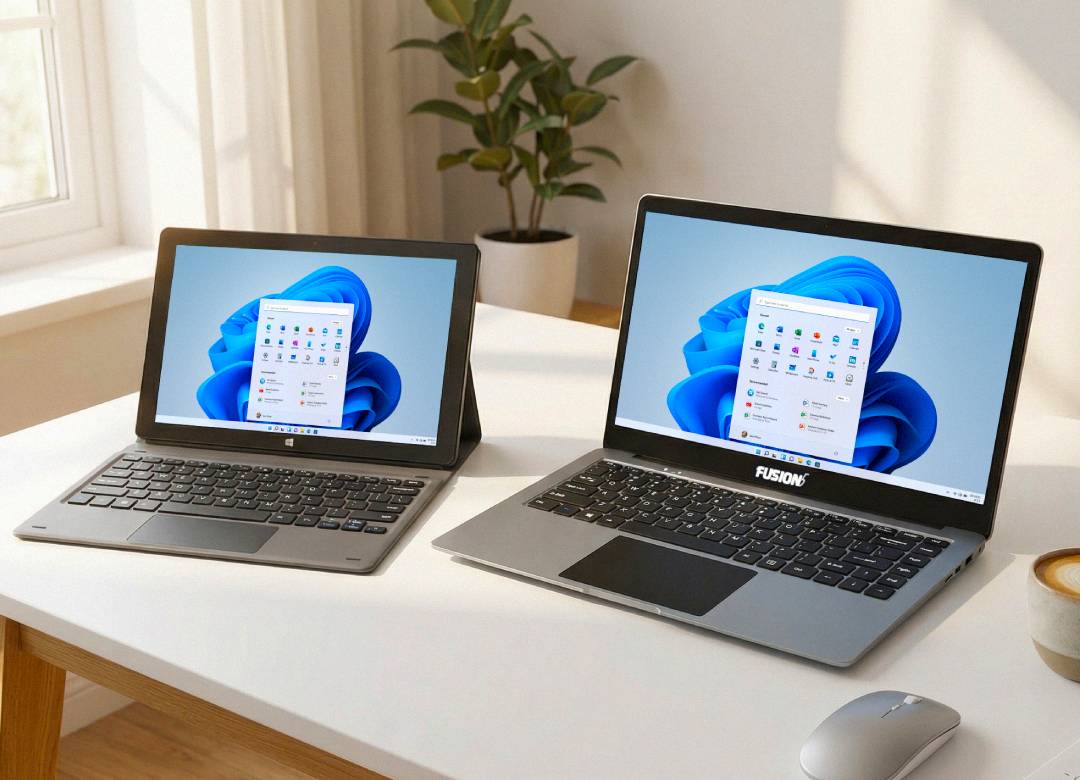
The Fusion5 FWIN232 PRO N5 is built for more than casual viewing. It runs Windows 11 Professional and uses an Intel 13th Gen Alder Lake N100 Quad-Core CPU with speeds up to 3.4GHz, alongside 12GB RAM and a 512GB SSD. There’s also a 512GB MicroSD card slot for extra storage.
In practical terms, that means it’s the sort of device people are more likely to use properly throughout the day. Email, documents, file access, Zoom, Teams, multitasking, browsing, remote work, and general business use are all realistic use cases on a device like this.
Its 10.1-inch Full HD IPS touchscreen, 500 nits brightness, dual Full HD cameras, and upgraded speakers also make it more useful for video calls, streaming, and portable work sessions. When a tablet is being used that way, battery care becomes more important because you’re depending on it more often and for longer sessions.
There’s also a practical ownership angle here. Each Fusion5 FWIN232 PRO N5 is assembled in Pasco County, Florida, and it comes with a 2-year full warranty plus accidental damage cover for up to two incidents, activated through QR registration. That won’t change how lithium batteries naturally age, but it does make the device feel like a more serious long-term tool rather than something disposable.
A simple Windows tablet battery routine that actually works
For most people, the best routine is the one they’ll actually stick to.
- Use the tablet normally, but don’t leave it cooking in heat.
- Charge it when needed, but don’t keep it at full charge on a cable all the time.
- Keep screen brightness at a sensible level.
- Reduce background activity where possible.
- Use battery saver when it helps reduce unnecessary drain.
- Check battery condition properly from time to time instead of guessing.
That’s enough for most users.
Good battery care doesn’t need to be obsessive. It just needs to be consistent.
FAQ
How do I check battery health on a Windows tablet?
A practical way to check it is by generating the Windows battery report. That shows battery usage history and compares original design capacity with current full charge capacity, which gives you a clearer view of battery wear over time.
Is it bad to leave a Windows tablet plugged in all the time?
It can add unnecessary long-term strain if the tablet sits at full charge for extended periods every day. That’s why features like Smart Charging exist on supported devices.
What hurts tablet battery health the most?
Heat is one of the biggest causes of faster battery wear. Constant full charging and heavy use while the tablet is hot can also add extra stress over time.
Does lower brightness help battery health?
Lower brightness mainly helps reduce unnecessary battery drain. That can mean less frequent charging and less extra heat during use, which is better for long-term battery care.
Should I fully drain my Windows tablet battery before charging it?
For most modern tablets, that’s not something you need to do as a routine habit. Sensible everyday charging and lower heat matter more.