

Windows Tablet Shortcuts: The Ultimate Guide to Faster Workflow
A Windows tablet is designed to be fast, flexible, and hands on. Whether you’re going through your apps, switching between important tasks, or typing with a keyboard attached, Windows 11 includes built in gestures and shortcuts that make everything smoother.
This guide focuses specifically on using those tools on a Windows tablet. First, we will cover touchscreen gestures that improve navigation and multitasking. Then we will look at the keyboard shortcuts available when your tablet is connected to a docking keyboard.
Full Blog: Windows Tablet Shortcuts That Save You Time
Touchscreen Gestures That Improve Workflow
Switch Between Open Apps
One way to switch between apps is by tapping the app icons on the taskbar at the bottom of the screen. However, if you’re frequently moving back and forth between apps, repeatedly tapping the taskbar can slow you down.
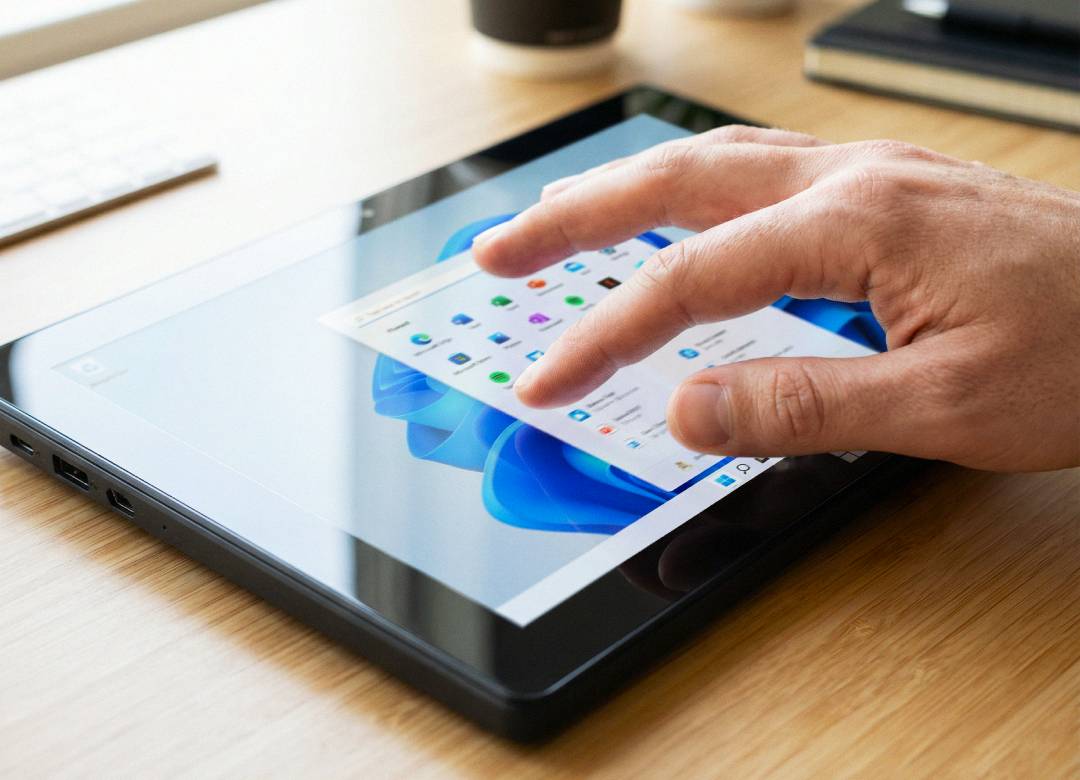
And one way to make this experience much more smooth is to use a three finger swipe across the screen. Windows immediately switches to the next open app in the order they were last used so this is useful when you’re in the middle of multitasking.
See All Open Apps at Once
If you’re working with multiple apps open, it can sometimes be difficult to remember what is running in the background. Instead of minimizing windows one by one, you can swipe up with three fingers on the screen.
This opens Task View, which shows you all the currently open apps in a clear, easy to see layout. From there, you can tap the app you want to return to. This makes it easier to manage multitasking without losing track of what you have open.
Access Quick Settings and Notifications
If you want to adjust system settings such as WiFi, Bluetooth, screen brightness, volume, or battery saver, you don’t need to exit the app that you’re currently on.
Place your finger at the far right edge of the touchscreen. Then slide your finger inward toward the center of the screen in one smooth motion. This gesture opens the Notification Center and Quick Settings panel.
Once you finish making the changes you want, tap anywhere outside the panel or swipe it away to return to your app. The app remains open the entire time, so you’re not interrupting your workflow. This allows you to control your device settings quickly while continuing your task.
Use Snap with Touch
If you want to work with two apps side by side, drag one open window to the left or right edge of the screen until it snaps into place. Once it is positioned, Windows will show your other open apps on the opposite side. Tap the one you want to use.
This is helpful when researching in a browser while typing notes, or when comparing two documents at the same time.
Keyboard Shortcuts When Connected to a Docking Keyboard
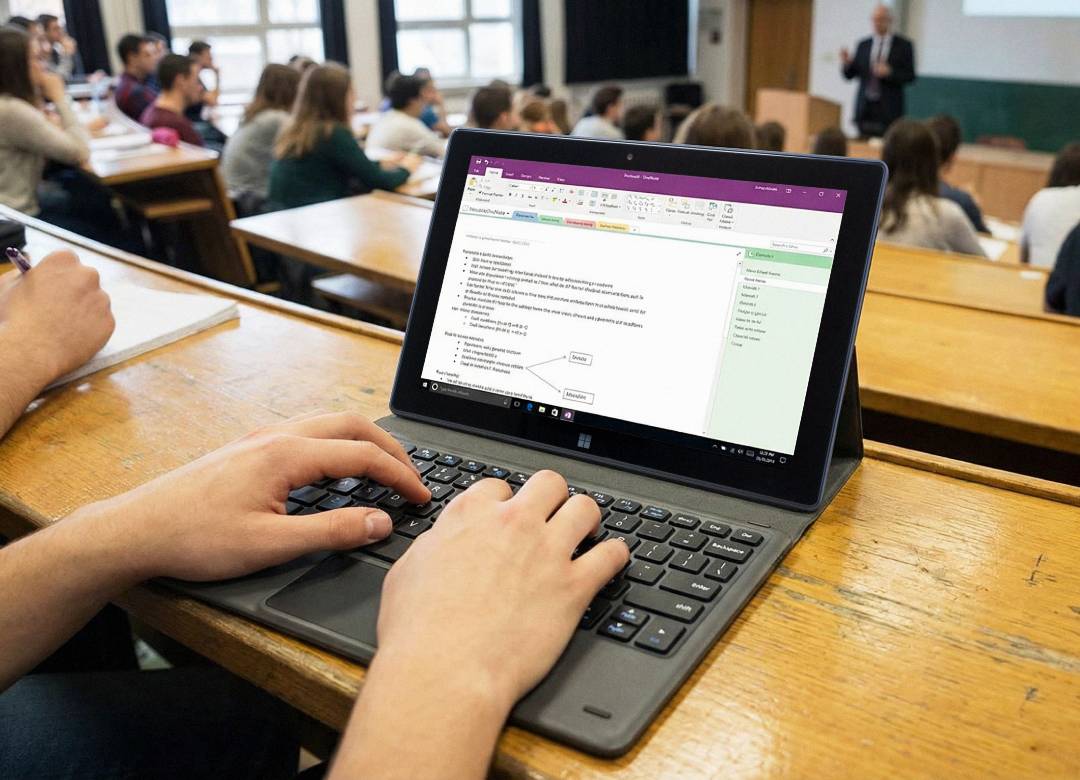
When your tablet is connected to a keyboard, you gain access to additional Windows shortcuts that can make your workflow even faster.
Open Snap Layouts
Press Windows key + Z to open Snap Layout options. You can then choose how you want your apps arranged on the screen. This is a quick way to organize your workspace without dragging windows around manually.
Open Clipboard History
Press Windows key + V to view clipboard history. After enabling it once, you can access previously copied text and paste it again without copying it a second time.
Switch Between Apps
Press Alt + Tab to cycle through open apps. Hold Alt and then tap Tab to move between them. This is one of the fastest ways to switch tasks when using a keyboard.
Take a Screenshot
Press Windows key + Shift + S to open the Snipping Tool. Select the area you want to capture, and it will copy to your clipboard so you can paste it where needed.
Making the Most of Your Windows Tablet
Using a Windows tablet efficiently comes down to understanding how it’s designed to work. Touch gestures help you move between apps, view open windows, and adjust settings without unnecessary steps. When connected to a keyboard, shortcuts make switching tasks, organizing windows, and copying content faster.
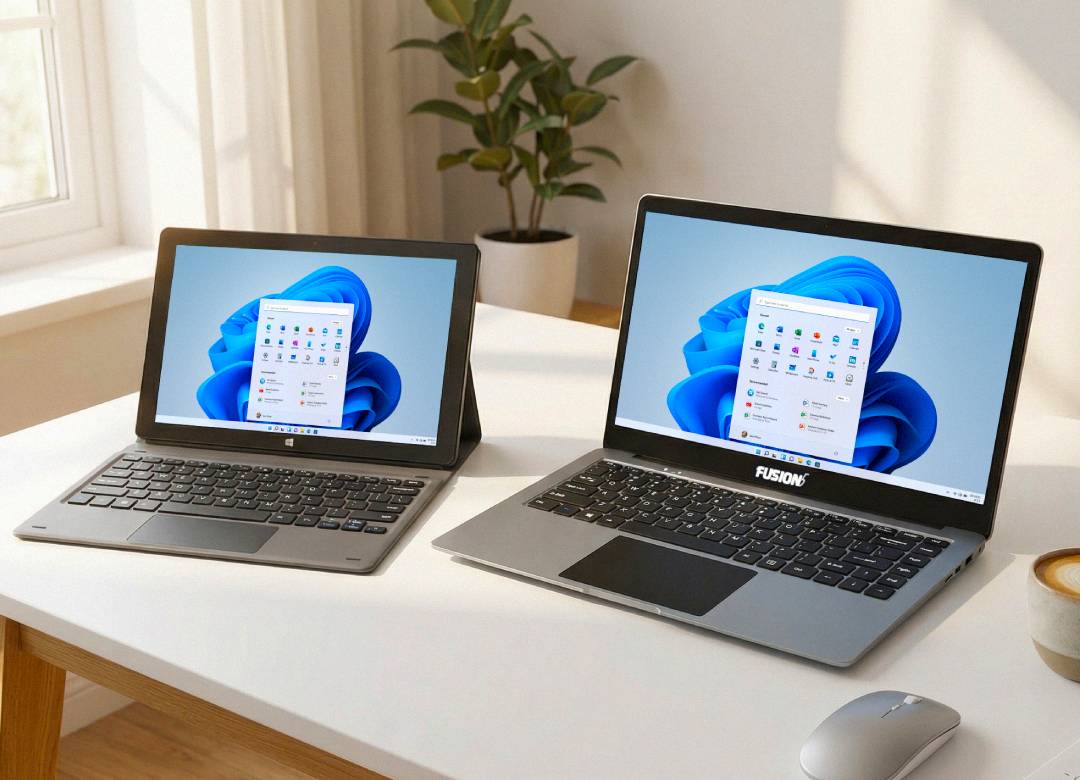
By learning a few of these gestures and commands, everyday actions take less time and feel more natural. A device like the Fusion5 Pro N5 supports both touchscreen navigation and full Windows keyboard shortcuts when connected, allowing you to use these features in a simple and practical way.