

Windows Tablet Ecosystem Explained: Apps, OS, and Integration
A Windows tablet is a compact device that brings together the world of mobility with the world of performance and versatility all in one. You’re not getting mobile limited apps with these. You’re getting the full Windows Home or Pro OS experience anywhere you go in a device that weighs less than a laptop computer.
Because it runs full Windows OS, the experience is much closer to a traditional computer than a typical tablet. You get the same full operating system access to all your favorite programs and shortcuts just like on a laptop or desktop.
The goal of this short blog is to break down the basics of the Windows tablet ecosystem for users who are not familiar with Windows devices or how the OS system works in tablet form.
Full Blog: Windows Tablet Software Compatibility Explained
The Operating System Side of Things
So the main difference between a Windows tablet and devices that are only focused on mobile-first is the amount of accessibility you have to full programs that you can run on a laptop or desktop. When you use something like an Android tablet, you’re getting a mobile operating system, one that’s main focus is powering devices like smartphones, tablets, smartwatches, and TVs.
Those are all great for quick contacts and entertainment, but they aren’t made to be PCs. You can’t download files onto them, or if you can, its very limited storage capacity. They can’t run full PC programs, I mean you wouldn’t want to do your AutoCad projects on your IoT smart fridge anyway! Why make the operating system overly powerful when the device is optimized for limited functionality is the point.
And that’s how Windows tablets mainly differ, they have the multitasking power to run full PC software with different programs open at the same time. You can hop off your work desktop and hop onto your Windows tablet for mobile work flexibility.
Apps You Can Run on a Windows Tablet
So what can you actually run on a Windows tablet? Well like we said, it's really just a compact full PC. This means you can pretty much run anything a PC can on it, BUT, you do have to make sure that your tablet has the right specs for more demanding programs such as 3D rendering software like AutoCAD.
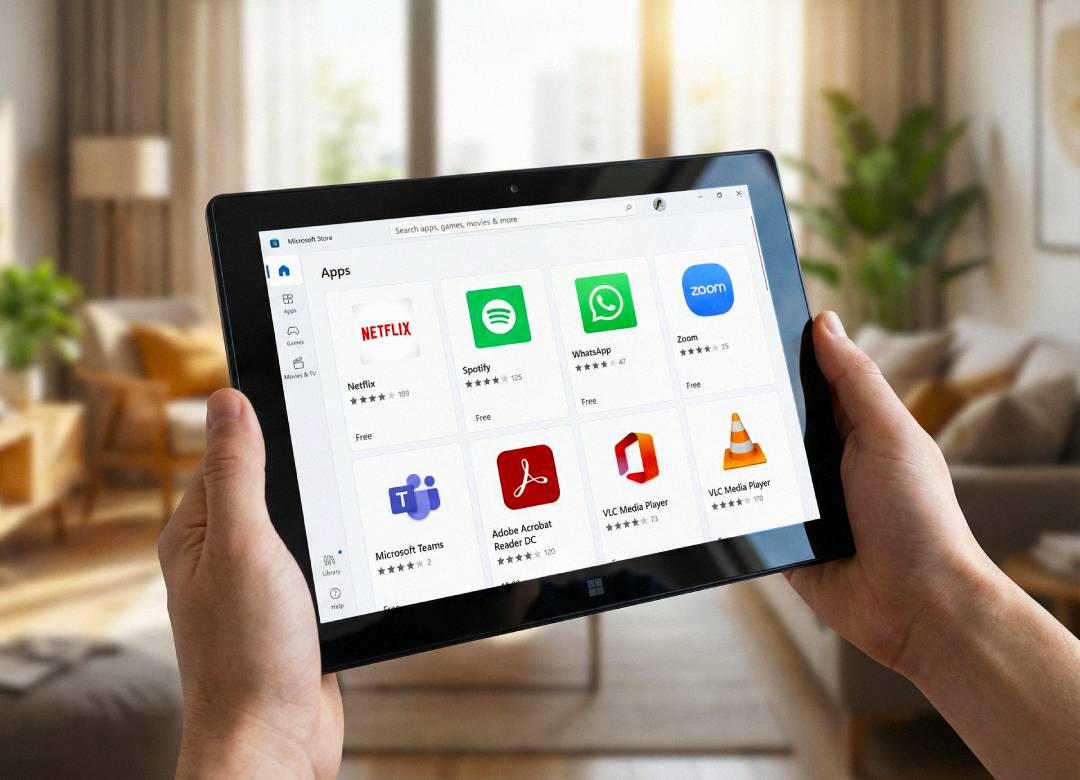
Here’s the really awesome part, you also get access apps that are available on the Microsoft store. These are going to be apps that are more focused on touchscreen devices like your tablet or smartphone. They’re great for lighter tasks like note-taking, entertainment, or simple productivity.
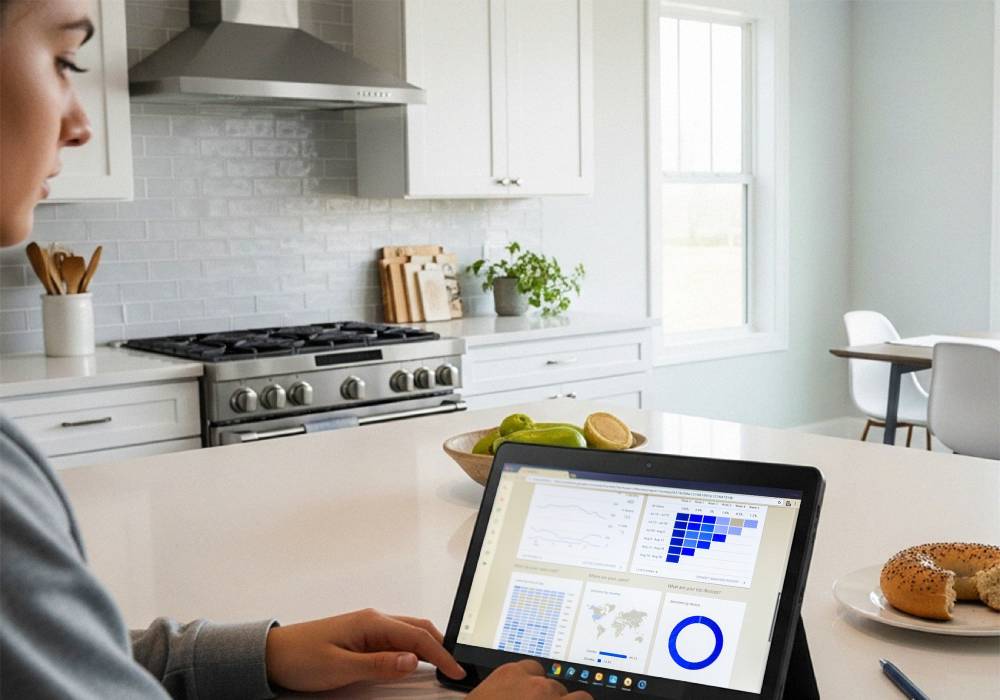
And then there are web-based tools. Plenty of platforms run directly in your browser now, so even if you don’t want to install anything, you can still work with cloud tools smoothly. The key advantage is that a Windows tablet can handle all three styles without locking you into one way of working.
Integration and Syncing Across Devices
A big part of the Windows tablet ecosystem is how well everything connects. If you’re signed into your Microsoft account, you can sync files, preferences, and apps across devices, which makes switching between your tablet and a desktop feel natural.
OneDrive is the main player here. You can save files locally on the tablet, but you can also save them to OneDrive so they’re backed up and accessible anywhere you log in. That means you can start a document on one device and pick it up on another without emailing files to yourself or transferring them manually.
If you use Microsoft 365, it gets even smoother. Your Word docs, Excel sheets, PowerPoint files, Outlook emails, and Teams chats all tie into the same system, so your tablet becomes part of your wider setup instead of being a separate device that feels disconnected.
Bringing It All Together
A Windows tablet gives you a full Windows operating system, the ability to run real desktop programs, and the flexibility to work however you like.
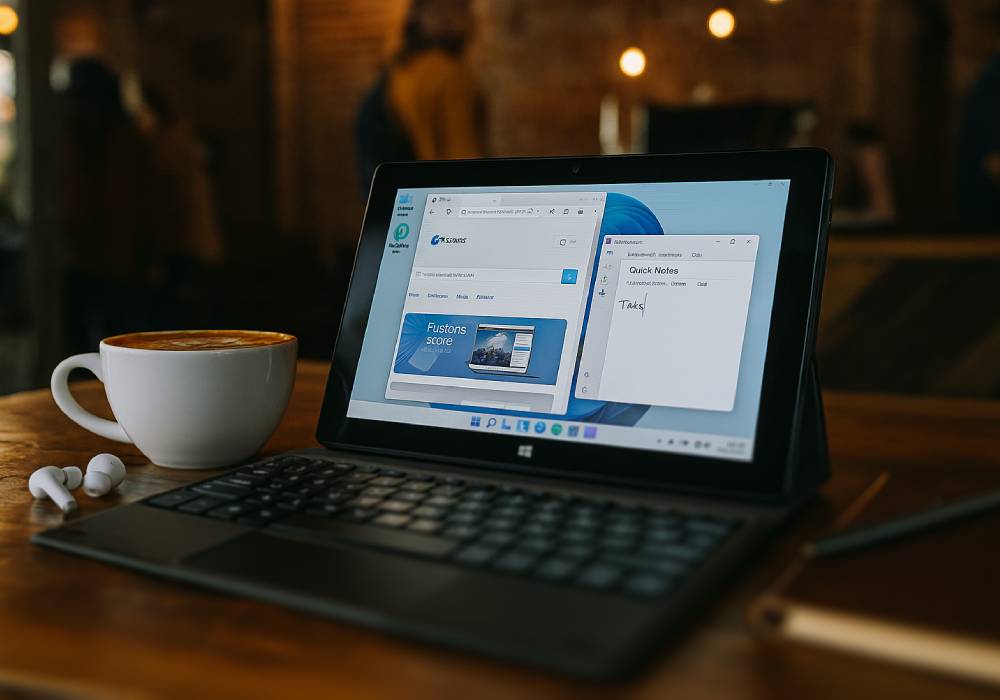
You can use it like a simple touchscreen tablet for browsing, streaming, and light tasks. Or you can connect a keyboard and mouse and treat it like a mini laptop when you need to type, multitask, or get actual work done. The point is you’re not locked into one “tablet-only” way of using it.
If you’re ready to get real PC software and real PC workflow in a more portable form, check out our Windows tablet section on Fusion5Store.com.