

Overclocking a Windows Tablet: Is It Worth It?
A desktop is basically designed to handle heat. It has space, airflow, big fans, big heatsinks, and it can shove power into the CPU without panicking. A tablet is built to be thin, light, quiet, and to last a long time on battery.
Because there’s less room for cooling, tablets hit their thermal limits faster and will often slow themselves down to protect the hardware. That’s why when you try to push extra speed, which requires added heat, on a Windows tablet, you’re immediately fighting the way it was designed to run.
In this blog we're going to break down just what overclocking is, alternatives to it, and what devices you can truly do this on. Plus we'll go over if it's a safe approach to gaining performance stats on a Windows tablet.
Full Blog: Windows Tablets and Overclocking Guide
What Overclocking Really Is
Overclocking is when you make a device’s CPU or GPU run faster by changing settings in order to get better overall performance without having to upgrade your device. On devices with the right hardware, this technique would increase the chip’s performance, and the device’s internal parts would be able to handle it.
But, that’s the thing, the right hardware is built to handle heavy heat from a CPU or GPU working hard. To run faster, your chip usually needs more power, and more power turns into more heat. Bigger machines like desktops and laptops have a bit more space than tablets to disperse all that heat through the vents, plus not all tablets have fans. A tablet that’s built to be compact and hold battery life doesn’t have the space inside for that heat, and it can overheat quickly.
That’s why overclocking is always a tradeoff. You might get more speed, but you also risk more heat, more battery drain, and more instability.
Can You Truly Overclock A Windows Tablet?
Well, not really, let’s explain. Most people don’t realize that the majority of Windows tablets do not support true overclocking in the way people think.
You typically can’t change CPU multipliers, voltages, or the deeper performance controls the way people can on a gaming desktop. This is because the manufacturers lock the BIOS settings to protect the device from overworking in order to not damage itself.
Some devices may allow small performance tuning changes, but that’s not the same as fully overclocking. And even if you do find a way to push settings higher, you’re still limited by the tablet’s cooling and power delivery. So the device might boost for a moment, heat up, and then slow itself down anyway.
Is It Worth It On A Tablet?
For most users, overclocking a Windows tablet isn’t worth the hassle or the risk.
The big issue is thermal throttling. Tablets are designed to protect themselves. When temperatures rise, performance gets pulled back automatically. So even if you squeeze out extra speed, your tablet may not be able to hold that speed long enough for it to matter.
Then you’ve got the real downsides. More heat can mean reduced comfort, louder fan behavior if your model has one, faster battery drain, and in some cases, crashes or random slowdowns. There’s also the warranty angle. If you’re using unofficial tools or pushing hardware beyond normal operation, that can create support issues depending on the device.
The short version is that tablets are made for balanced performance. Overclocking usually breaks that balance for gains that aren’t guaranteed.
Alternatives That Actually Improve Performance
To make your Windows tablet feel a heck of a lot faster in a safer way, start with these.
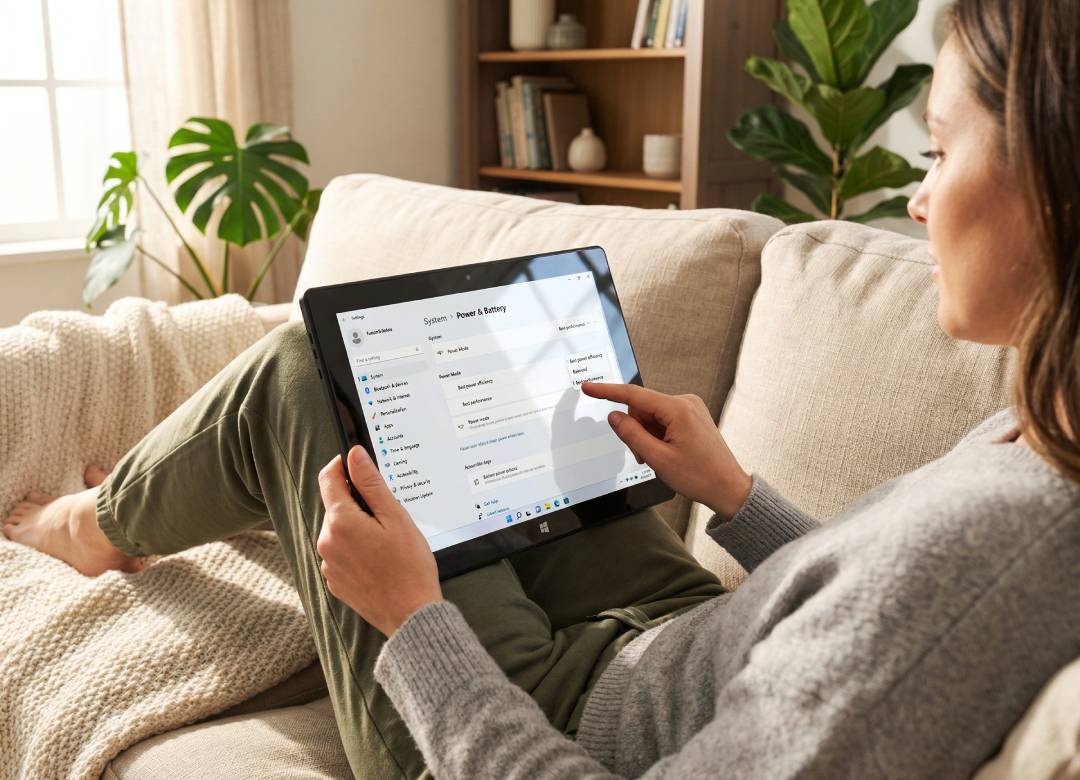
Start with Power Mode. Switching from a battery-saving mode to a more performance-focused mode can make the system feel snappier, since the CPU boosts harder when you need it.
Next, clean up startup apps and background programs. Too many apps launching on boot can slow everything down, especially on lower spec tablets. Turning off the ones you don’t need can make a noticeable difference.
Also keep an eye on storage space. When your drive is almost full, Windows has less room for temporary files and caching, and things can start to feel sluggish. Keeping some free space helps performance stay steady.
Finally, remember heat affects speed. If a tablet gets hot, it will throttle. Using it on a hard surface and avoiding heavy loads in warm environments helps it maintain smoother performance.
So What’s Our Final Verdict?
If you’re using a Windows tablet, we do suggest avoiding overclocking.
Most models don’t even allow true overclocking, and if you do find a way around to push the performance further than it can handle, heat limits often kick in fast and the device throttles back down.
Change the power settings, reduce background apps, keep the storage healthy, and avoid heat buildup.