

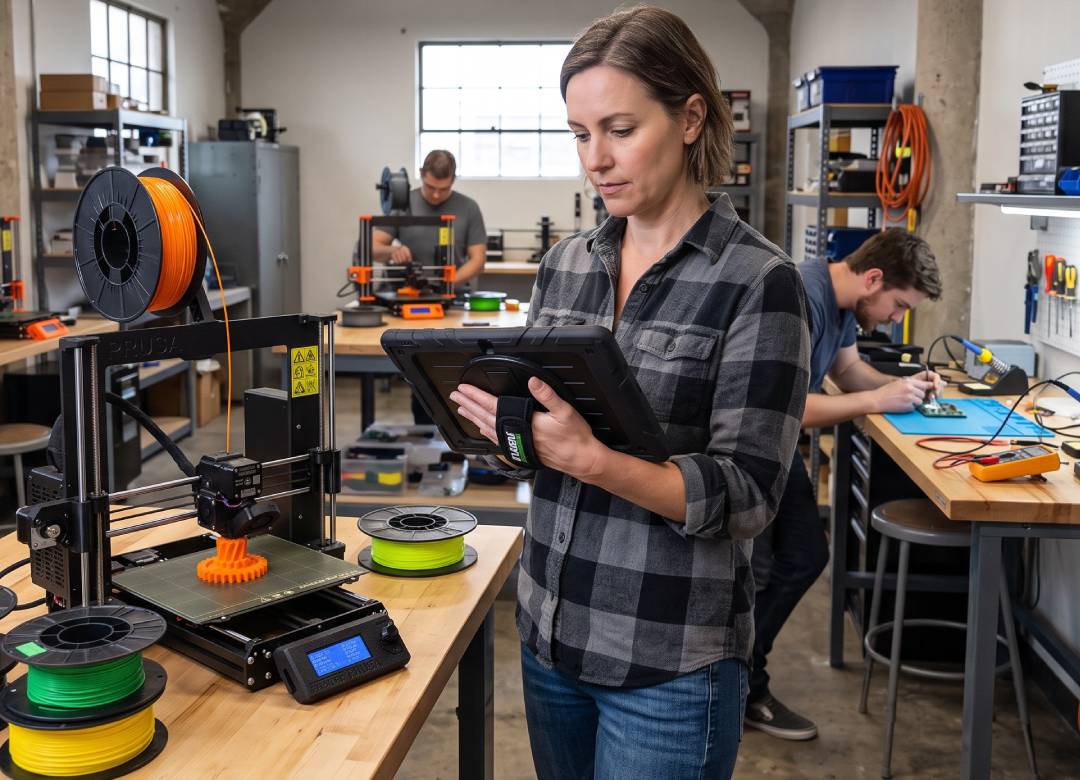
Can You Use a Windows Tablet for 3D Printing? Slicing, Monitoring & Control
In case your 3D printer is in your garage, workshop, or makerspace, chances are your main computer is somewhere else. This results in returning to your desk every time you have to download a model file, adjust slicer settings, check documentation or trouble shoot a print job.
This is where a Windows tablet makes things more convenient. You can download your STL and 3MF files, slice and prepare models in desktop slicing software, access printer dashboards which are compatible with your printer and keep troubleshooting guides at hand.
For makers who have a Bambu Lab A1, that could mean working with Bambu Studio on Windows. Those owning an Original Prusa 3D printer will find PrusaSlicer useful while Prusa Connect is also available for remote printer management. Other 3D printing setups can use tools such as UltiMaker Cura or browser-based OctoPrint.
Quick Answer
Yes. You can use a Windows tablet for 3D printing to download STL and 3MF files, run compatible slicing software such as Bambu Studio, PrusaSlicer and UltiMaker Cura, manage projects and use browser-based printer tools. The Fusion5 Rugged Windows Tablet makes all the aforementioned tools available right beside the 3D printer in your garage, shop or makerspace.
From 3D Model to Finished Print on a Windows Tablet
A 3D printer needs more than the model itself. Before printing, the model usually needs to be opened in a slicer, positioned on the build plate, configured for the printer and material, and converted into instructions the printer can use.
Take the Bambu Lab A1 as an example. Bambu Studio is available for Windows and is used with the Bambu Lab A1 workflow. With Bambu Studio, you can prepare and slice projects using the appropriate printer and filament profiles before sending them into the Bambu printing workflow.
A typical setup could look like this:
STL / 3MF Model → Windows Tablet → Bambu Studio → Prepare & Slice → Send → Print
Bambu Studio includes tools for arranging objects, generating supports, working with multiple build plates, viewing sliced G-code, and managing supported printers.
This makes a Windows tablet useful at several stages of a project. You could find a model online, download it to the tablet, open it in your slicer, configure supports and infill, prepare the print, and keep the tablet beside the printer when you need to make adjustments or check documentation.
The same idea extends beyond Bambu printers. PrusaSlicer and UltiMaker Cura are also available for Windows, giving makers several established desktop slicing options depending on their printer and preferred workflow.
Which software you use depends on the printer. Always check the printer manufacturer's current documentation before choosing a slicer or control method.
Using PrusaSlicer From a Windows Tablet
PrusaSlicer gives makers another full desktop 3D printing workflow on Windows. It's particularly relevant for Original Prusa owners, although PrusaSlicer can also work with profiles for other supported printers.
Once you've downloaded or created a 3D model, PrusaSlicer can be used to position it on the virtual build plate and configure settings such as layer height, infill and supports before slicing the model for printing. PrusaSlicer also supports features such as multiple build plates, which can be useful when organizing larger projects.
The workflow is similar to the Bambu example:
3D Model → Fusion5 Rugged → PrusaSlicer → Configure & Slice → Export / Send → 3D Printer
Prusa's current system requirements list 4GB RAM as the minimum and 8GB or more as recommended. Prusa also notes that many calculations in PrusaSlicer are multi-threaded and benefit from processors with multiple cores and threads.
The Fusion5 Rugged Windows Tablet has 12GB RAM and a four-core Intel N100 processor. Its 12GB of RAM exceeds Prusa's published 8GB+ memory recommendation. RAM is only one part of compatibility and performance, however. Graphics support, processor performance, model complexity, and project settings can also affect the experience.
Prusa owners with compatible printers can also use Prusa Connect, Prusa's remote printer-management system. It provides another way to incorporate a Windows tablet into the workshop, allowing supported printers to be monitored and managed through a browser while the tablet remains portable. Compatibility and setup requirements vary between Prusa printer models.
Explore PrusaSlicer and its official documentation.
Use a Windows Tablet as an OctoPrint Dashboard
A Windows tablet can also be useful when a compatible printer is connected to OctoPrint.
OctoPrint provides a web interface for controlling and monitoring supported 3D printers and normally runs on a computer connected to the printer, such as a Raspberry Pi or another supported host. The Windows tablet doesn't need to replace that machine.
Instead, the tablet accesses OctoPrint through a web browser over your local network.
That creates a simple setup:
3D Printer → OctoPrint Host → Local Network → Windows Tablet
OctoPrint's official documentation specifically describes accessing the interface from a regular computer, laptop, tablet, or phone. It also explains that compatible slicers can connect to OctoPrint over a local network and upload sliced models.
The host can stay beside the printer while the tablet becomes your portable interface for checking the OctoPrint dashboard around the workshop or makerspace.
Printer compatibility varies, so check your specific printer and software combination before building a setup around OctoPrint.
Learn more about OctoPrint in the official documentation.
Why a Rugged Windows Tablet Works Well Around 3D Printers
A 3D printing area tends to accumulate equipment quickly. There are filament spools, build plates, replacement nozzles, scrapers, hex keys, cables, tools, spare parts, and unfinished projects competing for workbench space.
A portable computer makes sense here because it can move with the project instead of permanently occupying part of the bench.
The Fusion5 Rugged Windows Tablet runs Windows 11 Pro on an Intel N100 processor with 12GB RAM and 512GB SSD storage. Intel lists the N100 as a four-core processor with a maximum turbo frequency of 3.4GHz.
Those specifications provide a full Windows environment for compatible slicers, browsers, model files, documentation, and other everyday maker software. As one useful comparison, the Rugged's 12GB of memory exceeds PrusaSlicer's current 8GB+ RAM recommendation, although memory alone does not determine software compatibility or performance.
Its physical design is also relevant around a working makerspace. The rugged tablet has shockproof and dustproof construction, while covered ports help protect its USB-C, USB 3.0, and Micro HDMI connections from dust and impact when they aren't being used.
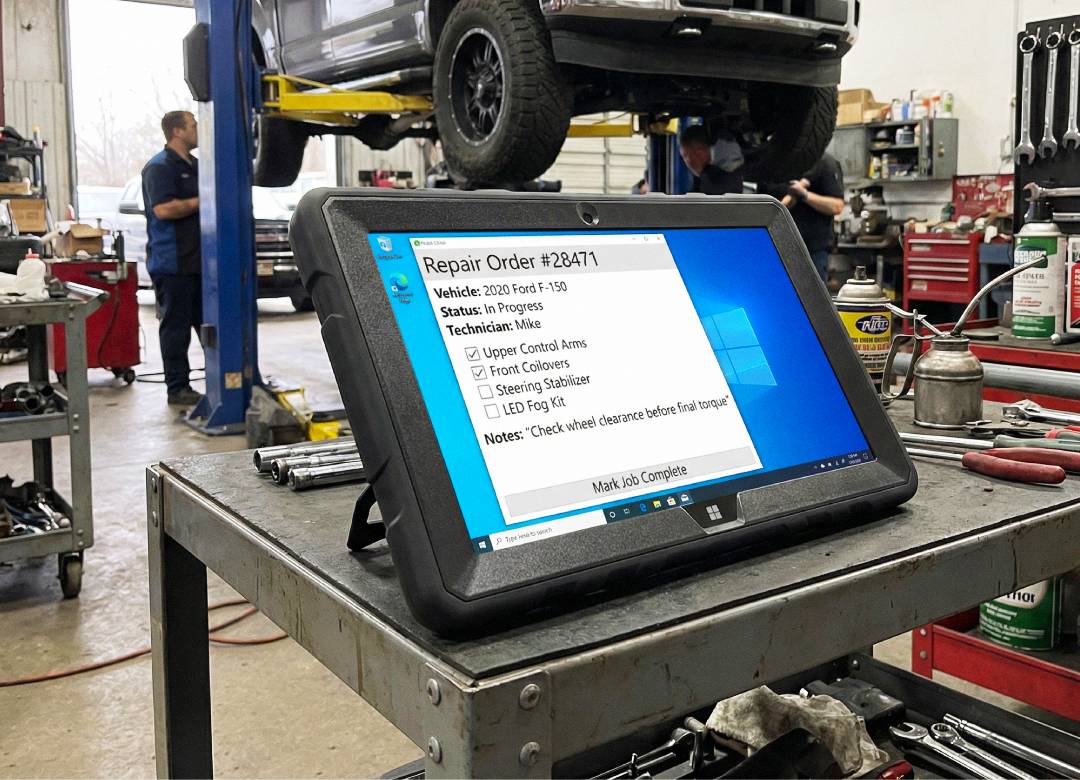
There's also an integrated hand strap for carrying the tablet around the workspace and a rear stand that can keep it upright beside your printer. You can leave a slicer, OctoPrint dashboard, Prusa Connect page, model reference, or troubleshooting guide visible while keeping both hands available for the printer.
Its 10.1-inch 1920 × 1200 display reaches up to 500 nits, giving you a portable screen that can move between different working areas.
The important distinction is workload. Complex CAD assemblies, rendering, and demanding 3D design can require substantially more processing and graphics performance. This tablet makes more sense as a portable machine for everyday slicing, printer management, model organization, documentation, and monitoring beside the hardware. Actual performance will vary with the software, model complexity, and project settings.
View the Fusion5 Rugged Windows Tablet and its full specifications.
Bring Your 3D Printing Tools to the Workbench
You don't need to redesign your entire 3D printing setup around a tablet. The useful part is having your software and project information close to the hardware when you need them.
A Bambu Lab owner can use Bambu Studio for model preparation and supported printer-management features. Prusa owners can use PrusaSlicer to prepare projects, while Prusa Connect provides remote management features for supported Prusa printers. Other compatible setups can use Windows tools such as Cura or turn the tablet into a portable OctoPrint interface.
Add your STL and 3MF files, documentation, project notes, printer settings, and troubleshooting resources, and one Windows device can cover a large part of the everyday 3D printing workflow.
For a printer living in a garage, workshop, or shared makerspace, the Fusion5 rugged Windows tablet adds practical features for being carried and used around tools and equipment, including its rugged construction, covered ports, hand strap, and rear stand.
FAQ
Can you use a Windows tablet for 3D printing?
Yes. A Windows tablet can run compatible desktop slicing software, manage STL and 3MF files, access documentation, and connect to supported browser-based printer tools. What it can comfortably handle depends on the tablet hardware, software requirements, and complexity of the project.
Can you run Bambu Studio on a Windows tablet?
Bambu Studio is available for Windows. Whether it runs appropriately on a particular Windows tablet depends on the current Bambu Studio hardware and software requirements and the complexity of the project.
Can you use a Windows tablet with a Bambu Lab A1?
Bambu Studio is available for Windows and is used with the Bambu Lab A1 workflow. A compatible Windows tablet can therefore be used to prepare and slice A1 projects, subject to Bambu Studio's current hardware and software requirements.
Can you run PrusaSlicer on a Windows tablet?
Yes, on compatible Windows hardware. Prusa currently lists 4GB RAM as the minimum and recommends 8GB or more for PrusaSlicer. The Fusion5 Rugged has 12GB RAM, although memory is only one factor affecting compatibility and slicing performance.
Can you use Prusa Connect on a Windows tablet?
Prusa Connect is web-based and can be accessed through a browser. Its printer compatibility and setup requirements vary depending on the Prusa model, so check Prusa's current compatibility information for your printer.
Can you run Cura on a Windows tablet?
UltiMaker Cura is available for Windows. Suitability depends on the tablet hardware, current Cura requirements, printer, and complexity of the models you're processing.
Can you use OctoPrint from a Windows tablet?
Yes. OctoPrint's official documentation describes accessing its web interface from a tablet. OctoPrint normally runs on a separate host connected to the printer, while the Windows tablet can access the interface through a browser over the network.
Is a rugged tablet useful for a 3D printing workshop or makerspace?
It can be useful when the computer needs to move between printers, benches, and work areas. The Fusion5 Rugged has shockproof and dustproof construction, covered ports, an integrated hand strap, rear stand, and a display rated up to 500 nits, providing practical features for a portable workshop setup.