

Desktop CNC with a Windows Tablet: Build a Router, Mill or Laser Workstation
Not everyone is going to have a whole shop to set up a CNC, but that doesn’t mean you can’t make do with a desktop router, mill, or laser in your garage or home workshop. Desktop CNC machines can be used to create anything from signs and engravings to prototypes and small machined parts.
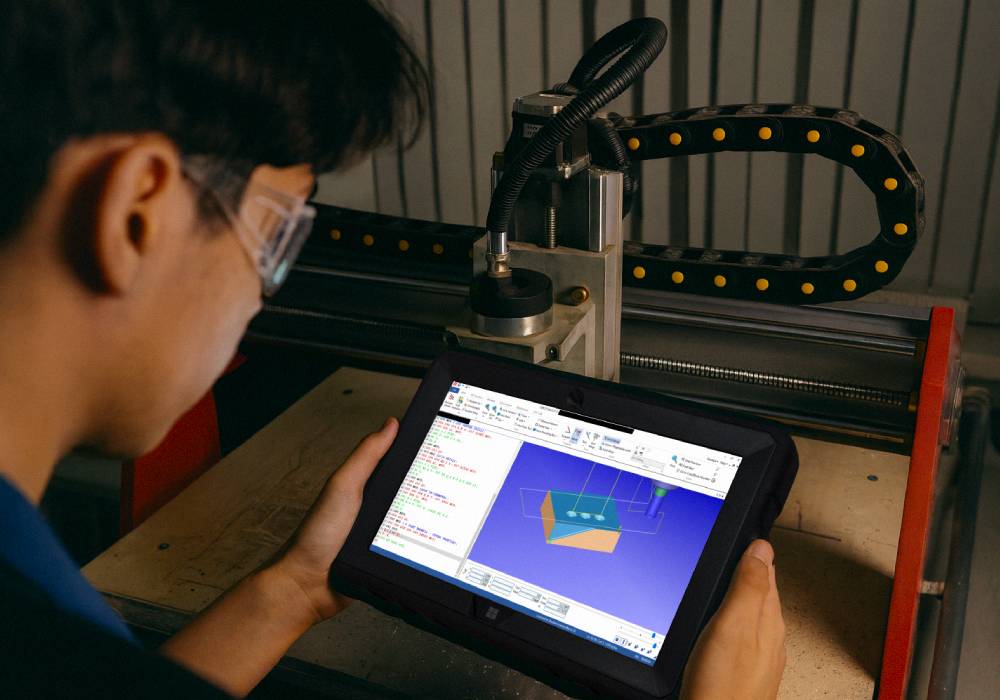
While the machine itself is necessary, you’ll also need other tools and equipment such as tooling, workholding, dust extraction or ventilation, and the right software. A Windows tablet can act as a portable machine-side computer, keeping compatible CNC software, G-code, project files, manuals, and other documents for your setup in one place without the clutter of a desktop computer and monitor.
Quick Answer
Yes. A Windows tablet can serve as a machine-side computer for compatible desktop CNC routers, mills, and laser cutters.
Using the appropriate software for the machine and the controller on the Windows tablet such as gSender, Universal Gcode Sender, Carbide Motion, LightBurn, or software provided by the manufacture, a connection can be made to control the machine.
Router, Mill or Laser: Which Desktop Machine Do You Need?
Start with what you actually want to make.
A desktop CNC router suits projects such as signs, panels, jigs, pockets, engraving, and 2D or 2.5D carving. Shapeoko CNC routers are one established example.
A desktop CNC mill focuses on smaller, more precise machined parts. The Bantam Tools Explorer, for example, is an enclosed compact mill with a 6 × 4 × 2.75-inch build volume and 10,000–23,000 RPM spindle.
A desktop laser cutter or engraver uses a focused laser instead of a physical cutter. For supported machines, LightBurn provides Windows software for designing, preparing, and controlling laser jobs.
Match the machine to the work you plan to do. A router built for larger wood projects, a compact mill designed for precision parts, and a laser engraver all solve different problems. Consider the materials you’ll work with, required cutting area, available bench space, and the types of projects you want to produce.
How a Windows Tablet Fits Into a Desktop CNC Setup
A typical desktop CNC workflow looks something like this:
Design → CAD/CAM → Generate G-code → Windows Tablet + Machine Software → CNC Controller → Machine
Your CAD/CAM software creates the toolpaths and G-code for the project. From there, the Windows tablet can run compatible machine software to load the file, send the job, and access the controls available for your CNC setup.
For compatible controllers, gSender and Universal Gcode Sender both offer Windows versions. Carbide Motion is another good real-world example for supported Carbide 3D machines. Carbide lists Windows 10/11 64-bit, 8GB RAM, and a 1280 × 1024 display in its system requirements. Carbide 3D staff also note that many users choose small tablets for machine-side use and describe a fanless, sealed tablet as a good fit for a dusty shop environment.
This puts the tablet right at the machine side of the workflow, where it can handle compatible CNC software, G-code and project files while keeping everything within reach at the workbench.
Build the Workstation Around Your Machine
Each machine needs a slightly different workspace, so plan the bench around the equipment you choose.
For a CNC router: Start with a sturdy, level workbench, secure workholding, suitable cutters, and effective dust collection. A spoilboard provides a replaceable surface for through-cuts and can also support clamps, locating points, and jigs for repeatable material positioning.
For a desktop mill: Rigidity and secure workholding become especially important. Use the vise, fixture, or clamping method recommended for your machine to keep the workpiece secure, with enough space around the mill for setup, tool changes, and safe operation.
For a laser cutter or engraver: Focus on material compatibility, ventilation or extraction, enclosure, and fire and eye safety. Follow the machine manufacturer’s requirements, and never process an unknown plastic, coating, or composite unless you’ve confirmed it is safe for your specific laser and process.
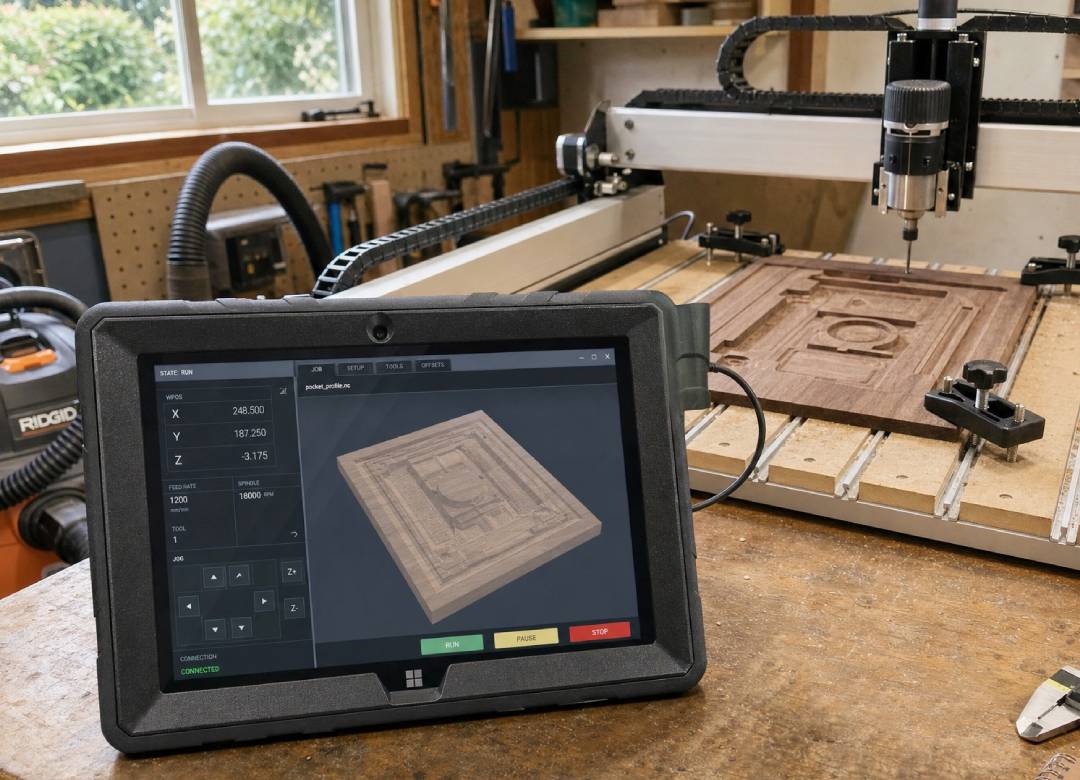
For the Windows tablet: Give it a safe, easy-to-reach position beside the machine where you can clearly see the screen. Route power, USB/data cables, and extraction hoses away from moving axes, stock, and cutting areas, and make sure neither the tablet nor its cables obstruct machine controls or emergency access.
Check Your Setup Before You Run a Job
Before starting a CNC job, make sure the material is firmly secured, the correct cutter is installed, and your work zero point, the reference point the CNC uses to position the job on your material, is set correctly.
Preview the toolpath to check where the cutter will move. You’ll also need to set the feed rate, spindle speed, and depth of cut, which control how quickly the cutter moves, how fast the spindle rotates, and how deeply the tool cuts. The right settings depend on your machine, material, and tooling, so start with the manufacturer’s recommendations.
When trying a new material, cutter, or setup, run a test cut on inexpensive stock first. It can help you catch problems with positioning, workholding, or cutting settings before using your final material.
Using a Windows Tablet with a Desktop CNC Mill
A desktop CNC mill follows a similar digital process to a router, with rigidity, workholding, tooling, and machining parameters becoming especially important for precision parts.
The Bantam Tools Explorer is one example of a compact desktop mill. Bantam also provides Windows Milling Machine Software for its supported equipment.
CAD/CAM software such as Autodesk Fusion can be used to design parts, create toolpaths, and generate G-code. Autodesk notes that its minimum hardware specification is suitable for basic modeling activities, while more complex assemblies and demanding toolpaths benefit from higher-performance hardware.
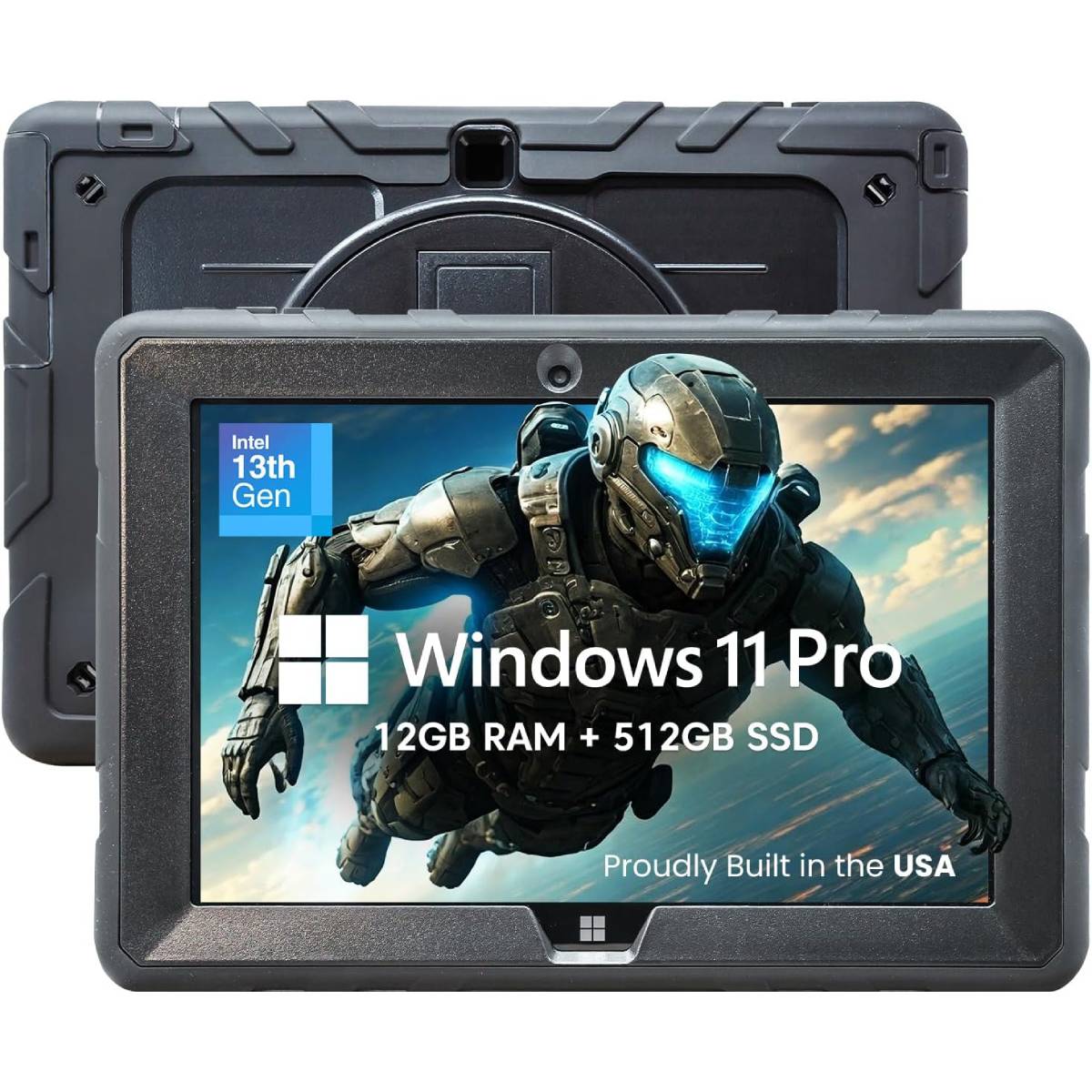
For this setup, the Fusion5 Rugged works particularly well as the portable machine-side Windows workstation, with more demanding CAD/CAM prepared on a higher-performance computer when needed.
A practical workflow could look like this:
Design Part → Create & Verify Toolpaths → Export G-code → Fusion5 Rugged → Compatible Milling Software → Verify Setup → Run Job
This keeps your machining files, compatible control software, manuals, and setup notes right beside the mill without requiring a permanent desktop PC and monitor.
Using a Windows Tablet with a Laser Cutter
For supported lasers, LightBurn provides an especially straightforward Windows workflow:
Design → LightBurn → Windows Tablet → Laser Controller → Cut / Engrave
LightBurn 2.1 supports 64-bit Windows 10 and 11. Its published practical guidance includes 8GB RAM, SSD storage, and a 1920 × 1080 display for a typical smooth workflow.
Machine compatibility still depends on the controller inside the laser, so check LightBurn's compatibility information before choosing equipment.
Why the Fusion5 Rugged Fits a CNC Workstation
The Fusion5 Rugged Windows Tablet runs Windows 11 Pro with an Intel N100 processor, 12GB RAM, 512GB SSD storage, and a 10.1-inch 1920 × 1200 touchscreen.
That gives you a compact Windows machine for compatible applications such as:
CNC Router → gSender / UGS / Carbide Motion
Desktop Mill → Compatible Manufacturer Software
Laser → LightBurn
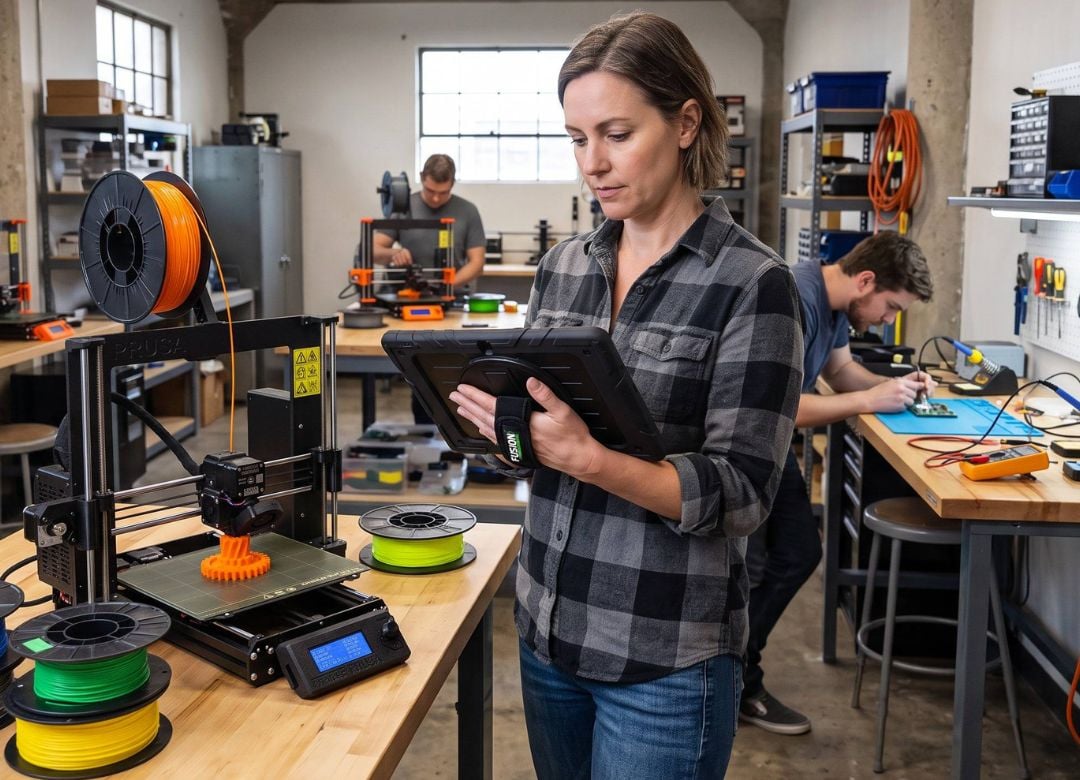
Its dustproof and shockproof construction, covered ports, rear stand, and integrated hand strap are also useful around a working environment. The stand lets the tablet sit upright beside a machine without adding a separate monitor, while its compact size saves valuable bench space.
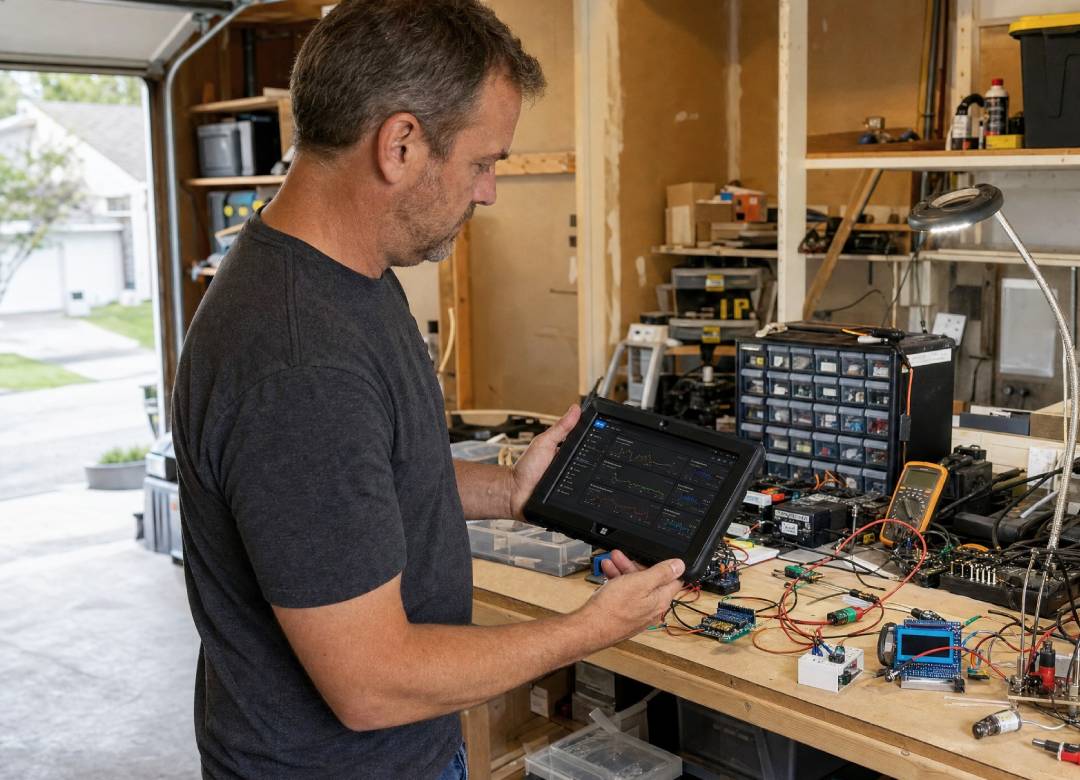
The 512GB SSD also gives you local storage for G-code, project folders, machine manuals, cutter information, setup notes, and reference files.
Rugged construction doesn't replace good workshop practices. Keep the tablet away from direct chip or dust streams, moving machinery, and continuous machine vibration, and use appropriate dust extraction.
The real advantage is flexibility: one portable Windows workstation can potentially move between several compatible workshop machines instead of dedicating a separate computer to each one.
Start With One Machine and Build From There
You don't need a router, mill, and laser on day one.
Start with the machine that matches what you want to make and learn its complete workflow.
For a CNC router, that might look like:
Secure Stock → Select Tool → Create Toolpath → Set Work Zero → Preview → Verify → Run → Inspect
Once you're comfortable with one machine, you can add better tooling, workholding, extraction, or another desktop machine while keeping the same Windows workstation at the center of your digital workflow.
The machine does the physical work. The Windows tablet keeps the digital side of your workshop within reach.
FAQ
Can you control a desktop CNC with a Windows tablet?
Yes, when the CNC controller and required software support Windows. gSender and UGS provide Windows versions for compatible controllers, while manufacturers such as Carbide 3D provide Windows software for their supported machines.
Can the Fusion5 Rugged run Carbide Motion?
Its Windows 11 Pro operating system, 12GB RAM, and 1920 × 1200 display meet or exceed Carbide 3D's published Windows requirements in those areas. Carbide also specifically suggests a Windows tablet as an option for a dedicated shop computer.
Can the Fusion5 Rugged run LightBurn?
LightBurn supports 64-bit Windows 10/11. The Rugged's 12GB RAM, SSD storage, and 1920 × 1200 display meet or exceed LightBurn's practical guidance in those specific areas. More demanding design work may benefit from a more powerful computer.
Does the Windows tablet replace the CNC controller?
No. The tablet provides the Windows workstation layer for compatible software. The CNC's dedicated controller and firmware remain responsible for machine-level control.
What CNC software can you use on a Windows tablet?
It depends on your machine and controller. Examples include gSender, Universal Gcode Sender, Carbide Motion, LightBurn, and manufacturer-specific Windows applications. Always verify compatibility with your exact machine and controller before purchasing equipment.