

How to Use a Windows Tablet Offline
Most people think tablets cannot be as effective without Wi-Fi. But actually, there are ways of making it work for offline productivity.
A Windows tablet may be very convenient during flights, travels or work in the field, so long as you are ready to work offline.
Quick Tips
- Download all necessary documents to work with before disconnecting from Wi-Fi.
- Prepare offline maps for your travel planning and navigation.
- Store videos locally on your tablet to view them offline.
- Work offline in Microsoft Office apps.
- To get GPS coordinates in real-time when using a GPS map, use a USB dongle or forward GPS data from your phone.
Full Blog: Offline Windows Tablet Functionality
Reasons Why Offline Usage of Tablets Is Important
Internet accessibility is something that most people take for granted.
Perhaps you're catching a last minute flight out of town for a meeting and need to get some things done on the way there. Maybe you’re on a commuter train with some sketchy connectivity and need to know where you’re at or where you’re going.
You could be at a store you wanted to check out in the middle of nowhere with no guest Wi-Fi access or any idea which direction your car was parked. Or, really you could just be temporarily in an area with inconsistent cellular data coverage overall. These circumstances are where a Windows tablet will make itself extremely handy.
Unlike devices that rely heavily on cloud-based apps, a Windows tablet can continue running desktop software, opening saved files, and playing downloaded content without an internet connection.
The key is making sure the things you need are stored on the device before you leave. Just a few simple preparations before going offline can give you several productive hours.
Document Downloading for Productive Use Offline
To get ready for a productive offline session, you should make sure to download the necessary documents you need locally right onto your device.
For instance, these documents may include a PDF work training manual, an important document in Word that you're going to edit, an Excel file to update, or lecture notes to go over before a class.
The key thing to remember about all of them is that they should be downloaded onto your device to enable them to be opened even when offline. Note that you can’t rely on your cloud services, such as OneDrive, to download documents without an internet connection.
Before going offline, make sure all your important files are marked available offline, or stored directly on your tablet.
Documents that May be Downloaded for Offline Usage
Common Mistake: Thinking that you’ve already downloaded a document because you can see it on OneDrive while connected to Wi-Fi
When you see a file in your OneDrive, you always should make sure you already have it on the device locally. Otherwise, when you disconnect from the internet, this document will not be able to be opened.
Maps for Your Offline Travel on Windows
When you want to explore new unknown areas to you, having offline maps is really useful.
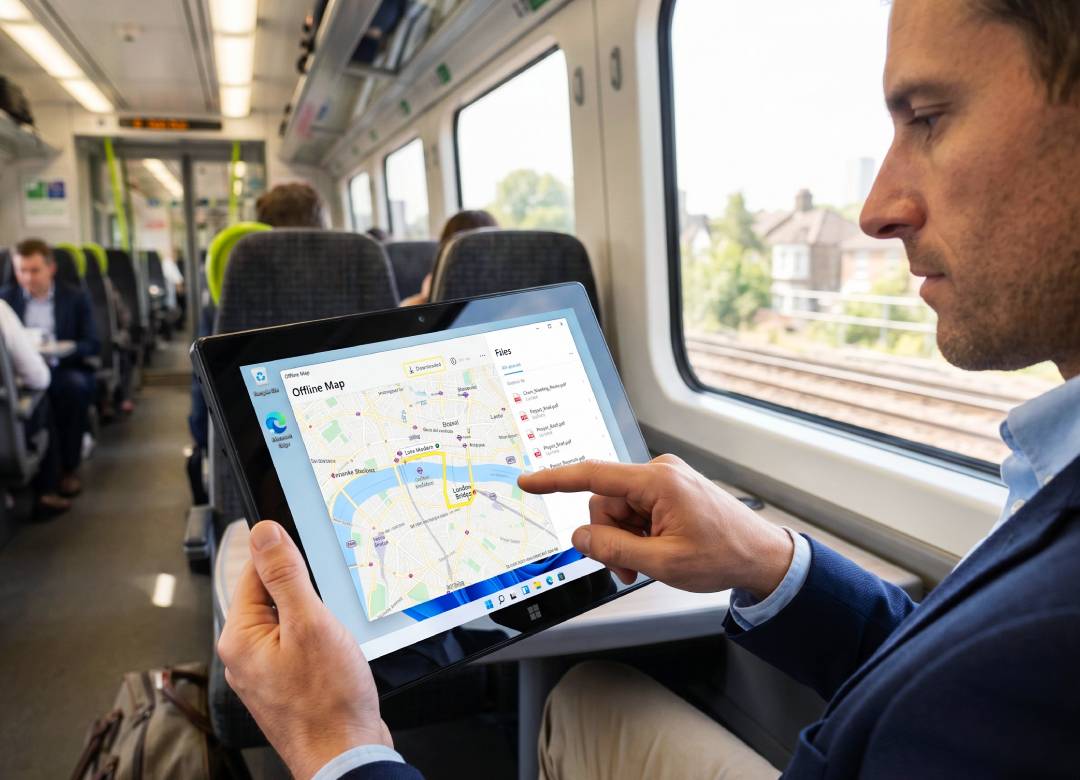
The Windows OS lets users download maps to the device; this makes it possible to use the maps offline. This feature can really come in handy during impromptu business trips, field activities, road trips or exploring big school campuses.
One point that should be kept in mind here is that offline maps are different from live GPS location.
The Fusion5 FWIN232 PRO N5 supports offline maps, so you can download map regions and access them without Wi-Fi or mobile data. However, because this model does not include built-in GPS hardware, it can’t determine your live location on those maps by itself.
If you need live positioning for navigation or field work, you can add GPS capability using a compatible USB GPS receiver or by sharing your smartphone's GPS location with the tablet.
To Download Offline Maps on the Pro N5
- Connect the tablet to Wi-Fi.
- Open Settings.
- Go to Apps.
- Select Offline Maps.
- Choose Download Maps.
- Pick the country or region you need.
- Open the Maps app later when offline to view the saved map area.
This is useful for checking locations, planning routes, or viewing an area when you don't have internet access.
To Add Live GPS with a USB GPS Receiver
If you need live location tracking, you can add GPS capability using an external USB GPS receiver.
- Plug a Windows-compatible USB GPS receiver into the tablet's USB port.
- Install any required driver from the GPS receiver manufacturer.
- Restart the tablet if prompted.
- Open your preferred mapping or navigation software.
- Confirm the software can detect the GPS receiver.
- Test the setup outdoors before relying on it during travel.
This is often the simplest solution for field workers, vehicle navigation, and location-based tasks.
To Share GPS from Your Phone
Another option is to share your smartphone's GPS signal with the tablet.
- Install a GPS sharing or GPS tethering app on your phone.
- Install the companion app on the Windows tablet if required.
- Connect the phone and tablet using Bluetooth or Wi-Fi.
- Allow location permissions on the phone.
- Start GPS sharing from the phone.
- Open your mapping software on the tablet and verify that location data is being received.
This approach can work well, though compatibility depends on the phone, app, and navigation software being used.
Save Videos Before You Travel
Another instance where offline connectivity becomes very important is entertainment.
Imagine if you’ve ever gotten on an airplane only to find that the TV show you wanted to watch online needs Internet to stream.
A good amount of streaming services allow users to download their content to watch offline. A good amount of streaming services allow users to download their content to watch offline. Depending on the service provider, type of app, type of subscription plan, and the specific content you're trying to access, downloading can be possible for various videos. When downloaded, most videos can usually be watched without an internet connection around to access.
That’s why this becomes really useful while on an airplane or trains, or when at hotels with poor Wi-Fi connectivity, or just in situations where there’s not enough data on your phone.
Just remember that the downloading of files needs to fully finish before you leave the area with internet.
Work Offline with Microsoft Office
One of the biggest advantages of a Windows tablet is access to the same Microsoft Office applications many people use every day on a desktop or laptop.
Word, Excel, and PowerPoint continue to function offline, allowing you to write reports, update spreadsheets, review presentations, or take notes without interruption.
For many professionals and students, this is where Windows tablets stand out. You're not switching to a simplified mobile version of your workflow. You're using the same tools you're already familiar with.
Once you're back online, files can sync automatically to cloud storage and update across your devices.
The Fusion5 Point Of View
Offline functionality can’t rely solely on the software. For example, your tablet should have sufficient storage to store all your offline files, videos, maps, applications, etc.
The above considerations make the Fusion5 FWIN232 PRO N5 an excellent pick for mobile productivity.
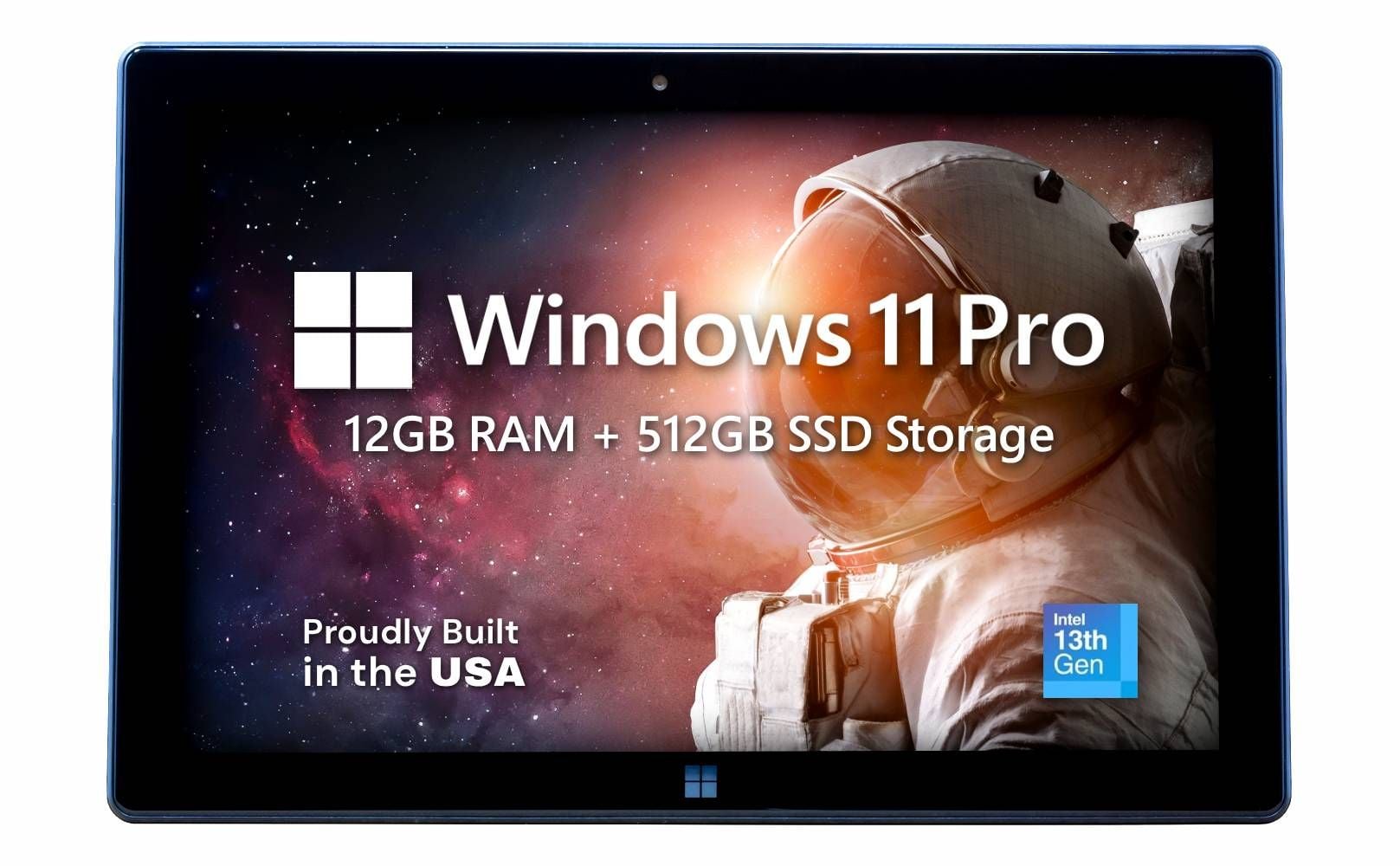
Having 12GB RAM, 512GB SSD, Windows 11 Professional, and expandable storage allows storing offline working files, media downloads, travel information, and any other needed documents. Furthermore, having a complete Windows OS makes it possible to run your standard desktop applications whether you're connected or not.
It's also worth being clear about GPS. The Pro N5 is a strong Windows productivity tablet, but it does not include built-in GPS. If live offline navigation is essential, pair it with a USB GPS receiver or a phone-based GPS sharing solution.
For students and professionals working out of the office, it can be especially useful.
Offline Preparation Checklist
Before leaving a reliable internet connection, it's worth spending five minutes checking that everything you need is actually stored on the device.
It sounds simple, but these are the exact steps that prevent most offline productivity problems.
FAQ
Can a Windows tablet work without internet?
Yes. Windows tablets can run locally installed applications, open saved documents, play downloaded media, and access offline maps without an internet connection.
How do I download files for offline use?
Save files directly to your device storage or mark cloud files as available offline before disconnecting from the internet.
Can Microsoft Office work offline?
Yes. Word, Excel, PowerPoint, and other Office applications can be used without internet access.
Can I use maps offline on Windows 11?
Yes. Windows allows you to download map regions to your device so they remain available even without a connection.
Does the Fusion5 FWIN232 PRO N5 have built-in GPS?
No. The Fusion5 FWIN232 PRO N5 does not have built-in GPS. You can still use downloaded offline maps for reference, but live location tracking requires an external GPS solution such as a USB GPS receiver or phone-based GPS sharing.
How much storage do I need for offline files?
That depends on what you download. Documents require very little space, while videos and offline maps can use much more. Users who regularly store media, work files, and travel resources often benefit from larger storage capacities such as 512GB.