


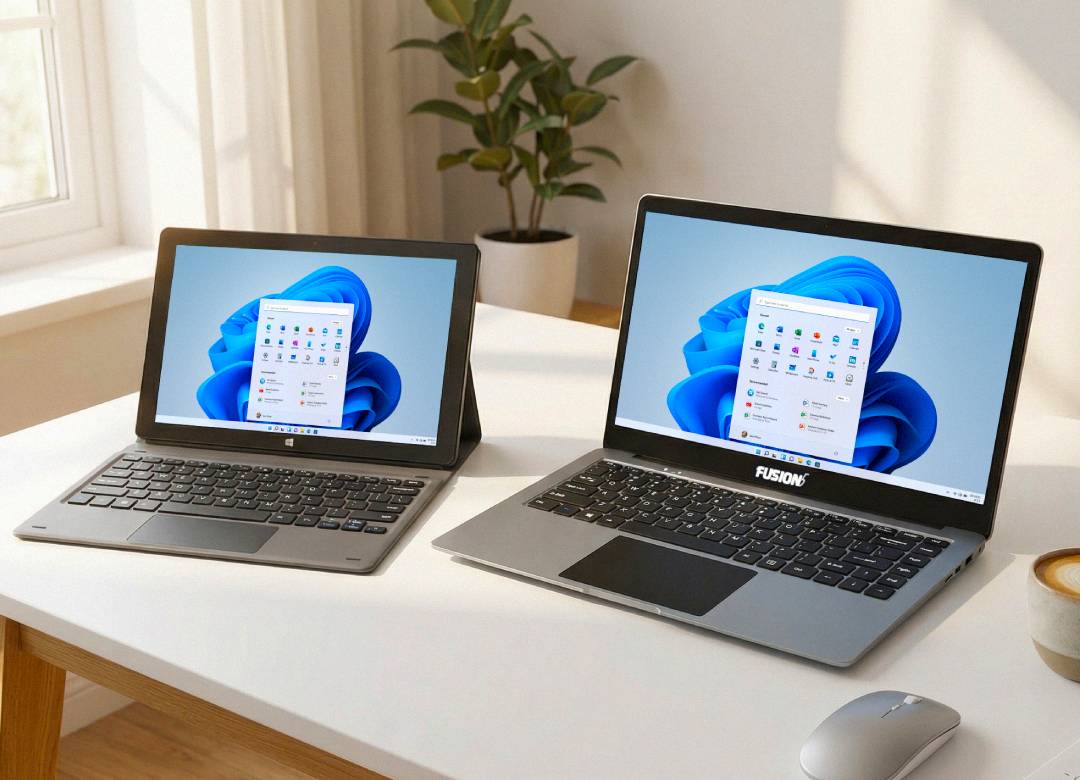
How to Use a Fusion5 Tablet as a Second Screen: The Ultimate Dual-Display Setup Guide
Do you need to expand your computer’s screen area on a budget? You may be working on a single display screen with too many open browser tabs open, juggling what looks like infinite documents all over your main desktop, answering chat messages that pop up every few minutes, all while selecting the next music playlist for your work session. This workstation setup may provide temporary functionality, but we all know it doesn’t do well at optimizing productivity levels.
Did you know you can obtain that much needed additional screen space without spending money on an expensive and bulky new monitor? With the right accessories and adaptors, a Fusion5 tablet can easily become a second screen, or even full workstation, right on its own. These tablets are easy to use, easy to set up, and offer an affordable way to double your workspace.
In this blog we will explore how to build the best setup with a Fusion5 tablet, and why it is the perfect fit for people who value flexibility and affordability.
Full Blog: Transform Your Fusion5 Tablet, Expand Your Workspace, Boost Efficiency
Why Use a Tablet as a Second Screen or Portable Workstation
The simplest way to enhance productivity without having to purchase a new monitor is to use a budget tablet as an additional display or mobile workspace. Fusion5 tablets offer full HD expanded screen capabilities with a 10.1” touchscreen display, plus they cost much less than a standalone full HD monitor.
A tablet also allows for users to easily switch between home offices, coffee shops, and classrooms, all while maintaining their work efficiency at the same level. Fusion5 tablets are productivity-enhancing multitasking tools, meaning they can help improve your work efficiency, organizational skills, and daily workflow.
How to Turn Your Tablet into a Second Screen or Workstation
Option 1: Wireless Dual-Screen Setup for Flexibility
Users can convert their Fusion5 Windows or Android tablets into second screen displays through software applications including SpaceDesk, Duet Display, and Splashtop Wired XDisplay.
How to set it up:
- Install the SpaceDesk driver on your PC or laptop.
- Download the SpaceDesk “Viewer” application on your Fusion5 device.
- Devices need to share access to the same Wi-Fi network for operation.
- Launch the app, then find and select your PC. Go to Display Settings to activate “Extend these displays.”
And BOOM! Your Fusion5 tablet now extends your workspace through an additional display, showing your notes, emails, chats, and documents clearly while your main screen displays the essential tasks.
Best for: multitasking, portable setups, remote work, and study environments
Tip: The process will run more smoothly when both devices connect to a strong Wi-Fi network with the same network.
Option 2: Wired Connection for a Stable Workstation
Fusion5 tablets with USB-C or micro-HDMI ports allow for users to establish a stable and reliable dual-screen experience.
Steps to connect:
- Use a USB-C to HDMI or micro-HDMI to HDMI adapter.
- Connect your tablet to the external monitor through a compatible cable.
- Add a Fusion5 docking keyboard, or other compatible Bluetooth or wired keyboard.
- Go to Display Settings and select “Extend display.”
This transforms your tablet into a small portable computer that feels just like a compact yet powerful PC.
Best for: users who prefer wired stability, video editors, writers, or anyone who works long hours
What You Need Before You Start
- Fusion5 Tablet (Windows or Android)
- USB-C or micro-HDMI to HDMI adapter
- External monitor
- Fusion5 Docking Keyboard or other compatible keyboard/mouse
- Optional: tablet stand, USB hub, power bank
Note: The micro-HDMI and USB-C ports on Fusion5 Windows tablets enable direct video output but Fusion5 Android tablets require wireless connection through screen-sharing applications including SpaceDesk and Duet Display.
Final Thoughts: More Screen, More Value, Smarter Productivity
Fusion5 tablets allow for dual-screen operation through various accessories and adaptors, enhancing productivity by using a space-efficient design and flexible operation in most environments. This workstation upgrade transforms your Fusion5 tablet into a powerful multi-use “work and play” tool. One that works as an ideal solution for students, professionals, and creators alike who need to work or study on the go, and are also in need of expanding their workstation setup on a budget. The two for one functionality really seals the deal.
Visit Fusion5store.com to find your ideal model among our complete selection of Windows and Android tablets which serve all professional and academic needs.