

Microsoft Copilot on Windows Tablets: A Simple Everyday Guide
You see a lot of people using their tablets for what amounts to trivial, everyday tasks such as looking for emails, reading PDFs, searching for something online, or composing a message. What should be a straightforward experience is frequently very challenging.
This is where Microsoft Copilot can make a real difference on a Windows tablet.
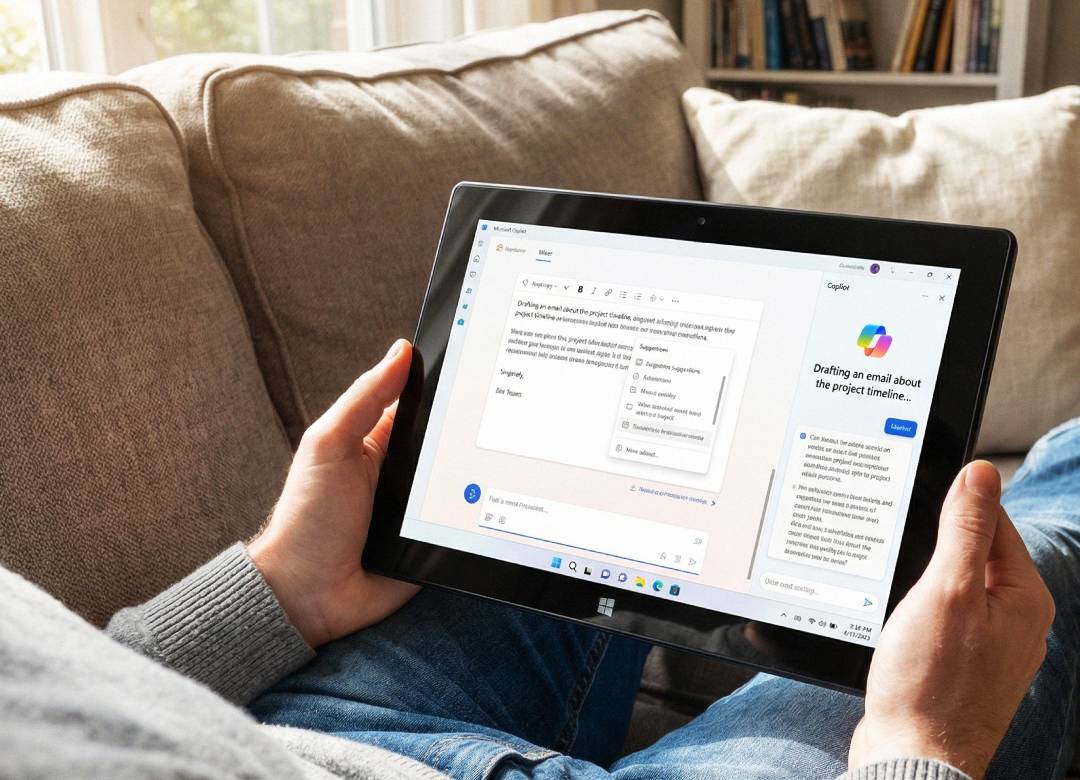
On Windows 11 devices, Copilot is available as an application that can be pinned to the taskbar or found in the Start menu, which can remain open while working in another app.
This guide will break down just how Microsoft Copilot can enhance your experience using your Windows tablet.
Full Blog: How to Use Microsoft Copilot on a Windows Tablet
A Practical Tool for Everyday Tasks
Copilot works best when integrated into the flow of your work. Browsing through a long file can be cumbersome, and there are several ways that you can use Copilot to make that experience better.
While reading you can ask Copilot clarification questions, ask it to summarize what you're reading or looking at, or help you understand information more quickly.
Copilot also allows you to search within many types of files including Word, Excel, PowerPoint, plain text files and PDFs. A very useful tool for searching through large amounts of documentation and finding information quickly and easily.
This makes it so you don’t have to go switching between apps and random windows all over your device to find the information you need quickly.
Help With What Is On Your Screen
Copilot can also be used with screenshots. You can capture part of your screen, upload it, and ask questions about what you are looking at.
This can be useful when reviewing a webpage, checking a document, or trying to understand something visual without needing to explain it in detail.
Support for Simple Windows Tasks
Copilot isn’t just for writing or summarising. It can also help with general device use.
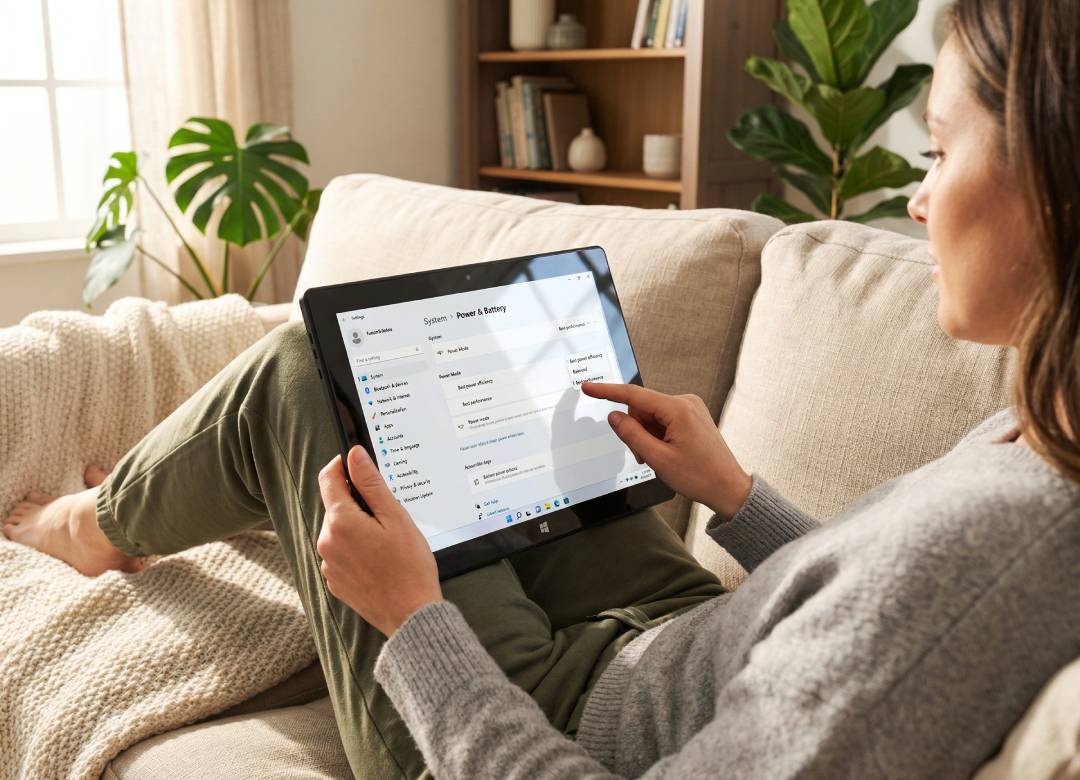
For example, you can ask for help finding settings, adjusting your display, or making your device easier to use. This can save time compared to searching through a bunch of menus manually.
A Better Everyday Experience
The main advantage of Copilot on a Windows tablet is convenience. You can keep it open while reading, writing, or organising tasks and use it whenever you need support.
Signing in with a Microsoft account allows you to access more features and keep track of your interactions.
For many users, this makes the tablet feel more responsive and easier to use throughout the day.
Microsoft Copilot doesn’t replace everything you do on your device. But it can make everyday tasks simpler, quicker, and easier to manage.
Sometimes the most useful improvement is not doing more, but doing the same things in a more efficient way.