

10 Things to Do After Buying a New Windows Tablet
There’s a certain excitement that comes with opening a new Windows tablet.
Everything feels fresh, clean, and full of possibility. There’s no garbage on it, no unnecessary documents, no obscure “to do” lists. Just beginnings.
But what you do next actually matters more than most people think.
It's encouraged to take a few steps early on to ensure it's functioning optimally, that it's being used in the most effective way and is organized in a way that makes everything on it easy to manage.
Taking these steps into consideration can truly make sure your new Windows tablet doesn’t turn into just another device filled with random downloads, screenshots, and files saved in places you forget about later.
Full Blog: The First Things to Do After Buying a New Windows Tablet
1. Run updates first
Before you start downloading apps or moving files, check for updates.
On a brand new Windows tablet this means you need to head into Windows Update and apply any pending updates. System and security updates can cover a wide range of fixes and changes, everything from performance improvements and driver updates, to bug fixes and more.
It’s one of the simplest ways to avoid problems later.
2. Set up your files and backup
It’s easy to ignore this step, but it’s one of the most important.
On Windows, many users set up OneDrive early so files in Documents, Desktop, and Pictures are backed up automatically. Others prefer external storage or manual backups.
For example, if you’re using your tablet for work or study, having your files synced means you can access them from another device if needed. It also means that you’re not relying on a single device to hold everything.
3. Pin your everyday apps
One of the quickest ways to improve your experience is to make your tablet feel like your own.
On Windows 11, you can pin apps to the taskbar or Start menu. Many users pin things like their browser, email app, File Explorer, and Teams or Zoom.
If you open the same few apps every day, putting them in one place saves time and makes the tablet feel more natural to use.
4. Connect your accessories
A Windows tablet becomes much more useful once you connect the right accessories.
That might be a Bluetooth keyboard for typing longer documents, a mouse for more precise control, or earbuds for calls and media. Windows makes it easy to pair these through Bluetooth settings.
For example, someone using a tablet for emails and documents will almost always benefit from a keyboard, while someone using it for travel might prioritise wireless earbuds.
5. Adjust your battery settings
If your tablet is going to travel with you, battery life matters.
Windows includes power modes and battery saver settings that can help extend usage time. Lowering screen brightness slightly, enabling battery saver, and adjusting sleep settings can make a noticeable difference.
This is especially useful if you plan to use your tablet on the move rather than always near a charger.
6. Turn on storage management early
Storage fills up faster than expected.
Windows includes a feature called Storage Sense, which can automatically remove temporary files and help manage space over time.
A common example is downloads and screenshots building up without you noticing. Turning this on early helps keep things organised without needing constant manual cleanup.
7. Install the apps you actually need
This is where your tablet starts to feel personal.
Most Windows users install a browser they prefer, along with apps for work, notes, media, or communication. For example:
A note-taking app for study or planning
A document or PDF viewer for work
A media app for watching or listening
The key is to install what you actually use, rather than filling the device with apps you might never open.
8. Try multitasking features
A Windows tablet works best when you use its multitasking properly.
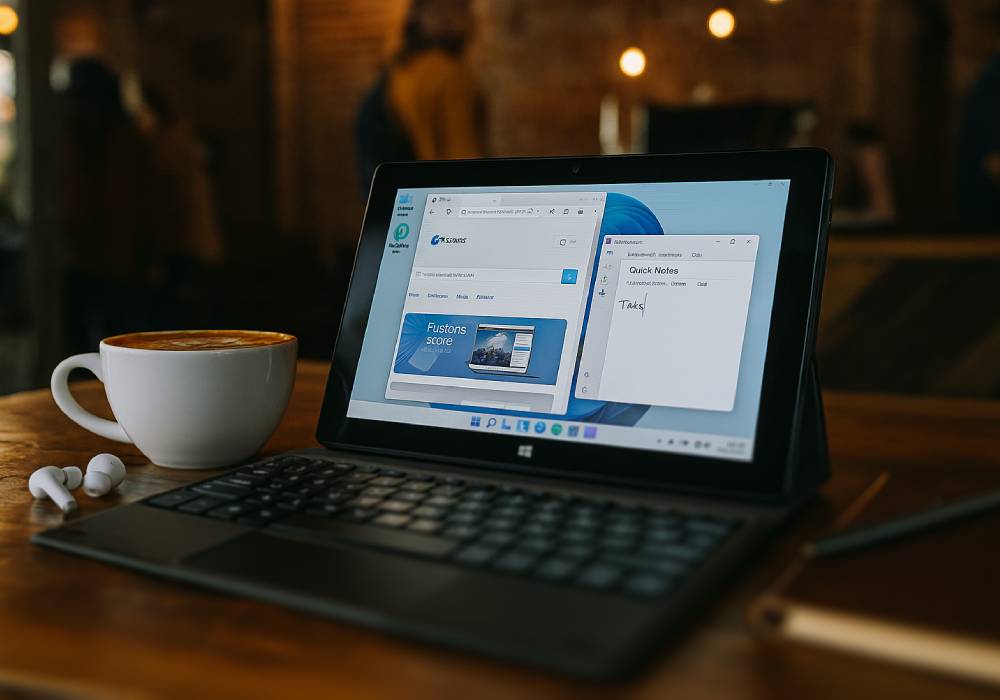
Windows 11 includes snap layouts, which let you place two apps side by side. For example, you might have a browser open on one side and a notes app on the other.
This is especially useful for tasks like research, comparing information, or working through documents without constantly switching between apps.
9. Use it for a real task straight away
One of the best things you can do is actually use your tablet properly on day one.
Reply to emails, organise a document, review a PDF, or plan something using your usual apps.
For example, many people use their tablet to clear emails or review files while sitting away from a desk. Doing a real task early helps you understand how the device fits into your routine.
10. Do something you enjoy with it
Not everything has to be practical.
Watch something, read, browse, or explore. A new tablet should be enjoyable to use, not just productive.
For example, streaming a show, reading articles, or browsing comfortably on the sofa is often one of the reasons people choose a tablet in the first place.
A Better Start Makes a Better Device
A Windows tablet is flexible by design. It can be used for work, study, organisation, or everyday tasks.
But the way you set it up early on shapes how useful it becomes.
A few small steps can make it faster to use, easier to manage, and more suited to your routine.
Sometimes it’s not about doing more with a device. It’s about setting it up in a way that makes everything feel simpler from the start.