

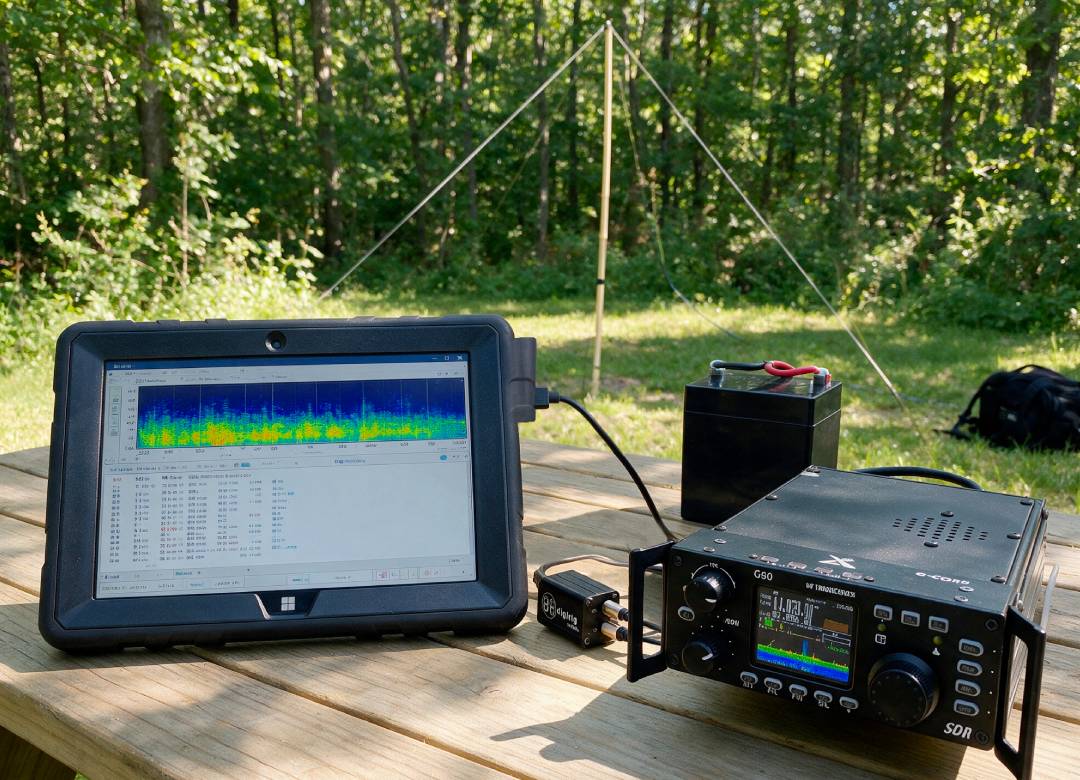
Windows Tablet for Ham Radio: Build a Portable POTA FT8 Setup
The computer might easily turn into one of the bulkier components of your field station when it comes to Parks on the Air (POTA) and portable FT8.
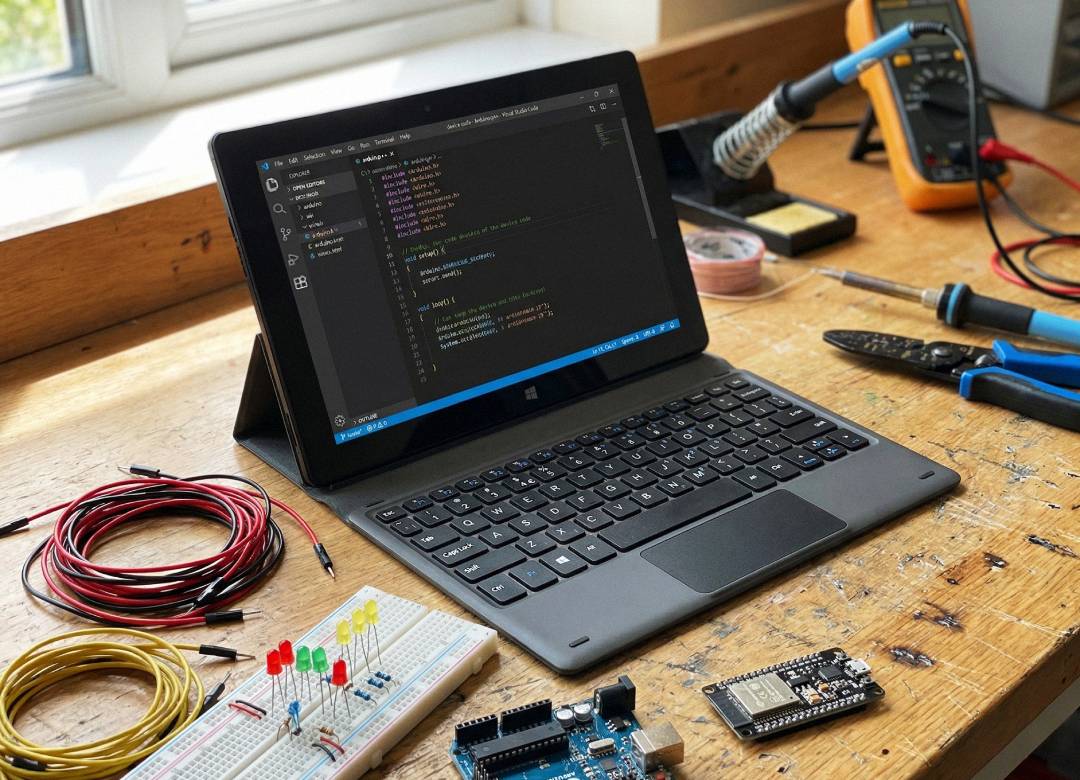
A Windows tablet for ham radio can offer a more compact solution for running familiar desktop programs like WSJT-X without having to bring a conventional laptop along on your trips.
In this guide, we’ll go over how you can build an affordable and portable FT8 setup with the Fusion5 rugged tablet, Xiegu G90 and DigiRig Mobile.
Quick Answer
A Windows tablet for ham radio allows for creating a portable POTA FT8 station using full Windows software on a compact device instead of a bulky laptop.
Combine the Fusion5 rugged tablet with a Xiegu G90, DigiRig Mobile, portable antenna and LiFePO4 battery, and use WSJT-X for FT8 and logging. Your smartphone can serve as a hotspot if it has those capabilities, whereas a GPS/PPS receiver can be used for off-grid operation.
What You Need for a Portable POTA FT8 Setup
Our starter station is:
Portable HF Antenna → Xiegu G90 → DigiRig Mobile → Fusion5 Rugged → WSJT-X
You'll need:
- Fusion5 FWIN232 PRO N5 Rugged
- Xiegu G90 HF transceiver
- DigiRig Mobile with G90 cable set
- compatible USB data cable
- portable HF antenna and 50-ohm coax
- suitable 12V LiFePO4 battery
- smartphone with hotspot
- WSJT-X
- optional Bluetooth keyboard
- optional USB GPS/PPS receiver for off-grid use
Why Use a Windows Tablet for Ham Radio?
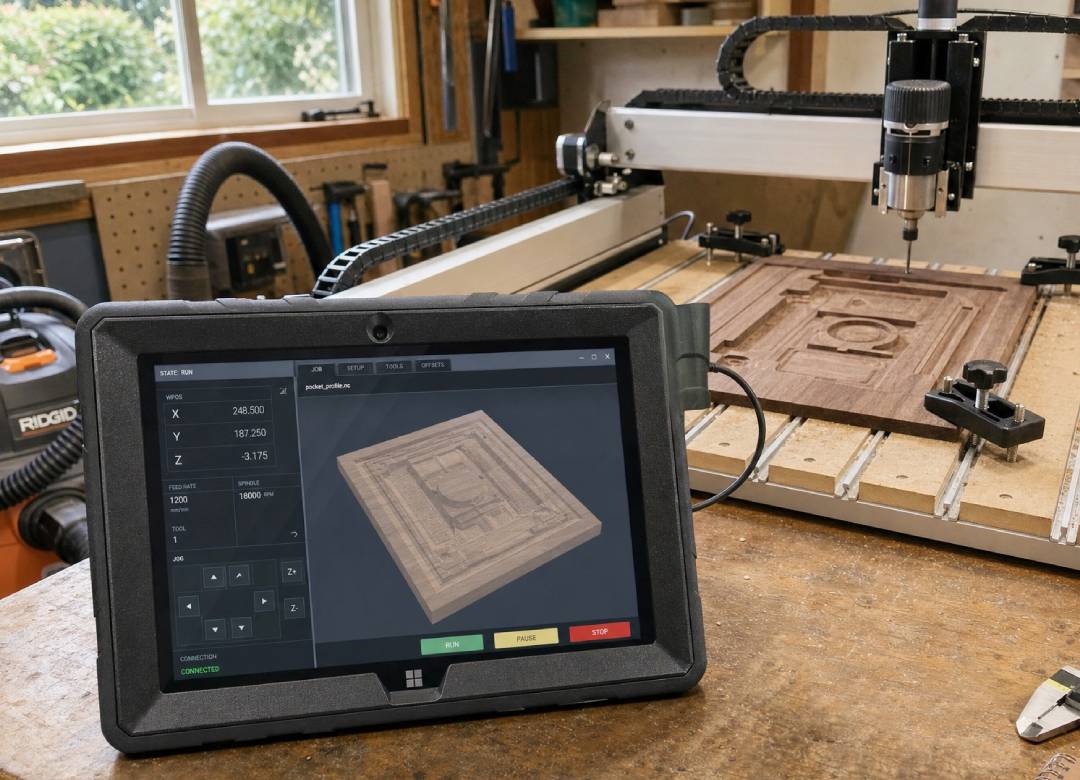
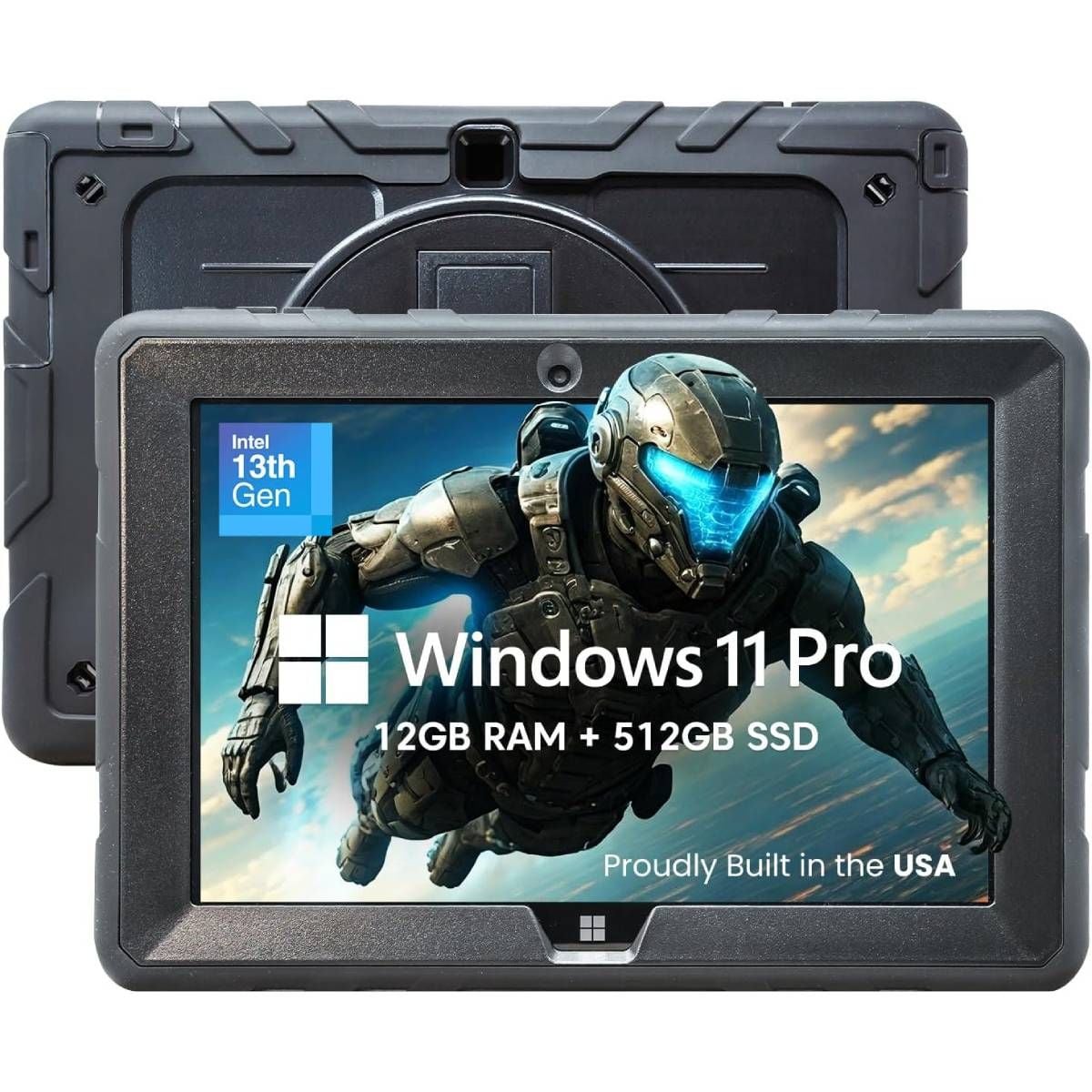
The Fusion5 rugged tablet offers you Windows 11 Pro, Intel N100 processor, 12GB RAM, 512GB storage and a 10.1-inch touchscreen. Such specs exceed the minimum computer requirements for WSJT-X according to the WSJT-X documentation.
For a POTA operator, the benefit is simple. You can run full Windows radio and logging software without carrying a conventional laptop into the field.
Choosing a Radio for Portable FT8
For our starter setup, we chose the Xiegu G90. It’s a compact 20W HF transceiver with a built-in automatic antenna tuner. Those characteristics make this radio a practical choice for portable HF operation.
FT8 is designed for weak-signal communications, and thus you don't need a big 100W radio to start with. You can also try operating other compatible HF radios, but the difference is in their cables and configurations.
How to Connect Your POTA FT8 Station
1. Antenna to G90
Connect your portable HF antenna to the G90 antenna connector using 50-ohm coax.
A multiband EFHW, linked dipole or another suitable portable antenna can work depending on the bands you want to operate.
Start at conservative transmit power while setting up and testing the station.
2. G90 to DigiRig Mobile
Connect the DigiRig Mobile to the G90 using the appropriate G90 cable set.
The interface handles:
- audio for the digital signals
- control and PTT for communicating with and keying the radio
The G90's rear ACC connection provides the digital audio path, while the appropriate control connection handles radio control.
3. DigiRig to Fusion5 Rugged
Connect the DigiRig to the Fusion5 using a compatible USB data cable.
Windows should detect the DigiRig's audio and serial/COM interfaces, which WSJT-X uses to communicate with the station.
The complete setup is:
Antenna → G90 → DigiRig → USB → Fusion5 Rugged → WSJT-X
Separately:
LiFePO4 Battery → G90
Smartphone → Wi-Fi → Fusion5
Optional for off-grid operation:
GPS/PPS Receiver → spare Fusion5 USB port
How to Set Up WSJT-X on a Windows Tablet
Install WSJT-X on the tablet and connect the DigiRig.
In WSJT-X settings:
Audio: Select the DigiRig USB audio device for input and output.
CAT control: Select the COM port Windows assigned to the radio interface. The G90 commonly uses 19,200 baud for CAT control.
PTT: Configure the appropriate CAT or serial PTT method for your setup.
Do not copy a COM number from another setup guide. Windows may assign your interface a different number. Check Device Manager if you are unsure.
Configure the G90
Set the G90 to use its digital/line input through the rear ACC connection rather than microphone audio. Menu terminology can vary between firmware versions.
Start with the Windows audio output low and increase it gradually. With current G90 firmware, Xiegu recommends keeping the displayed ALC at or below 50 during DIGI operation for optimum linearity.
Does Portable FT8 Need Internet or GPS?
FT8 does not require internet, but it does require accurate time.
WSJT-X relies on synchronized transmit and receive periods, so the tablet's clock needs to remain accurately synchronized to UTC.
For most beginners:
Smartphone Hotspot → Wi-Fi → Fusion5
This provides internet access for time synchronization, POTA spotting, log uploads and other online services. You do not need cellular connectivity built into the tablet.
What If There Is No Mobile Coverage?
For remote operation, a USB GPS receiver with PPS, or Pulse Per Second, and compatible Windows time-sync software can provide accurate time without internet access.
The official POTA digital modes guide discusses GPS/PPS synchronization for WSJT-X in the field. For beginners, start with a phone hotspot. Add GPS-based timing if you later operate regularly outside mobile coverage.
Antenna and Battery
A lightweight multiband EFHW is one option for a starter portable ham radio setup. Choose an antenna suitable for the bands you plan to use and the space available at your POTA location.
For the G90, a 12V-class LiFePO4 battery is a popular portable power option. Around 10 to 15Ah is a reasonable range to investigate for shorter activations, although runtime varies with transmit power, FT8 duty cycle, temperature and battery performance.
The tablet uses its own internal battery and can use an appropriate portable charging solution for longer sessions.
Logging Your POTA FT8 Contacts
WSJT-X creates an ADIF log when you log completed contacts, which can be used as part of your POTA logging workflow.
You can also run software such as GridTracker alongside WSJT-X for additional logging and visualization features.
Starter POTA FT8 Equipment List
Test Your Setup Before Going to the Park
Before your first POTA activation:
- Connect the G90, DigiRig and tablet.
- Confirm Windows detects the audio and COM devices.
- Configure the G90 digital input.
- Configure WSJT-X audio, CAT and PTT.
- Synchronize the Windows clock.
- Connect your antenna.
- Confirm WSJT-X can decode FT8 signals.
- Test transmission at low power and check ALC.
- Verify contacts are being logged.
Do this at home first. Troubleshooting drivers and COM ports is much easier there than on a park bench.
A Smaller Computer for Portable Ham Radio
The Fusion5 rugged Windows tablet gives you a compact alternative to carrying a laptop for a portable ham radio setup.
You still get Windows 11, USB connectivity and enough computing power for WSJT-X and other common ham-radio applications, but in a compact 10.1-inch tablet.
Start with POTA, FT8 and logging. Once you're comfortable with the setup, the same Windows tablet can also run JS8Call, Winlink Express, VARA HF and VarAC.
FAQ
Can you run FT8 on a Windows tablet?
Yes. WSJT-X supports Windows, and the Fusion5 rugged tablet satisfies the minimum published computer requirements of it. But you still need a compatible transceiver and audio/control interface.
Does FT8 need internet?
No. FT8 contacts are transmitted via the amateur radio. Internet access is useful only for clock synchronization, POTA spotting and online services.
Do I need GPS for POTA FT8?
Not if there is reliable internet access. In this case, the smartphone hotspot will be the simplest solution for internet-based time synchronization. GPS/PPS is useful for off-grid activations.
How does a Windows tablet connect to a ham radio?
With this setup, the G90 is connected to the DigiRig Mobile, which is connected to the tablet through USB. The DigiRig is the device providing audio and control interfaces for WSJT-X.
Can the tablet run Winlink and JS8Call?
Yes. This Windows tablet will also support other compatible applications including WSJT-X, JS8Call, Winlink Express, VARA HF and VarAC.