

How the Fusion5 Helios10 Can Execute OpenClaw AI Workflows Anywhere
A lot of people now use AI for practical tasks, not just chat. They use it to handle emails, calendars, research, and repeated digital work. OpenClaw is designed for that type of use, and it works through chat apps people already know.
So, what really matters here is that the device it’s on is actually useful to people. The main thing we need to think about isn't just whether OpenClaw is available, but also whether someone can install it, use it, test it out, and manage it reliably as part of their daily workflow.
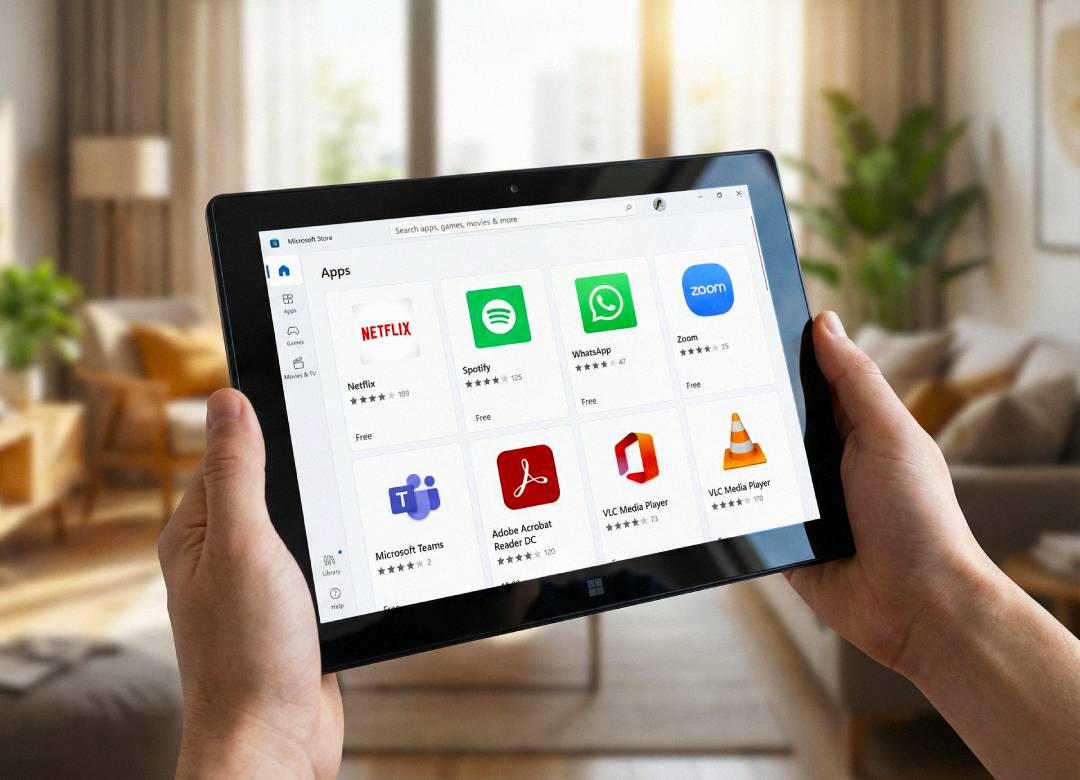
What was surprising to us is that the Fusion5 Helios10 is capable of handling this type of setup in a practical way. It comes with Windows 11 and has strong specs for this type of use, including an Intel N150 processor, 12GB of RAM, and 512GB of SSD storage. It also has active cooling, which helps keep everything running smoothly, and a 10.1-inch display. All of this makes it a good portable Windows device for setting up and managing OpenClaw.
The Helios10 makes it easier to use OpenClaw on the go. You don't need it to be a big, powerful AI server to make it useful. The Helios10 can handle setting up OpenClaw, giving users access to the dashboard and chat apps, managing files, and staying responsive while moving around. This means you can take the OpenClaw workflow with you without needing a lot of extra equipment.
The Helios10 acts as a portable way to access and manage OpenClaw, giving users more flexibility in where they can use it.
Full Blog: Why the Helios10 Makes OpenClaw More Practical for Real Daily Use
The simplest realistic way to run OpenClaw on the Helios10
The simplest path is the one OpenClaw already supports on Windows. OpenClaw’s official Windows documentation says it supports both native Windows and WSL2. It also says native Windows works today for core CLI and Gateway use, including the website installer via install.ps1, local CLI commands, and direct gateway use.
That matters because it means the easiest realistic setup on a Helios10 is not a complicated server build. It’s a Windows install using the official PowerShell installer, followed by running the OpenClaw gateway and then using the tablet as the control point for that workflow.
If the user wants the fuller, more stable path, OpenClaw recommends Windows with WSL2. Microsoft’s official WSL documentation says WSL can be installed with a single wsl --install command, and OpenClaw’s Windows documentation says WSL2 is the recommended path for the full experience because it gives better Linux tooling compatibility.
That means the Helios10 can be used in two realistic ways: the simpler native Windows path, or the fuller WSL2 path.
What the Helios10 is actually doing in this setup
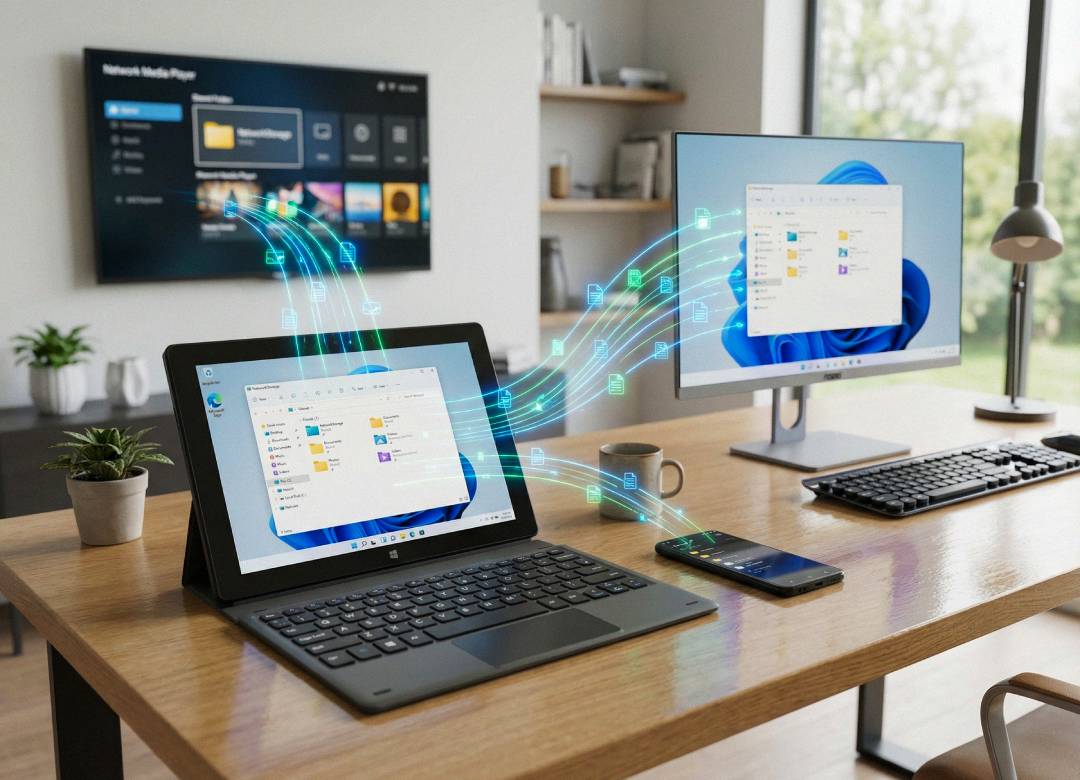
The Helios10 is not being presented as a machine for heavy local AI model training. That would not be the right claim. What it can realistically do is execute the OpenClaw workflow itself: install the software, run the gateway, open the browser dashboard, manage connected chat apps, handle files, keep notes, and stay available as the Windows device the user carries with them anywhere.
That distinction matters. OpenClaw’s documentation shows that the gateway and CLI are the core parts that need to run on the machine, and the native Windows docs explicitly mention commands such as openclaw gateway run, openclaw gateway install, and openclaw gateway status --json.
So that means the value of the Helios10 is that it can run and manage that layer in a portable way.
If a user wants container-based tooling around that setup, Microsoft also recommends Docker Desktop with WSL2 for Windows workflows, and notes that WSL2 allows Linux containers to run natively with better performance and interoperability between Windows and Linux tools.
That gives the Helios10 a realistic route for more advanced setups down the line as well, even though the simplest route is still the native PowerShell install.
Why doing this on a Windows tablet improves the experience
A laptop can also run this type of workflow. The main difference with the Helios10 is portability.
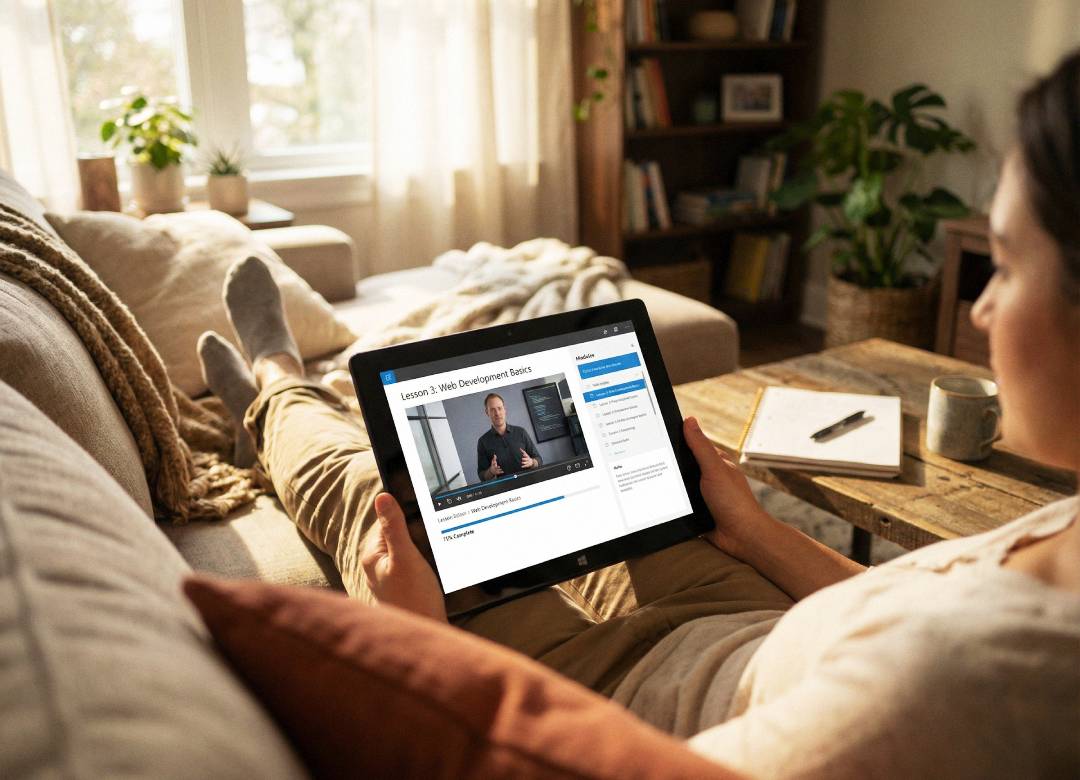
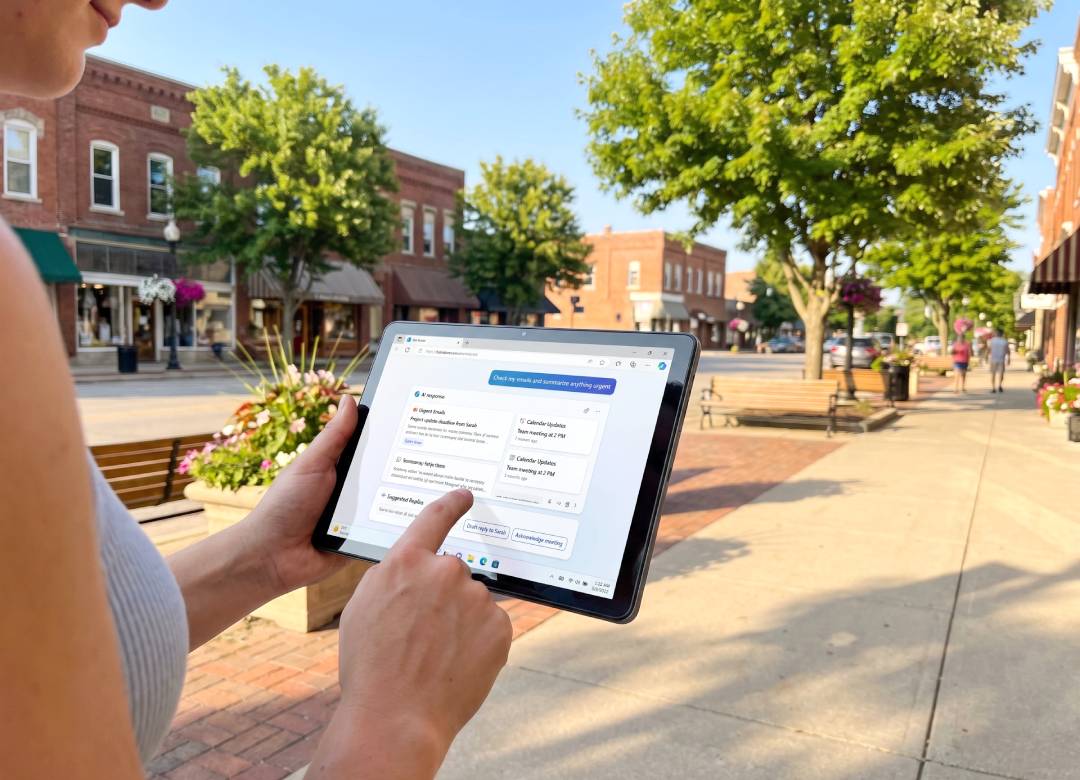
A portable Windows tablet changes the experience because the OpenClaw workflow can move with the user instead of staying tied to one desk. If someone is using OpenClaw as a personal assistant, the Helios10 can be the place where they review agent output, upload files, check briefings, and manage tasks while travelling, commuting, or moving between meetings. The 10.1-inch 16:10 display gives much more practical room than a phone for browser tabs, dashboards, documents, and chat windows, while still being easier to carry than a full laptop.
That makes the AI workflow more usable in daily life. The advantage is not just that the software runs. The advantage is that the user can keep access to it throughout the day.
How this benefits individual users
For an individual user, the Helios10 can act as a portable AI control device.
A freelancer could use it to review inbox summaries, follow-up drafts, and daily reminders. A consultant could use it to manage an OpenClaw workflow for meeting preparation, email handling, and scheduling while moving between clients. A student or solo founder could use it as a compact AI workspace for research, file handling, and organisation.
This fits the kinds of examples OpenClaw publicly highlights. Its own site focuses on inbox clearing, calendar handling, and chat-based execution. Those are not tasks people only think about when sitting at one desk.
They are tasks that benefit from being available in a portable form.
How this benefits businesses
For businesses, the value is practical rather than theoretical.
A manager can use the Helios10 to monitor an OpenClaw setup, review outputs, and keep a portable AI-assisted workflow available while moving between teams or locations. A field lead can use it to check messages, notes, and schedules without opening a full laptop on-site. A small business owner can use it as the device that keeps the OpenClaw workflow available for task follow-up, communications, and planning throughout the day.
The reason this improves the agent experience is simple: it reduces the gap between where the work is happening and where the AI workflow can be managed.
Final thoughts
The best way to describe the Helios10 in this context is not as a dedicated AI server. It’s better described as a portable Windows device that makes OpenClaw executable in a practical daily workflow.
The simplest realistic route is the native Windows install using OpenClaw’s PowerShell installer and gateway commands. The more stable advanced route is Windows with WSL2.
In both cases, the Helios10 gives users a device that can install, run, manage, and carry the OpenClaw workflow in a way that fits real day-to-day use.
That’s the real benefit. The Helios10 doesn’t just give users a regular Windows tablet experience. It gives them a portable way to make OpenClaw usable wherever they are.
FAQ
Can the Helios10 run OpenClaw?
Yes. OpenClaw supports native Windows for core CLI and Gateway use, and also supports Windows with WSL2 as the recommended full path.
What is the simplest way to do it on the Helios10?
The simplest way is the native Windows install using the official install.ps1 script and then running the OpenClaw gateway.
Why use the Helios10 instead of a phone?
The Helios10 gives users a full Windows environment, more screen space, easier file handling, and a more practical way to manage dashboards, chats, and browser tools than a phone.
Why use the Helios10 instead of only a desk PC?
Because it makes the OpenClaw workflow portable. Users can carry the setup with them and manage it away from a fixed desk.