

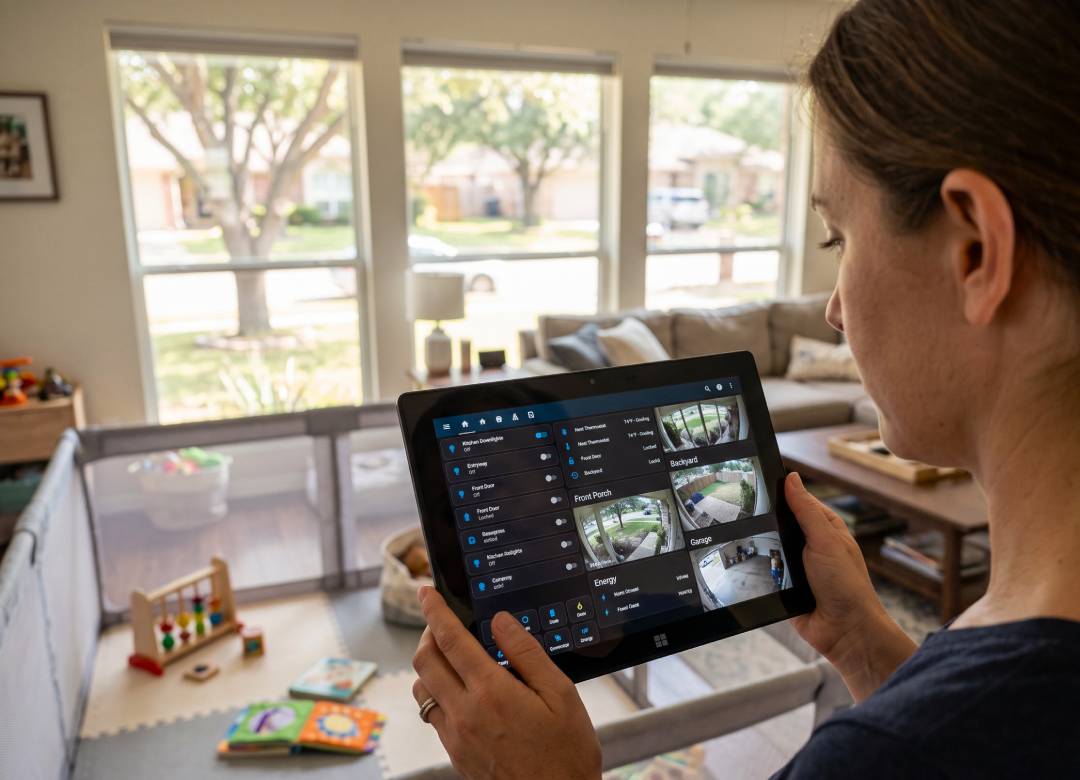
Turn a Windows Tablet Into a Home Security Command Center
Security cameras, smart locks, door sensors, alarms, and video doorbells are some of the best ways to keep an eye on your home's surroundings. The issue is that you’ll have to check several different apps each time you want an update on everything’s status.
Using Home Assistant on a Windows tablet can help you integrate all your compatible security devices on one screen’s dashboard. You can turn the tablet into a portable command center for all your home's security devices and monitoring tools.
Instead of mounting another screen to the wall, the tablet can be placed anywhere in your home that you need it to be, and then be moved whenever you need it somewhere else, or with you to view as you go on the move.
Quick Answer
Turn a Windows tablet into a home security command center by using Home Assistant as a touchscreen dashboard for your compatible security cameras, sensors, smart doorbells and locks, alarms, and other smart devices.
In this article, you’ll learn about what you need to get started, how to connect it all, and how to build a security dashboard to control your home's security system.
What Is Home Assistant?
Home Assistant is an open-source platform that integrates supported smart-home devices manufactured by different brands into one system.
Instead of having to check different apps for each individual device, compatible products can appear as entities and controls within Home Assistant.
Using its dashboards, you can create a touchscreen friendly interface for all that information.
For a home security dashboard, you might include:
- Front door and driveway cameras
- Door and window sensors
- Motion sensors
- Smart-lock status
- Garage-door status
- Alarm status and supported controls
- Video doorbell or other compatible camera views
What you can display and control depends on the devices you own and their Home Assistant integrations.
What You'll Need
The setup is simpler than it might sound.
1. Home Assistant
Home Assistant needs to be running on a supported system on your home network. This is the central platform connecting your compatible devices.
The Windows tablet we're building the dashboard around does not need to be your Home Assistant server. Keeping Home Assistant running separately means the tablet is free to be moved around or used for other Windows tasks.
2. Compatible Security Devices
You can build the dashboard around equipment you already have or add compatible devices over time.
That could include cameras, contact sensors, motion sensors, locks, alarm equipment, garage-door devices, and doorbells.
Check the Home Assistant integration for a product before assuming it will work. Different integrations expose different features, so a camera, lock, or alarm may not provide every possible control.
3. A Windows Tablet
The tablet connects to your home network and opens the Home Assistant dashboard through a supported web browser.
That means you don't need to run camera cables or USB connections directly into the tablet for this setup.
Security Devices → Home Assistant → Wi-Fi → Tablet
Build a Dedicated Home Security Dashboard
Once your devices are available in Home Assistant, create a dashboard specifically for security rather than trying to put your entire smart home onto one screen.
Home Assistant dashboards use cards to organize information and controls. Its official Alarm Panel card, for example, can show an integrated alarm's current state and provide the arming modes supported by that alarm integration.
A simple security dashboard could look like this:
Keep the most important information visible without scrolling wherever possible.
That's also consistent with what Home Assistant enthusiasts are building. Recent tablet dashboards combine security status, cameras, alarms, garage information, locks, and sensors into interfaces designed to be understood quickly rather than exposing every available entity.
Turn the Windows Tablet Into the Command Center
Now open your Home Assistant dashboard on the tablet through its web browser.
For a dedicated display, you can run the browser full-screen so the security dashboard takes up most or all of the screen. Windows tablets have been used this way with Home Assistant dashboards for years, including through browsers such as Edge, Chrome, and Firefox.
Think about where the screen will actually be useful.
Entryway: Check the front-door camera, locks, and alarm before leaving.
Kitchen: Keep an at-a-glance security overview somewhere central.
Home office: Check cameras or the front door without leaving your desk.
Garage or workshop: Keep an eye on cameras and home status while working elsewhere in the house.
A portable tablet also means you don't have to commit to one permanent wall location.
Which Fusion5 Windows Tablet Do You Need?
You don't need a high-powered workstation simply to display a Home Assistant dashboard.
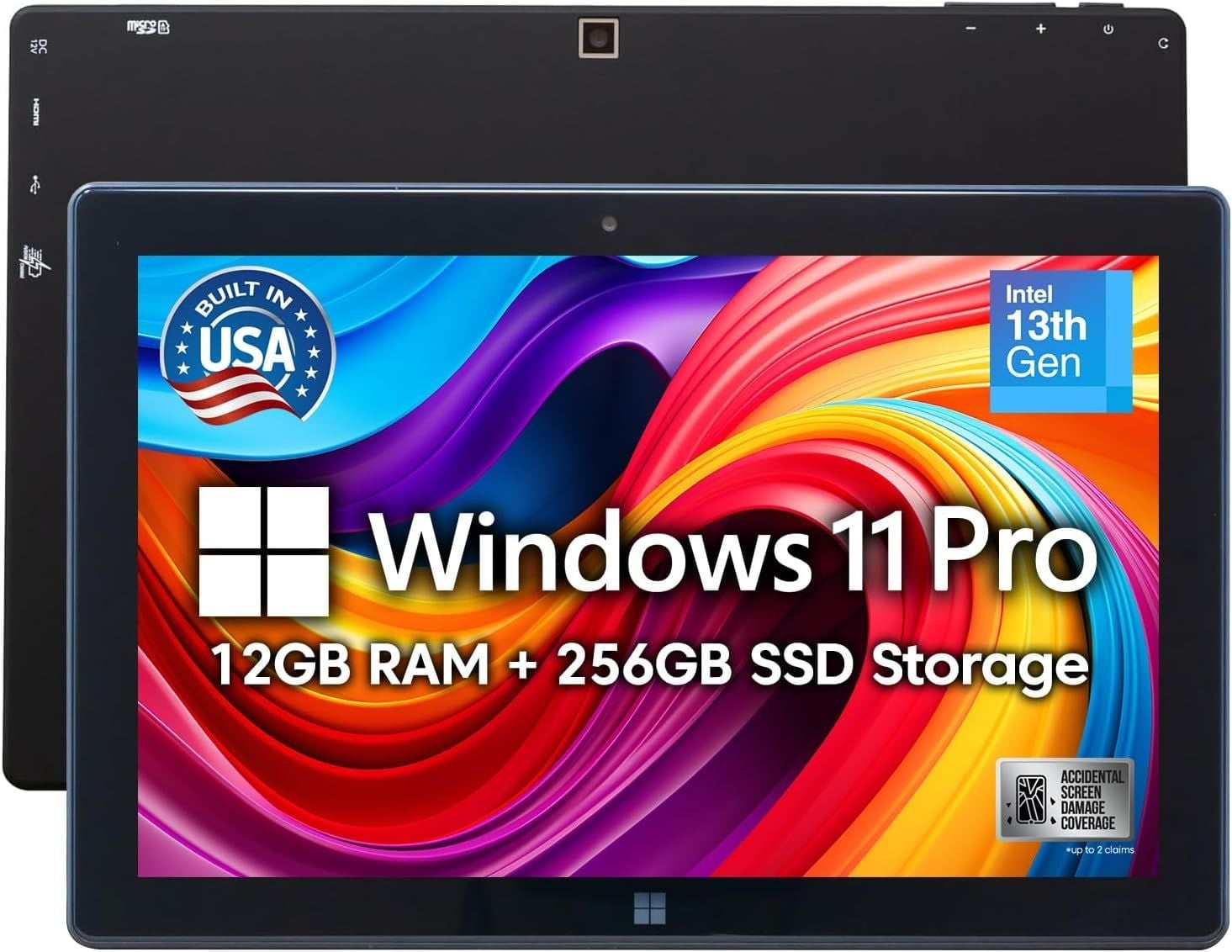
For this setup, the Fusion5 FWIN232 PRO N5 is our pick. Its 10.1-inch Full HD touchscreen gives you room for cameras, sensors, locks, and alarm controls, while Windows 11 Pro lets you access your Home Assistant dashboard through a web browser.
With 12GB DDR5 RAM and 256GB SSD storage, there's also plenty of room for everyday Windows use when the tablet isn't on security-dashboard duty.
If you're planning to keep your command center in a garage, workshop, or another tougher environment, consider the Fusion5 FWIN232 PRO N5 Rugged instead. Its shockproof and dustproof construction makes more sense where the tablet may encounter dust, knocks, and a less controlled working environment.
Don't Forget to Secure the Dashboard
A tablet that can access security devices should be treated as part of your home's security setup.
Home Assistant recommends using strong unique passwords, multi-factor authentication, keeping Home Assistant updated, and limiting administrator privileges to accounts that actually require them.
For a shared household tablet, consider what controls genuinely need to be accessible from that screen rather than simply exposing everything your administrator account can do.
Remote access also deserves extra care. If you want to reach Home Assistant while away from home, follow Home Assistant's official remote-access guidance rather than simply opening a port on your router without understanding the security implications.
One Screen for the Security Information That Matters
A home security command center doesn't require every smart device you own to be squeezed onto one dashboard.
Start with the information you actually want to see when you walk up to the screen:
Who's at the front door?
Is the garage closed?
Are the doors and windows secure?
What's the alarm status?
Are the doors locked?
Bring the compatible devices into Home Assistant, build a security-focused dashboard, and put that dashboard on a Windows tablet somewhere useful.
The result is a portable home security dashboard that keeps the important parts of your connected home within reach, while the cameras, sensors, alarm hardware, and Home Assistant system continue doing their jobs in the background.
FAQ
Can I use a Windows tablet for Home Assistant?
Yes. Home Assistant dashboards can be accessed via its web interface, so any compatible Windows browser will do it. Also members of the Home Assistant community are already using Windows tablets as dedicated dashboard displays.
Can Home Assistant display security cameras on a tablet?
Yes, but what you can display, such as live or still camera views, depends on the camera and its integration with Home Assistant.
Can I control my alarm from the tablet?
There is an official Alarm Panel dashboard card in Home Assistant for compatible alarm-control-panel integrations. Available arming and disarming functions depend on what the underlying alarm integration supports.
Does the Windows tablet replace my security system?
No. The tablet will provide a touchscreen interface for your whole Home Assistant dashboard. Your cameras, sensors, locks, alarm equipment, Home Assistant installation itself, and NVR where applicable remain responsible for their respective functions.
Does the tablet need to stay in one place?
No. It’s one of the advantages of this solution. You can put it on a stand or move it wherever you need.