

Best Windows Tablet Setup for Typing and Productivity: Fusion5 Helios12 with Compatible Docking Keyboard
Though a Windows tablet is very efficient for browsing, streaming and e-reading, physical keyboards are usually necessary at school and office. Emails, essays, Microsoft 365 documents, Google Docs, PDFs, video conferences, and web-based applications are better done using a keyboard and touchpad.
The Fusion5 Helios12 12-Inch Windows 11 tablet includes a 2K Touchscreen, Intel 13th Generation Quad-Core processor, 12GB DDR5 RAM, 512GB SSD storage capacity, and an interactive pen that’s included with the tablet. It’s made for daily activities such as attending lectures online, researching on the web, taking notes, managing files, and dealing with documents.
When paired with the compatible Fusion5 Helios12 Docking Keyboard, sold separately, it creates a laptop-style Windows tablet setup for students, remote workers, home users, and everyday multitaskers. It’s not a traditional 2-in-1 laptop, but it gives users more ways to work than a touchscreen-only tablet.
Quick Points: Why This Helios12 Setup Makes Sense
- Windows Tablet with Keyboard Support: Pair the Fusion5 Helios12 with its compatible docking keyboard, sold separately, for a more practical Windows tablet setup.
- Built for Work and School: Useful for Microsoft 365, Google Docs, PDFs, web research, online classes, video calls, file management, and browser-based tools.
- Easier Long-Form Typing: Physical scissor-switch keys make emails, assignments, notes, reports, and document editing easier than touchscreen typing.
- No Bluetooth or Charging Needed: Magnetic POGO pins connect the keyboard directly, with no Bluetooth pairing, separate charging, or driver setup.
- Touch, Type, or Write: Switch between the 2K touchscreen, docking keyboard, 4-inch multi-touch trackpad, and included interactive pen depending on the task.
Full Blog: How the Fusion5 Helios12 and Docking Keyboard Create a Practical Productivity Setup
For People Who Need a Tablet That Can Do More
Some users don’t want to carry a full laptop, but a touchscreen tablet can feel limited for typing, editing, and longer work sessions. The Fusion5 Helios12 fits that middle space as a portable Windows tablet that becomes more practical when paired with its compatible Fusion5 Helios12 Docking Keyboard, sold separately.
On its own, the Helios12 works for browsing, streaming, pen notes, PDFs, and touchscreen tasks. With the docking keyboard attached, it’s easier to write emails, edit documents, manage files, navigate Windows, use browser-based tools, and work in online classes or meetings. It also makes it easier to use Windows keyboard shortcuts for typing, editing, file management, and everyday productivity.
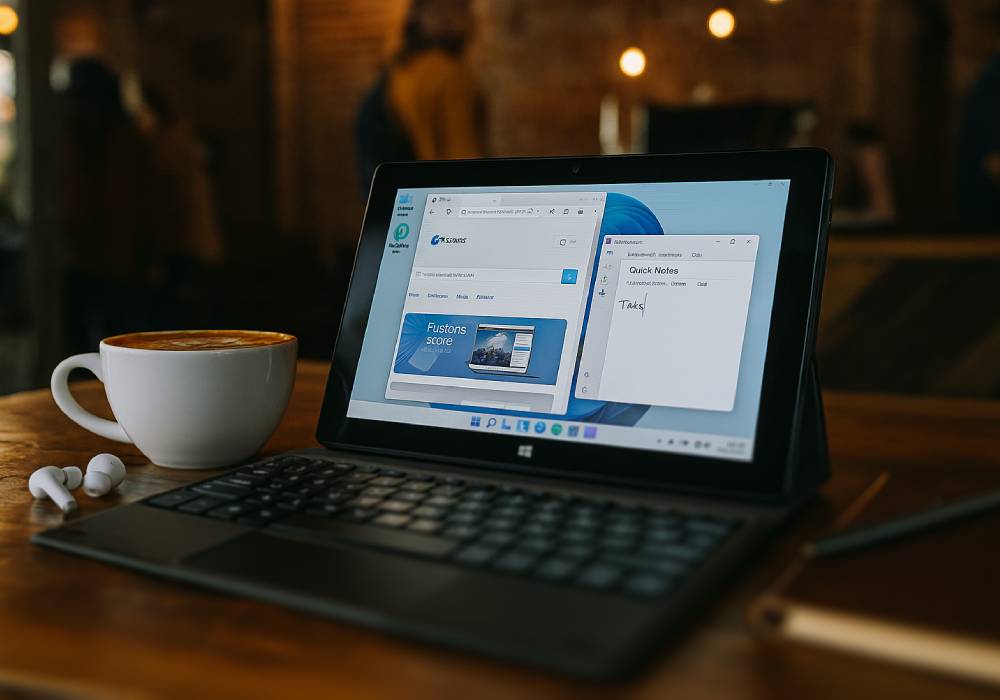
The Fusion5 Helios12 Docking Keyboard is custom-designed for the 12.1-inch Helios12 and connects through magnetic POGO pins, with no Bluetooth pairing, charging, or drivers. It also combines silent scissor-switch keys, a protective PU cover, adjustable kickstand, and 4-inch multi-touch trackpad for a cleaner laptop-style workstation.
A Windows Tablet Setup for Students
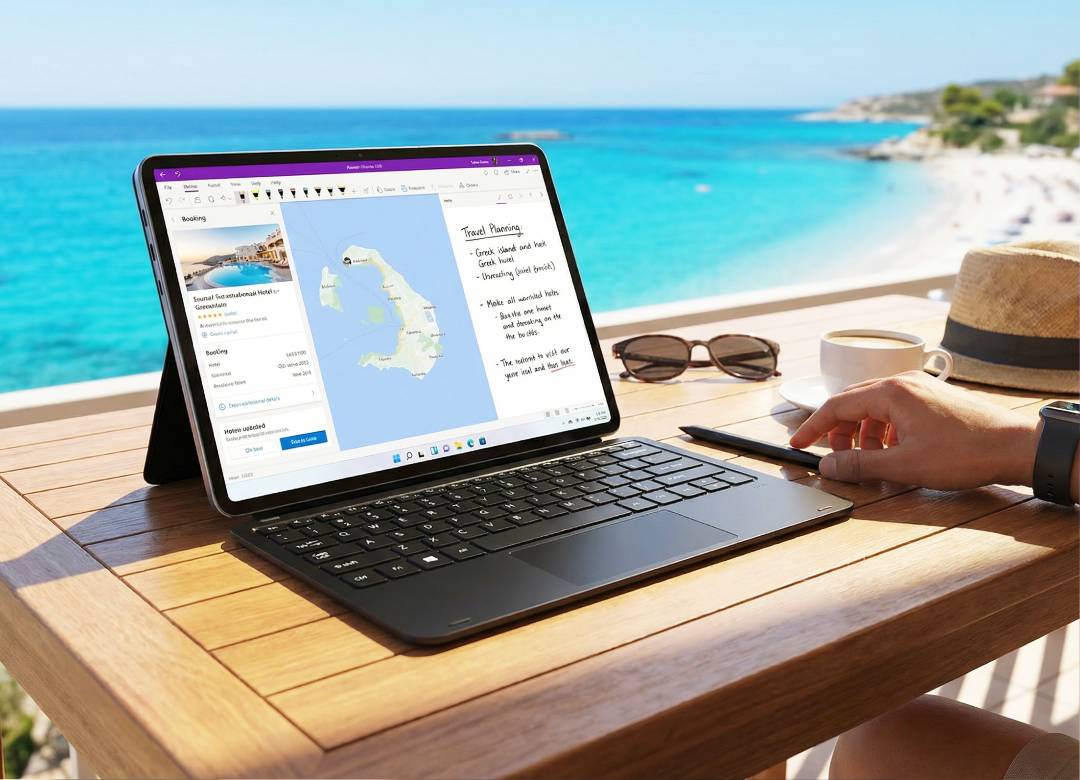
Students need a Windows tablet setup that can handle online classes, research, writing, presentations, notes, files, and web browsing. The Helios12 gives them a 12-inch 2K touchscreen for class materials, PDFs, lectures, and Windows apps, while the included interactive pen helps with handwritten notes, markups, diagrams, and document annotation.
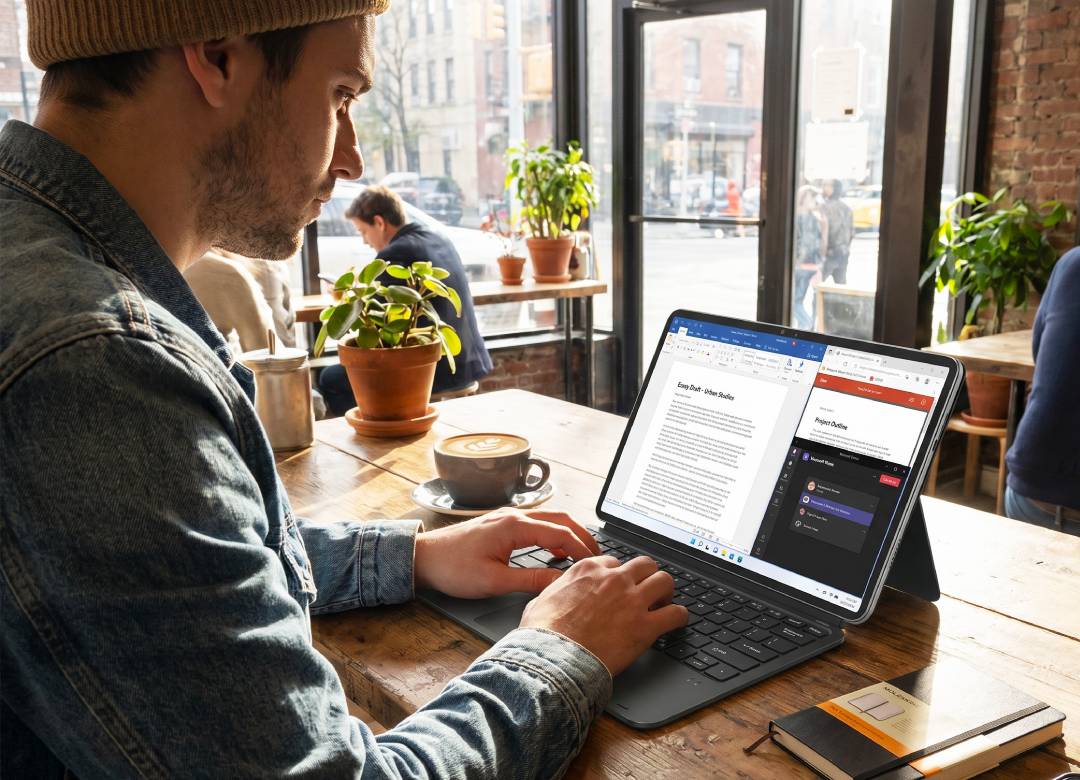
When paired with the compatible docking keyboard, sold separately, students can type assignments, organize files, reply to class messages, and use learning portals more comfortably. The physical keyboard and 4-inch trackpad also free up more screen space than an on-screen keyboard, making essays, reports, research notes, and presentations easier to manage.
Useful for Remote Work and Daily Productivity
Remote workers and home office users often need a portable Windows tablet setup for emails, documents, spreadsheets, browser-based tools, video meetings, reports, and file management. The Helios12 runs Windows 11 Home, with an Intel 13th Gen Quad-Core processor, 12GB DDR5 RAM, and 512GB SSD storage for everyday multitasking, fast file access, and practical storage.
That makes it useful for common work and school programs like Microsoft Word, Excel, PowerPoint, OneNote, Google Docs, Google Drive, Adobe Acrobat Reader, Canva, Teams, Zoom, and browser-based platforms. When paired with the compatible docking keyboard, sold separately, users also get quieter typing, smoother Windows navigation, multi-finger gestures, and cursor control without carrying a separate mouse.
Copilot Access for Everyday Tasks
The Fusion5 Helios12 Docking Keyboard includes a dedicated Windows Copilot key for quick access to Windows AI tools where supported.
For everyday use, this can help with tasks like drafting emails, summarizing documents, organizing ideas, creating outlines, and speeding up writing workflows. It’s not a replacement for the user’s own work, but it gives students, remote workers, and everyday users another useful productivity shortcut from the keyboard.
Touchscreen, Keyboard, Trackpad, and Pen in One Setup
The biggest advantage of the Helios12 with compatible docking keyboard is flexibility. Users can switch between the 2K touchscreen, physical keyboard, 4-inch trackpad, and interactive pen depending on the task.
The touchscreen works well for browsing, reading, scrolling, and streaming. The keyboard is better for writing emails, editing documents, and completing assignments. The trackpad helps with Windows navigation, and the pen is useful for notes, markups, sketches, and precise input.
That makes the setup practical for students, remote workers, home users, and everyday multitaskers who need one portable Windows tablet setup for different parts of the day.
Built for a Cleaner Portable Workspace
The Helios12 Docking Keyboard makes the setup easier to carry, protect, and use. Its slim PU cover helps protect the screen from everyday scratches, while the adjustable kickstand lets users set the tablet at a better angle for typing, reading, video calls, streaming, or browsing.
Because it connects through magnetic POGO pins, there’s no Bluetooth pairing, separate charging, or extra keyboard cable to manage. Users can attach it for typing-heavy tasks, then detach it for a more relaxed tablet experience with touch or pen input.
Why This Setup Works
The Fusion5 Helios12 is already a strong Windows tablet for touchscreen use, pen notes, browsing, entertainment, and everyday productivity. Pairing it with the compatible Fusion5 Helios12 Docking Keyboard, sold separately, makes it more practical for typing, editing, Windows navigation, and longer work sessions.
It’s not a traditional 2-in-1 laptop or a high-performance workstation, but it’s a practical Windows tablet setup for students, remote workers, home users, and everyday multitaskers. It fits real daily tasks like online classes, documents, emails, web research, video calls, notes, file storage, and general productivity.
FAQ
Does the Fusion5 Helios12 come with the docking keyboard?
No. The compatible Fusion5 Helios12 Docking Keyboard is sold separately.
Can the Helios12 be used like a laptop?
It’s not a traditional 2-in-1 laptop, but with the compatible docking keyboard, it works as a laptop-style Windows tablet setup for typing, browsing, documents, online classes, and everyday productivity.
Does the Fusion5 Helios12 Docking Keyboard need Bluetooth?
No. It connects through magnetic POGO pins, so there’s no Bluetooth pairing, separate charging, or driver setup.
What is the 4-inch trackpad useful for?
The 4-inch multi-touch trackpad helps users navigate Windows, scroll web pages, edit documents, use browser tools, and control the cursor without carrying a separate mouse.
Who is this Helios12 setup best for?
It’s best for students, remote workers, home office users, business users, and everyday multitaskers who want a portable Windows tablet with keyboard-style productivity.