

Best Windows Tablet Setup for Claude Code: Fusion5 HELIOS10 with Docking Keyboard
Claude Code is a product that aims to integrate AI into the workflow of the average developer. This product could be used by any developer, from solo founders to students, technical writers, and even AI-assisted builders to read, explain, execute commands, debug, and help complete development tasks, all from within their terminal or from within the programs that they normally use for development.
However, your Claude Code workflow is only as good as your setup. A touchscreen on its own may not be enough to write out long prompts, or review changes to code in great detail, or to read through documentation, Git notes, etc while in development. Even running out terminal commands one by one can be too slow.
This setup, the Fusion5 HELIOS10 with its compatible Fusion5 docking keyboard, is a very portable workspace. This setup combines a compact Windows tablet, physical keyboard, trackpad, kickstand, USB-C connectivity, and portable performance in one 2-in-1 workspace for Claude Code and AI-assisted productivity.
Quick Points: Why HELIOS10 Works as a Claude Code Setup
- Claude Code Focus: Mini Windows computer for terminal-based AI coding, code reviews and project work with Claude.
- Docking Keyboard Combo: The magnetic keyboard makes HELIOS10 a very portable small 2-in-1 laptop for typing out prompts, editing code and more.
- Better Prompt Writing: Longer Claude prompts are far easier to write out on physical scissor-switch keys than they would be on a touchscreen.
- Portable Coding Workspace: Use Claude, your browser, documentation, notes, and many other coding tools in one neat, portable package.
- Windows-Friendly Setup: Claude Code supports Windows 10 1809 or newer, with PowerShell or CMD listed among supported shells.
Full Blog: How the Fusion5 HELIOS10 and Docking Keyboard Support Claude Code Workflows
Why Claude Code Needs a Real Typing Setup
Claude Code is different from a simple AI chat tool. Anthropic describes Claude Code as an agentic coding tool that can understand a codebase, edit files, run commands, and help with development tasks from the terminal and connected workflows.
That means the way you interact with it matters. Short touchscreen taps might work for asking quick questions, but Claude Code workflows often involve longer instructions, file paths, command review, bug descriptions, feature planning, and follow-up edits.
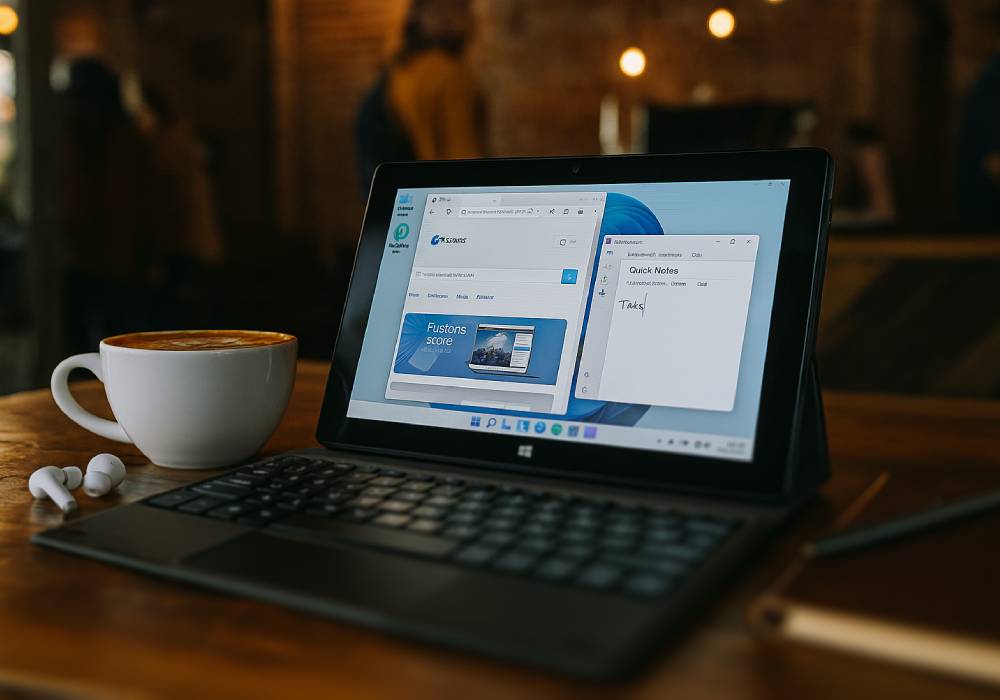
The HELIOS10 docking keyboard helps turn the tablet into a more serious AI coding workspace. Instead of balancing a tablet and tapping on glass, users get a laptop-style setup with a physical keyboard, multi-touch trackpad, and adjustable kickstand.
A More Focused Setup for Claude Code Work
Claude Code work often involves more than asking quick AI questions. Users may need to write detailed prompts, review project files, check documentation, compare code suggestions, and move between browser tabs, notes, and terminal-based workflows.
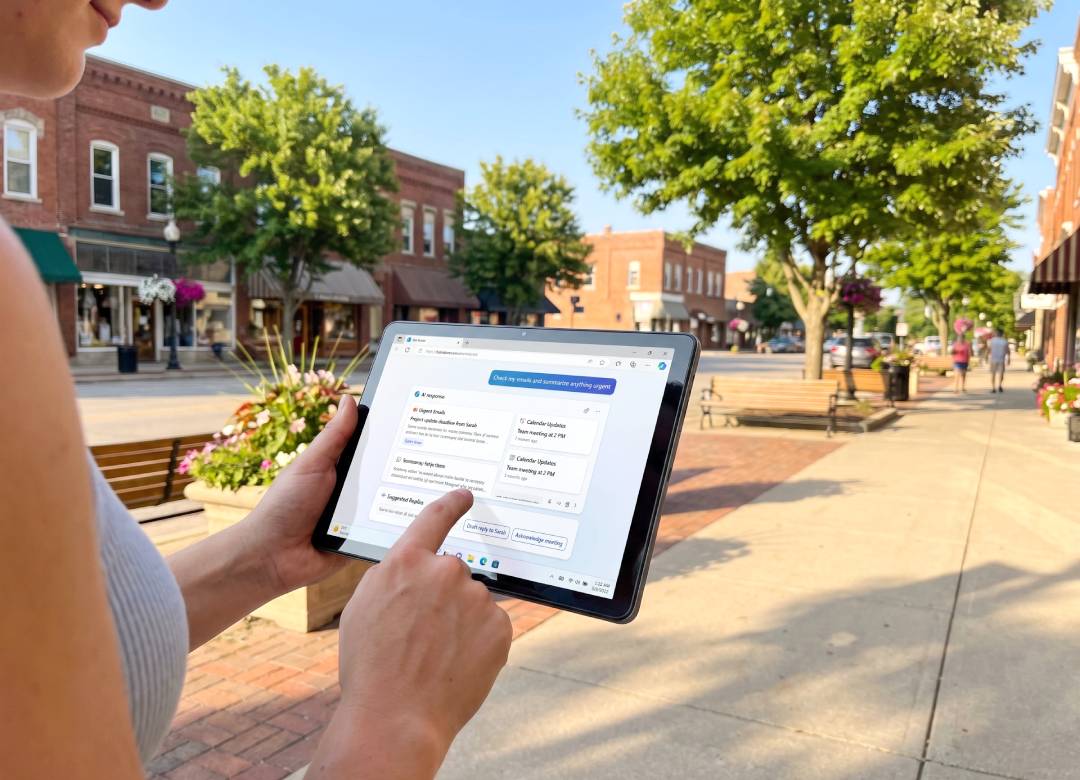
The HELIOS10 with docking keyboard gives users a compact Windows setup for those tasks. It is useful for people who want Claude Code support for project review, prompt writing, documentation, browser research, and lightweight development work when they are away from their main desk.
Where the HELIOS10 Fits for Claude Code
The Fusion5 HELIOS10 runs Windows 11 Home and is powered by the Intel 15th Gen Alder Lake N150 processor. It also includes 12GB DDR5 RAM and a 512GB SSD, which makes it useful for common productivity tasks like browser-based work, notes, files, documentation, code review, and multitasking.
Claude Code’s official setup documentation lists support for Windows 10 1809 or newer, 4GB+ RAM, an x64 or ARM64 processor, an internet connection, and shells such as PowerShell or CMD.
That makes the HELIOS10 a practical device to consider for users who want a Windows-based Claude Code setup, as long as their Claude plan, developer tools, repositories, software, and security requirements are compatible.
Why the Docking Keyboard Matters for Claude Code
The HELIOS10 docking keyboard is designed specifically for the 10.1-inch Fusion5 HELIOS10, giving users a clean tablet-to-laptop setup for typing prompts, reviewing code, and working through Claude Code tasks. It connects through magnetic POGO pins, so there’s no Bluetooth pairing delay and no separate keyboard battery to manage.
That setup is useful for longer AI-assisted work sessions. Users can type detailed instructions, revise prompts, name files, review suggestions, and move between browser tabs without needing to carry a separate travel keyboard.
The scissor-switch keys are designed for quiet, comfortable typing, which can help in coffee shops, libraries, classrooms, offices, coworking spaces, and shared work areas. The 4-inch multi-touch trackpad also helps users navigate Windows, web pages, documentation, and project files without packing a separate mouse.
Practical Claude Code Use Cases
A student learning programming could use the HELIOS10 setup to ask Claude Code for help understanding project files, reviewing errors, or planning small assignments.
A solo founder could use it to review website code, draft product copy, check documentation, and manage lightweight updates while away from a main workstation.
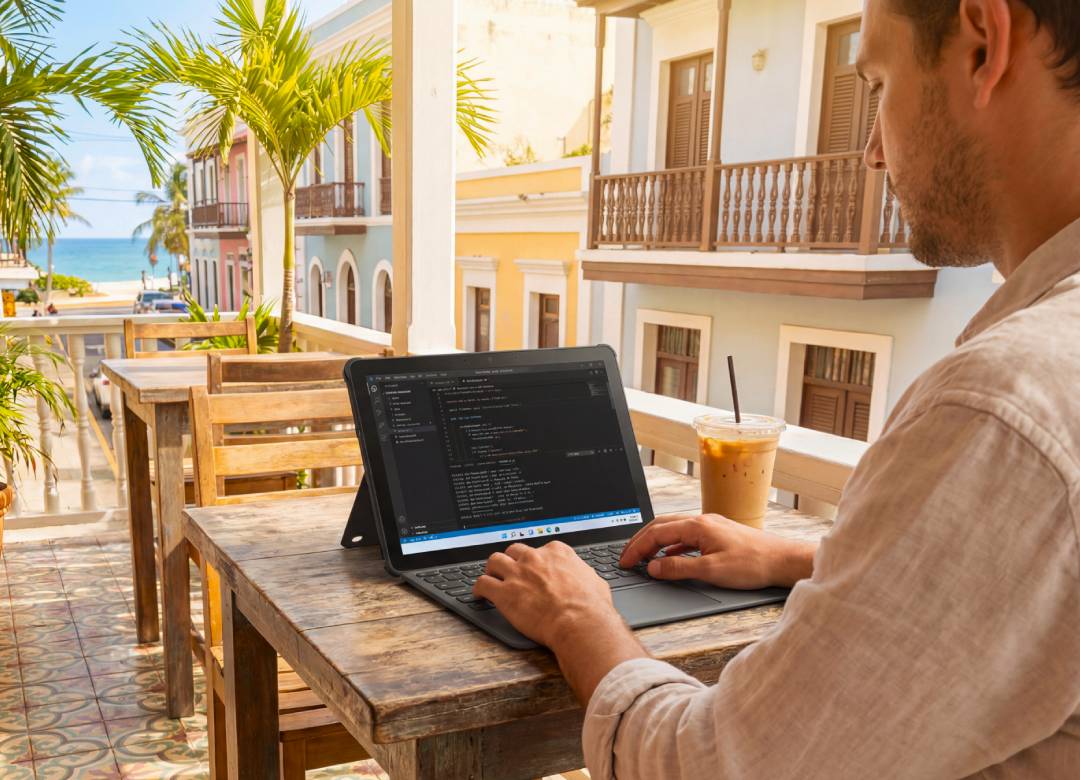
A developer could use it as a portable review device for reading code, checking Git notes, writing prompts, looking through docs, and planning changes before returning to a more powerful desktop setup.
A technical writer or product manager could use it to review changelogs, documentation, feature notes, bug reports, and AI-generated summaries while working from different locations.
Performance and Portability for Longer AI Work Sessions
The HELIOS10 includes an active cooling fan, which helps reduce heat buildup during longer work sessions. That can be useful when users are moving between Claude, browser tabs, documents, notes, file folders, and compatible development tools.
The 10.1-inch 1920 × 1200 FHD+ display uses a 16:10 aspect ratio, giving users more vertical room for reading prompts, reviewing documentation, and working with text-heavy pages. The 512GB SSD provides space for files, documents, software, and lightweight project folders, while USB-C, USB 3.0, Micro HDMI, and audio connectivity help support more flexible desk setups.
This does not mean the HELIOS10 replaces a high-end developer workstation. Large codebases, heavy builds, virtual machines, and demanding local development environments may still need a more powerful machine. But for Claude Code support, prompt writing, code review, documentation, browser tools, and portable productivity, it can be a practical setup.
Why It Works as a Portable Claude Cowork Station
The best way to think about the HELIOS10 with a docking keyboard is as a compact Claude cowork station. It gives users a portable Windows device with a real keyboard, trackpad, kickstand, useful ports, and enough everyday performance for AI-assisted work.
For users who want Claude Code available beyond their main desk, this setup can help make AI coding support easier to carry, easier to type on, and easier to use in real work sessions.
The Fusion5 HELIOS10 is assembled in Pasco County, Florida, USA, and combines Intel N150 performance, active cooling, 12GB DDR5 RAM, 512GB SSD storage, a 10.1-inch FHD+ display, and a dedicated docking keyboard into one compact Windows tablet setup for Claude Code and modern AI productivity.
FAQ
Is the Fusion5 HELIOS10 good for Claude Code?
The Fusion5 HELIOS10 can be a practical option for Claude Code workflows when the user’s Claude access, developer tools, repositories, and Windows software are compatible.
Can Claude Code run on Windows?
Yes. Claude Code’s official setup documentation lists Windows 10 1809 or newer as a supported operating system, along with PowerShell or CMD as supported shells.
Why use the HELIOS10 docking keyboard for Claude Code?
The docking keyboard gives users physical keys, a trackpad, and a kickstand, making it easier to type prompts, review code, browse documentation, and work in a laptop-style setup.
Is the HELIOS10 a replacement for a full developer workstation?
Not for every workflow. It can support portable Claude Code use, code review, prompt writing, documentation, and lightweight development tasks, but heavy builds or complex local environments may still need a more powerful computer.